ブログ

  • 情報共有をスムーズにおこなうために

    情報共有をスムーズにおこなうために

    こんにちは、マーケティング部の林です。

    先日、自宅近くのコンビニで買い物をしていたときのこと。外国人の店員さんが、何やら焦った様子で接客をしていました。どうやら、レジで私の前にいた人がホットショーケース(レジ横にあるやつですね)の揚げ物を何種類か買ったものの、「『ハムカツ』が入っていないんじゃないか?」と気づき、店員さんにレジ袋とレシートを渡して確認をしてもらっているようです。見たところ、そのお客さんは5~6種類の揚げ物を1つずつ買っていて、すでにそれらは種類別に紙袋に入れられています。つまり、店員さんが商品を確認するには、いちど袋を開けて中を見なければなりません。しかし店員さんは、どうも「袋を開けてはいけない」と思っているらしく、紙袋の上から商品を触ったりして中身を確かめています。

    「いや、そんなことしたら揚げ物がつぶれるって…」

    と思いながら見ていたのは、その揚げ物を購入したお客さんも同じでしょう。結局、その店員さんは中身の確認をあきらめ、レシートを見て商品の数を照らし合わせることに思い至ったようです。そうして商品の数が足りないことを確認して、無事にホットショーケースから『ハムカツ』を取り出してお客さんに渡したのでした。お客さんも苦い顔はしていたものの、特にクレームをいうわけでもなく、商品を受け取って去っていきました(やさしいお客さんでよかった)。で、結局なにが言いたかったかというと、「いまのコンビニはものすごく業務の種類が多いので、店員さんも大変だな~」ということと、「こうしたトラブルは従業員の間で共有されているのだろうか?」ということです。

    特にサービス業では、こうしたトラブルが即クレームにつながる可能性もあるため、再発を防止する意味でも、情報を共有して改善策を検討したいところです。上記の例であれば、「こういうときは、まずレシートをチェックする」といった対応法を共有する感じですね。もちろんサービス業以外でも、情報共有が適切におこなわれないと、さまざまなトラブルや不具合を招いてしまう可能性は高くなります。そこで今回は、企業における情報共有の必要性と、スムーズに情報共有をおこなう方法について解説します。

    情報を共有する意味

    企業で共有されるべき情報としては、業務についてのノウハウや進捗状況が挙げられます。案件や顧客についての情報も、トラブルを防ぎ、業務を円滑に進めるためには速やかに共有されるべきでしょう。冒頭に述べたようなトラブルについても、同じようなケースを繰り返したり、二重のクレームを招いたりしないためにも、スムーズに事例を共有する必要があります。

    一方、業務や案件についての情報が適切に共有されず、特定の人に独占されていると、業務が属人化する可能性が高くなります。これは営業職などにありがちな話ですが、顧客について「担当者しか知らない」という状況は、担当者不在の際に業務の停滞を招きます。

    また、情報の共有は職場の人間関係にも影響します。ミスやトラブルの原因が情報伝達の不足にあり、「そんな話は聞いてなかった」ということになると、信頼関係に響きますよね。さらに、「いや、伝えたはずだ」という反論が出たりすると「言った、言わない」の泥沼になりかねません。

    こうした事態を避けるためにも、業務に必要な情報は適切に共有したいところです。そもそも情報がキチンと共有されていれば、そのミスやトラブルは起こらなかったかもしれないのですから。

    どんな情報を共有すべきか?

    一方、情報共有のポイントとしては、まず

    • 必要な情報を共有する

    ことが挙げられます。これはすなわち、

    • 必要でない情報は共有しない

    ということでもあります。「必要な人に、必要な情報をしっかり伝える」ためには、共有する情報の取捨選択はもちろんのこと、共有する相手についても配慮しなければなりません。では、どのような情報を共有すべきか、という話ですが、これは業種によって異なります。しかし、トラブル業務の変更点、あるいは業務上の注意事項などは、業種を問わず共有されるべき事柄といえるでしょう。また、制作関連の業務であればスケジュールはしっかりと共有されるべきですし、サービス業や営業職であれば顧客に関する情報の共有は欠かせません。

    ただし、いかに重要な情報であっても、同じ内容の情報を重複して伝えたり、「その情報が不要な人」にまで発信したりすることは避けたいものです。こうした「不要な情報」は、単なるノイズとなり、業務の妨げとなる可能性もあるので注意が必要です。

    さらに、情報共有においては「いかに細かく情報を伝えるか」ということもポイントになります。これも業種によって異なり、たとえばホテルなどのサービス業や介護・医療関連の現場では、顧客や患者の些細な指摘や変化も重要な申し送り事項になり得ます。しかし、その人に直接関係のない「どうでもいい」情報が逐一メール送信されるような事態は業務妨害になりかねません。では、適切な相手に、適切な情報を取捨選択して伝えるためにはどうすればよいのでしょうか?

    情報共有に役立つツールとは

    現在、市場には情報共有に役立つさまざまなツールが出回っています。なかでも代表的なのはチャットツールでしょう。チャットを用いれば、紙の書類やメールでおこなっていた情報共有はよりオープンになり、スピード化されます。また、ファイルの共有や、過去のやり取りの参照がしやすいのもチャットツールの特長です。グループやメンションといった機能を使えば、必要な相手に的確に情報を伝えられます。

    また、業務の進行を管理するワークフローシステムも、別の視点で情報共有をサポートするツールといえます。たとえば弊社では、Questetra BPM Suite で使用できる無料テンプレートを公開していますが、そのなかに『他部署間・分業下の情報共有』というものがあります。これは、ホテルでの清掃や顧客対応を管理するテンプレートです。

    このテンプレートには、

    • 宿泊客のチェックアウトをリアルタイムで清掃担当が確認できる
    • 夜勤担当からフロント担当に『社内メモ』を残せる

    という2つの特長があります。

    上図を見ていただければわかるように、本フローではフロント担当が宿泊客の『チェックアウト完了』を入力すると、清掃担当はそれをリアルタイムで確認して、清掃に取り掛かれるようになっています。また、苦情対応などの連絡事項があった場合には、夜勤担当からフロント担当に『社内メモ』で伝達できます。フロント担当が『社内メモ』を見逃すことのないように、自動でメール通知がおこなわれるのもポイントです。

    このように情報共有をワークフローに組み込んでしまうのも、適切な情報共有をおこなうひとつの方法といえるでしょう。『他部署間・分業下の情報共有』は、ホテルでの業務における情報共有をテーマにしていますが、このフローで実現できる「リアルタイムでの進捗状況の共有」や「重要事項の申し送り」は、さまざまな業種に応用する価値があります。

    チャットもワークフローも Questetra BPM Suite で

    上の項では情報共有をサポートするツールについて述べましたが、Questetra BPM Suite はチャットツール(社内SNS機能『オープンチャット』)やワークフローを包含した BPM ツールです。また、Questetra BPM Suite はクラウド型のサービスであり、インターネット環境さえあれば、どこにいてもオフィスと同じシステムにアクセスして業務を処理できます。これは、『他部署間・分業下の情報共有』テンプレートのところでも述べたように、リアルタイムで情報を共有したい場合に大いに役立ちます。

    お申込み後、スグにスタートできるのもクラウド型の強みです。この機会に、Questetra BPM Suite でチーム内の情報共有を見直してみませんか?
    無料お試しも可能ですよ。

  • Is the Introduction of Teleworking Making Progress?

    Is the Introduction of Teleworking Making Progress?

    40% implement telework, 60% had prior experience. Small and medium-sized enterprises lagged behind.

    According to Tokyo Shoko Research’s 18th survey on enterprises affected by the COVID 19* of October 2021, approximately 37% of all companies surveyed in Japan deployed teleworking. (By company size, about 66% of companies with a capital of 100 million JPY or more and about 31% of companies with a capital of less than 100 million JPY deploy teleworking. The survey defines large companies as those with a capital of 100 million JPY or more, and small and medium-sized companies as those with a capital of less than 100 million JPY.)

    In terms of telework experience, about 58% of all companies have implemented telework (about 85% of large companies and 53% of small and medium-sized companies).

    Source: Tokyo Shoko Research, “The 18th survey on enterprise affected by the COVID 19”

    ※ Survey date: October 2021, Survey method/object: Internet research panel

    Of the companies in Japan that implement telework, only about 34% of all companies have more than 70% of their employees teleworking. (By company size, large companies accounted for about 30%, and small and medium-sized companies about 36%; about the same level.) It appears that telework is applied to only a portion of employees, depending on the type of job, etc. in many companies, and not to all employees.

    Increasing number of companies implementing telework

    According to the 2021 edition of the Ministry of Internal Affairs and Communications’ White Paper on Information and Communications, the number of teleworking companies increased when the state of emergency was declared, and then decreased.

    Thus, the telework implementation rate has been gradually increasing, although it has been fluctuating. As the implementation rate increases teleworking has taken root in some companies, and over the long term the number of companies implementing teleworking appears to be on the rise.

    Source: “White Paper on Information and Communications 2021” Ministry of Internal Affairs and Communications

    What are the Challenges of Telework?

    According to a Tokyo Shoko Research survey on telework implementation by small and medium-sized companies*, the majority of companies that do not telework cite the lack of telework-enabled operations (approximately 65%) as a problem, while other issues include poor internal and external communication (approx 35%), low productivity (approx 24%), and the lack of a PC/communications infrastructure (approx 20%). were cited as other issues.

    On the other hand, companies implementing telework cited information security (approx 57%), internal communication (approx 56%), PC/communication infrastructure (approx 55%), labor management (approx 43%), and going paperless (approx 37%) as challenges.

    ※Survey period: May 2021, Target: Small and medium-sized companies (662 companies) in the 23 wards of Tokyo

    In Japan, The Ministry of Internal Affairs and Communications (MIC) released the Telework Security Guidelines (5th edition) on May 31, 2021, that provides guidelines for security measures regarding information security, which many teleworking companies find to be an issue. Telework companies are required to comply with these guidelines.

    However, information security measures did not begin with telework. Implementation of information security measures in the office and on the road is as important as ever.

    The main challenge with telework is that there are some tasks that cannot be handled when the work style changes. This is due to the fact that some operations cannot be digitized*. (Of course, this excludes industries and occupations that do not allow telework.) The results of the Ministry of Internal Affairs and Communications’ FY2020 secondary survey (conducted from December 2020 to January 2021) show that there are many issues that can be resolved through digitization.

    * See also:How is DX progressing?

    What is the Concrete Solution?

    One effective solution is digitization of business operations. Digitization of operations means digitizing information and business processes held by the company.

    Digitization Implementation Before / After

    Many employees, including part-timers, are teleworking at Questetra. However (because of digitization), they do not feel the challenges as described in the previous section. We would like to introduce the efforts of Questetra as an example of a solution to this problem.

    Cloud Workflow Questetra BPM Suite is used for all of the following tasks that are considered telework implementation issues.

    • Attendance management
    • Work progress management
    • Work instructions/guidance/evaluation
    • Internal communication (information sharing/recording/retrieval)
    • Application approval
    • Expense reimbursement
    • Approval requests

    Etc.

    Questetra BPM Suite can create workflow diagrams and systemize them (without requiring code development) for any business process, including those not listed above.

    Image of Questetra BPM Suite in use

    Questetra also uses cloud services such as Google Workspace, SendGrid, and Box. These cloud services can be linked to Questetra BPM Suite via API for automated processing.

    For example, by creating a workflow diagram for step mail a business application for step mail can be created. By having this business application send requests to SendGrid it is also possible to have HTML mail sent automatically.

    The automated processing of cloud services not only improves business efficiency, but also solves security issues, as Questetra BPM Suite and cloud services are linked through APIs, eliminating the need for employees to log in directly to cloud services. Therefore, there is no need to worry about ID/password leaks.

    In this way, Questetra BPM Suite can solve most of the problems of teleworking. We recommend it to those who want to implement teleworking.

  • How to Operate the PDCA Cycle for Practical Use in Business

    How to Operate the PDCA Cycle for Practical Use in Business

    Original Japanese version

    Hi, there!

    Many people are familiar with the term PDCA cycle, but do not know the specifics of the cycle and how it can be used to improve business operations. How can we use the PDCA cycle to improve our business?

    In this issue, we will introduce the meaning of the term “PDCA cycle” and the concepts and tools for specifically utilizing the PDCA cycle in business operations.

    Basics: What is the PDCA Cycle?

    PDCA is an acronym for…

    • Plan
    • Do
    • Check
    • Act

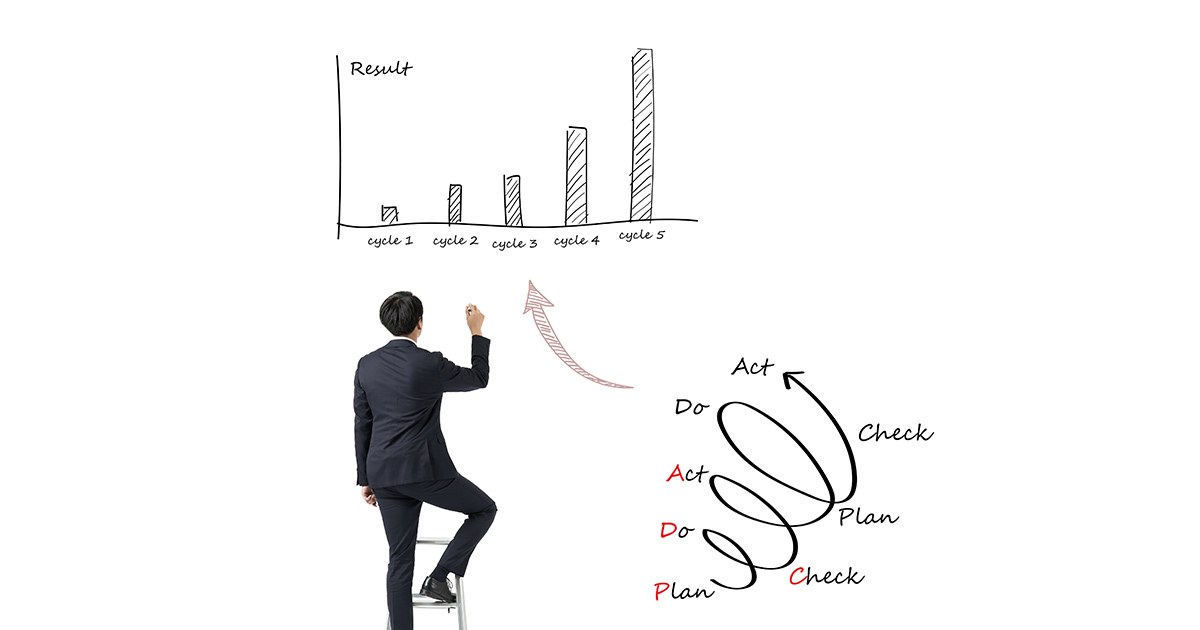
    …and the term “PDCA cycle” refers to improving things by repeating these four steps.

    The point is that the PDCA cycle is not a one-time event, but to repeat the process of…

    1. Making a plan
    2. Executing the plan
    3. Analyzing the results
    4. Improving problem areas

    In other words, once you have progressed to “4. Improving problem areas” you return to the process of making a new plan to improve the problem areas. The ideal way to operate the PDCA cycle is to improve things in a spiral shape by repeatedly improving the plan while performing the PDCA cycle.

    PDCA Cycle and BPM

    Incidentally, BPM (Business Process Management) is a typical example of corporate activities to improve business operations through the PDCA cycle. The PDCA cycle is a concept that can be applied to a wide range of areas, from business to lifestyle improvement, but the key point of BPM is that it focuses on the flow of business operations (i.e. business processes).

    In BPM, the work performed in each step of the PDCA cycle is embodied as follows.

    1. Design and visualization of business processes (Plan)
    2. Sharing and execution of business processes (Do)
    3. Monitoring of business processes (Check)
    4. Analyzing and improving business processes (Act)

    Basically, it is the same four steps as the PDCA cycle, but BPM is unique in that visualization and sharing are indispensable. BPM is a method for constantly updating (i.e. optimizing) business processes to their best state by repeating these four steps.

    When business processes are constantly optimized, operations can proceed according to the most efficient and error-free procedures at that point in time. This directly affects the quality of the services and products offered by the company, and also improves the work environment by reducing wasteful and unnecessary overtime work.

    In addition, if the idea of BPM permeates the organization, even if the organizational structure and social conditions change, it will be possible to flexibly construct business processes that match the changes on the site.

    Modeling Operations – Conception and Visualization

    Now, I would like to add some additional information about modeling (visualization) of operations, which is necessary to make the PDCA cycle actually useful for business improvement.

    Business modeling visualizes the flow of business operations by representing them in a diagram.

    For example, it is one way to describe business procedures in writing, such as in a business manual, but by representing them graphically, business procedures can be more easily shared and smoothly executed (Do).

    This is an indispensable element of BPM as well, and is a crucial part of the planning and analysis steps of the PDCA cycle.

    First of all, when designing a business process, it is important to draw a diagram of the flow of the business to check for things such as:

    • Whether there are any omissions or gaps in the business process
    • Are there any unnecessary steps?
    • Is the flow of the workflow streamlined?

    With a diagram these things become easier to check.

    In addition, if there is a problem in executing the business process as designed, it is necessary to identify the problem or issue in the process (Check). At that time, if the business process is represented in a diagram it is easier to identify problems and issues because the entire business process can be seen from a bird’s eye view.

    The figure above is an example of a business process diagram drawn in BPMN (※) notation. Using this notation is effective in that anyone can easily grasp the flow of the entire business process as long as they understand a few rules.

    In addition, if the rules of the business process diagram are shared within the team, changes and modifications to the process can be made smoothly by anyone involved in the business.

    ※ BPMN (Business Process Model and Notation): A business process drawing method designed to enable many people to intuitively understand the flow of business operations.

    Questetra BPM Suite to Support PDCA Cycle Operations

    Questetra BPM Suite, as the name suggests, is software that supports business improvement activities in line with the concept of BPM.

    For example, Questetra BPM Suite includes the following functions that support the PDCA cycle.

    • Easy creation of business process diagrams on a PC (Plan – planning and visualization)
    • Automatic progression of work according to the created business process diagram (Do – Execution)
    • Ability to refer to data such as the time taken to process a task, each member’s workload status, and results (Check – Analysis).
    • Easy modification and sharing of business processes on a PC (Act – Improvement)

    This is exactly what the Questetra BPM Suite is for, a software to operate the PDCA cycle in a way that is useful for business operations.

    In addition, most of these workflow systems and BPM tools are difficult to set up on a server and prepare for use, but Questetra BPM Suite is a cloud-based service that can be used immediately after registration.

    Another feature of cloud computing is that the same system used in the office can be easily accessed from anywhere as long as there is an Internet environment. This is a very useful point for improving work efficiency and remote working.

    A free trial of Questetra BPM Suite is also available. Please take this opportunity to experience the operation of the PDCA cycle that actually helps your business with Questetra BPM Suite.

  • How to Use Workflow Systems to Improve QCD

    How to Use Workflow Systems to Improve QCD

    Hello, this is Hayashi from the Marketing Department.

    In this issue we would like to explain how to improve QCD, which is an indicator when considering business improvement, while introducing successful examples of workflow system utilization.

    What is QCD Improvement?

    QCD is an acronym for “Quality,” “Cost,” and “Delivery,” three important elements in quality control in the manufacturing industry. Today however, it is widely known as a perspective that can be applied not only in the manufacturing industry, but also in business and daily life.

    QCD improvement refers to the following points:

    • Quality, from low to high
    • Cost, from high to low
    • Delivery (time), from slow to fast

    This framework can be applied to all industries, not just manufacturing.

    We won’t drop the “Q” level

    Incidentally, the most important aspect of QCD is the “Q”, or quality. In the manufacturing industry, it represents the quality of products, and in the service industry, it represents the quality of services.

    It goes without saying that the basic premise of QCD improvement is that…

    • Quality must not be compromised

    For example, even if cost and delivery time are improved, customer satisfaction will decrease if the product breaks down quickly or is poorly made.

    Can’t “C” and “D” be Improved at the Same Time?

    On the other hand, the “C” and “D” in QCD are said to be difficult to improve at the same time.

    Taking Beaujolais Nouveau wine as an example, if it is delivered by air, it will be delivered on the day the wine is released but it will be expensive. On the other hand, those delivered by sea take longer but are less expensive. It is difficult to achieve both speed and affordability here, and if you try to force delivery to be fast but inexpensive, you may end up compromising the quality of the wine you purchase.

    As described above, the three elements in QCD have a deep influence on each other. Therefore, it is important to promote improvement while maintaining a balance in overall QCD. In the next section we will introduce a successful example of balanced QCD improvement using a workflow system.

    Examples of Balanced QCD Improvements

    Let us look at the case of Sanshin Electronics Co., Ltd as a concrete example of QCD improvement.

    The company had originally used a paper-based system for order management, but the problem was that when paper documents were input into Excel and other systems, transcription errors occurred and the speed of internal approvals was slow. In addition, printing and storing paper documents was time-consuming and costly.

    The company introduced Questetra BPM Suite, a cloud-based workflow system, to automate operations and make them paperless, and achieved the following results.

    1. Reduced input effort and errors: improved quality
    2. Reduce administrative costs by 50%: lower costs
    3. Shortened time from application to approval: faster delivery

    The first benefit is that data that used to be entered into multiple systems and Excel for documentation can now be entered only into Questetra BPM Suite. The workflow system’s features such as automatic entry and automatic PDF generation have also been helpful in reducing time and errors.

    The second is the effect of reducing labor and costs related to printing and storing documents by going paperless.

    The third benefit is that Questetra BPM Suite is a cloud-based system, which allows easy access to the same system used in the office from anywhere as long as there is an internet connection. The company had been unable to process applications and approvals when the applicant and approver were out of the office, and in some cases it took several days for the documents to be stamped. However, with Questetra BPM Suite, applications and approvals can now be done outside of the office, so there is no longer a backlog of applications in the company.

    Looking at the case study as a whole, it can be seen that QCD was improved in a well-balanced manner.

    The Role of Workflow Systems in QCD Improvement

    We hope you have understood the effectiveness of Questetra BPM Suite, a cloud-based workflow system, in improving QCD from the examples described in the previous section.

    A workflow system is software that allows you to easily diagram the flow of business operations on a PC and automatically proceed with operations according to the diagram you have created. A workflow system can be very useful in this type of process.

    For example, if the workflow is visualized as a diagram, points for improvement will be easier to find. In addition, when verifying the balance of QCD, data such as the time taken to process work stored in the workflow system will be helpful.

    Incidentally, Questetra BPM Suite is also available on a free trial basis. Why don’t you take this opportunity to start improving your QCD with Questetra BPM Suite?

  • ボトルネックで業務を停滞させないために

    ボトルネックで業務を停滞させないために

    こんにちは、マーケティング部の林です。

    突然ですが、車を運転していて渋滞に巻き込まれると、「イラッ」としますよね?

    渋滞にハマると、それまで順調に流れていた車の流れは滞り、目的地までの所要時間はどんどん増えていってしまいます。

    渋滞のおもな原因は、もともと広い幅のあった道路が、事故や工事などによって急に狭くなることです。そのため、急に車線が減少するようなポイントでは、慢性的に渋滞が起こっているケースもあります。3車線ならスイスイ流れていた交通量も、急に1車線に押し込められるとそこで「詰まって」しまう訳ですね。

    業務プロセスにおけるボトルネックは、まさにコレです。

    どのように業務を改善しようとしたとしても、業務プロセス上にボトルネックが存在する限り、業務はそこで滞ってしまい、なかなか効率化や生産性の向上につながりません。

    ここでは、こうしたボトルネックを発見する方法や、解決へのヒントについて解説していきます。

    ボトルネックとは?

    業務プロセスにおいて「ボトルネック」という言葉が使われる場合、それは「業務が滞留するポイント」を指します。

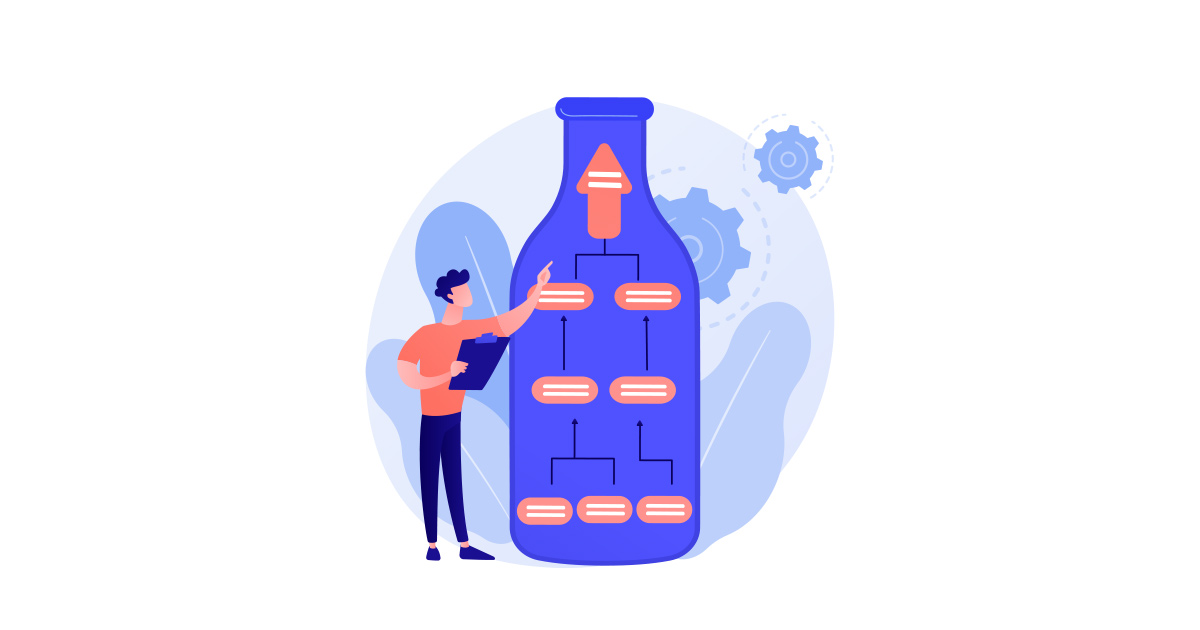
    他の工程が順調に流れていたとしても、その工程に来ると業務が「詰まって」しまうのがボトルネックですね。これは、その語源となっているビン(ボトル)の首の細い部分や、「3車線がいきなり1車線に減少した道路」を連想してもらうとわかりやすいかと思います。

    ボトルネックのおもな要因

    業務プロセスにボトルネックが生じるおもな要因としては下記の3つが挙げられます。

    1. 処理能力の不足
    2. 属人化した業務
    3. 非効率的な業務プロセス

    1は、該当する業務の人員が不足していたり、機械の処理能力が足りなかったりするケースです。これはボトルネックの代表的なもので、他の工程がどんどん処理をしたとしても、それが流入する後の工程で処理が追いつかないため、そのポイントで業務が滞ってしまいます。

    2は、「この業務は〇〇さんしかできない」といったように、特定の人員に業務が依存してしまっているケースです。前回のブログでも述べましたが、業務が属人化すると、その業務を担当している人が仕事を休んだり、会社を辞めたりした場合に、業務が停滞してしまいます。これがボトルネックの発生につながります。

    3は、紙の書類による回覧など、そもそも業務プロセス自体の「効率がよくない」ケースです。たとえば出張の多い上司や外回りの多い営業担当の「ハンコ待ち」をしなければならない業務プロセスは非効率的ですよね。また、工程を「前の人が処理しないと次に進めない」という状態が数珠つなぎに一直線になると、業務が停滞する可能性も高くなります。

    なお、上記の3つの要因は独立したものではなく、それぞれ絡み合っている場合も多いようです。たとえば、業務の属人化が進んでいるために、その業務を遂行できる人員が限られてしまっているケースなどは1と2の要因が合わさったものです。また、3の「非効率的な業務プロセス」には業務の属人化が影響しているケースも多いようです。

    こうした要因を踏まえた上で、次の項では私が実際に体験したボトルネックの事例を述べたいと思います。

    私が体験した「ボトルネック」

    もう15年以上前、私がとある企業の宣伝部に勤務していたときのことです。

    当時、私は雑誌や新聞などの媒体に向けた広告制作を担当していたのですが、あるときカタログを制作しているチームから応援を頼まれました。私から見るとカタログ制作班はいつも忙しそうで、締め切り前には深夜まで残業しているデザイナーやライターもたくさんいました。しかしその理由は、決して1人1人に割り振られた仕事の量が多いからではありませんでした。

    行列のできるリーダ

    ある日、私は書き上げたカタログ用の商品コピーをチームのリーダに見せに行きました。リーダはKさんという人で、カタログ用の文章やデザインはすべてこの人がチェックすることになっています。ふと見ると、Kさんのデスクの前には、すでに4~5名のライターやデザイナーが行列をつくっていました。それは、Kさんのチェックを受けるための「順番待ち」の行列でした。

    私は、「ラーメン屋じゃないんだから…」と思いながら、しぶしぶ列の最後尾に並びました。しかし、列は全然前に進みません。これはKさんが原稿をチェックしながら、その担当者と口頭で打ち合わせをしているためでした。そんな訳で、私がようやくKさんのチェックを受けられたのはそれから約1時間後。待ち時間も「行列のできるラーメン屋」並みでした。

    ところがある日、気がつくとKさんのデスクの前から行列が消えています。どうしたことだろう、と思いながら、私はKさんのところに行きました。するとKさんは、

    「あ、システムが変わったんや。そこに名前書いといて」

    といって、クリップボードに挟んだ「受付表」を差し出しました。

    私は、「ファミレスじゃないんだから…」と思いつつ、受付表に自分の名前を記入しました。受付表を見ると、すでに何人ものデザイナーやライターの名前が書かれています。目の前から行列がなくなったことにより、Kさんはさらに「打ち合わせ」に時間をかけるようになったらしく、1時間を過ぎても私の名前は呼ばれません。私の頭の中では「残業」の2文字が点滅しましたが、待つよりほかに仕方がありませんでした。

    解決法はないのか?

    このカタログ班の例では、デザイナーやライターのおこなっている仕事が、Kさんによるチェック工程という「ボトルネック」に流れ込むため、そこで業務が停滞してしまうことがおわかりいただけたと思います。

    ちなみに、かなり後になってからの話ですが、このカタログ班はチェック担当を2人に増やすことで、異様に時間のかかる「チェック工程」を改善しました。Kさんはもともとデザインが専門だったので、文章をチェックする担当を別に設けたのです。

    このチームの場合は、流入するタスクに対して処理能力が追いついていないことが問題だった訳ですから、担当者を増やして処理能力をアップするのは基本的な解決法といえます。こうしてカタログ班の残業は以前よりはマシになりました。「少し気づくのが遅かったのでは」という気もしますが…。

    ボトルネックを解決するための鉄則とは

    さて、実はボトルネックの解決法には鉄則があります。

    それは、

    • ボトルネック以外を改善しても効果がない

    ということです。

    上述したカタログ班の事例でいうと、たとえばデザイナーが仕事を効率化して、1日の生産量を「5」から「10」に増やしたとしても、それをチェックするKさんが1日に「3」しか処理できなければ、結局のところ1日の生産量は「3」ということになります。つまり、まわりがいくら生産量を上げてもKさんのところで「詰まって」しまうため、全体の生産量を上げるためには、Kさんの工程をどうにかするしかありません。

    そこで次の項では、ボトルネックを「どうにかする」ための具体的な方法を解説します。

    ワークフローで見るボトルネックの解決法

    ボトルネックを「どうにかする」ためには、まずはボトルネックを「発見」しなければなりません。

    そこで業務プロセスを図にして、「見える化」することが必要となります。

    業務のモデリングからボトルネックの発見へ

    ところで、弊社では学習コンテンツとして「たけお君の業務フロー改善ものがたり」というマンガを公開しています。このマンガでは、問題だらけの会社の現状を改善するために主人公である『たけお君』が奮闘します。

    物語の中で、業務改善に乗り出した『たけお君』は、まず業務のモデリング(「見える化」)をおこないます。

    たけお君が BPMN(※)という表記法で図式化をおこなったことにより、それまで不明確だった「業務の流れ」はスッキリと可視化されました。さらに、たけお君は作成したワークフロー図を検証することにより、業務上の問題点であるボトルネックを発見します。

    並列処理でボトルネックを改善

    たけお君が勤める会社のボトルネックは櫛職人である『おじいちゃん』でした。『おじいちゃん』は腕の良い職人ですが、繁忙期に対応しきれず、「制作」工程に遅れが頻繁に発生しています。そこで、たけお君は下図のように業務フローに並列処理を導入して、『おじいちゃん』が以前よりも早く工程に着手できるようにしました。

    上記の例のように、業務プロセスが一直線に進んで「順番にしか処理できない」状態の場合、並列処理の導入は大きな効果を発揮します。

    たとえば、「商品企画」の業務プロセスを例にとると、下図では「生産者」「生産体制」「物流」という3つのチームが順番に評価をおこなう流れになっています。

    しかし、これでは前のチームの評価が終わるまで、次のチームは評価に着手できず、企画の「立案」から「決裁」までに長い時間がかかってしまいます。

    そこで、並列処理を取り入れたのが下のワークフローです。

    このフローでは、商品企画が立案されると、3チームに「同時に」評価のタスクが回されます。これで、「前チームの評価待ち」は無くなり、商品企画の立案から決裁までのリードタイムも短縮できます。こうした並列化は、上述したような「上司のハンコ待ち」で滞りがちな、複数名の担当者を回覧するような「申請・承認」業務にも有効です。

    ボトルネックの改善をサポートする Questetra BPM Suite

    これまで駆け足でボトルネックの実例や改善策を紹介してきましたが、Questetra BPM Suite は、ボトルネックの発見や解消を強力にサポートするソフトウェアです。

    たとえば、Questetra BPM Suite では、パソコンの画面上にアイコンを配置していくことでワークフロー図を簡単に作成できます。作成したフロー図に沿って、業務が自動で進行していくため、業務を受け渡す手間もありません。これだけでも、紙の書類による「申請・承認」や「回覧」「稟議」などの業務にかかる時間は大幅にカットできるでしょう。

    実際のところ、業務プロセスを図式化したり、変更した業務プロセスをチーム内で共有したりするのは手間がかかります。しかし、Questetra BPM Suite を利用すれば、ボトルネックを発見した後で、業務プロセスを変更・共有するのも簡単です。

    こうしてペーパーレス化をおこなうことで、ボトルネックを改善し、業務を効率化した例は多々あります。なお、Questetra BPM Suite には「工程の処理にかかった時間」や「業務プロセス全体のリードタイム」といったデータも蓄積されていくため、業務プロセス改善の効果も検証しやすくなっています。

    また、Questetra BPM Suite はクラウド型のツールなので、インターネット環境さえあれば、オフィスにいるときと同じシステムにアクセスできるという強みもあります。出張先や移動中でも業務を処理できるので、「ハンコ待ち」や「承認待ち」によるボトルネックは大幅に改善されるでしょう。

    もし、日々の業務に「滞り」や「効率の悪さ」を感じているなら、Questetra BPM Suite で業務プロセスの「ボトルネック」を発見することから始めてみてはいかがでしょうか。

  • Googleアイコン “Material Icons” と “Material Symbols”

    Googleアイコン “Material Icons” と “Material Symbols”

    アイコンには “言語の壁” を克服する可能性がある。なぜなら「全人類が理解できる」からだ。しかも「スグに理解できる」という特性まで持ち合わせている。『アイコン〔愛〕は地球を救う』というオヤジギャグも、侮〔あなど〕れない。そして2022年。”Googleアイコン” に動きがあったヨウダ。(少し乗り遅れ気味だが)さっそく試してみようと思う。

    0. Material Symbols

    『 最新アイコン体系 “Material Symbols” 』とか見ると、メチャ気になる。
    “可変フォント技術” を採用 』とか見ると、調べたくなる。。。

    Say hello to the newest iconography using variable font technology, Material Symbols! Available in 3 styles: Outlined, Rounded and Sharp. Each provides 4 stylistic attributes: Weight, Fill, Optical size, and Grade. Check out the full library at http://fonts.google.com/icons

    2022-04-21 Google Fonts
    https://twitter.com/googlefonts/status/1516934123700383744

    1. アイコンの “可能性” について

    【アイコン】(ピクトグラム)は、人類社会に欠かせない。

    • 道路標識
    • 危険標識 → ISO 7010
    • オリンピック種目案内
    • 絵文字…

    そしてIT業界においても近年、

    settings歯車アイコン”設定メニュー
    menu三本線アイコン“は〔メインメニュー〕(⇔ハンバーガーアイコン)

    といった共通認識が醸成された。(と言ってよい)(たぶん)

    今後、【言語】への依存は、ますます減っていく。このまま「アイコンの標準化」が進めば、”言語設定” を切り替えなくても、“言語設定” がどの言語であっても、違和感なく使用できるようになるのかもしれない。(全人類が同じインターフェースで操作する日は遠くない?!?)

    「画面の狭いスマホ」が普及したオカゲ、なのか? いずれにせよ “文字でキッチリ説明する” (←”ダラダラ説明する” ?)という前世紀の文化は完全に廃れた。

    Googleマテリアルアイコン

    2. 使いやすいアイコンは無いものか?

    世界中のシステム/ソフトウェアは、”同じアイコン” を使うべきだ。(オリジナリティは最小限にとどめるべきだ)

    • 誰でも利用できる
    • 簡単に利用できる
    • 無料で利用できる

    そんな “アイコン Collection” が期待され続けている。今日時点での最有力は、
    『Font Awesome』『Google Fonts Material Icons

    と言ってよい。そして2022年、『Google Fonts Material Icons』の姉妹? Collection として、

    『Google Fonts Material Symbols』

    が登場した。

    ※ “姉妹版” (両者対等)というより “親子版” (やや上位)なニュアンスかな?

    The Material Symbols font is the variable version of the Material Icons font.

    https://material.io/blog/introducing-symbols (2022-04-19)

    ちなみに Questetra 社のWebサイトでは『Font Awesome』(フォント・オーサム)を使っている。2018年には有償版(Font Awesome Pro)のユーザになっている。また、Questetra 製品では、近年に至り Google 社の『Google Fonts Material Icons』(マテリアル・アイコン)を導入している。すでに全ての操作画面に “Google アイコン” がある。(ような気がする)

    https://io.google/2022/program/06aeeb23-3f65-4a7b-9947-c80aa35a6c07/

    3. 可変フォント技術!?

    平たく言えば、

    • FILL axis: 【Fill】の有無(塗りつぶし)
    • wght axis: 【Weight】7段階(太さ)
    • GRAD axis: 【Grade】3段階(エンボス凸凹度)
    • opsz axis: 【Size】4段階(サイズ)

    の変化(Variation / Customization)を「1つのデータ」でカバーする技術だ。

    ※形状の違い(Outlined・Rounded・Sharp の違い)まではカバーしない。

    https://fonts.googleapis.com/icon?family=Material+Icons+Two+Tone

    ★ なるほど! たとえばアイコンの「非選択状態」と「選択状態」を FILL 0FILL 1 というCSSスタイル変化で実現できるようになるワケだ。
    ★ なるほど! ”Fill” を on-off 変数(0-1変数)にした時点で、email)は存在しえなくなったのだろう。(←”進化の代償” と言ってもイイ)

    <div style="font-variation-settings: 'FILL' 0, 'wght' 700;">
    <div style="font-variation-settings: 'FILL' 1, 'wght' 700;">

    つまるところ、従来は「非選択状態アイコン」と「選択状態アイコン」を “差し替える” という手段をとっていたのが、、、これからは「一つのアイコン」を “変化させる” という手段で対応できるようになるのダ。(ウレシイ?)(ウレシイ??)(フォント〔ホント〕にウレシイ?!?)

    • アニメーション “Web Animations API animate()” などで便利そうだ!
    • ポインタのホバーを表現する際(CSS :hover)などに便利そうだ!!

    Androidの「Material Design」アイコンフォントが可変フォント技術に対応
    ~4つのスタイルを1つのフォントファイルで実現~

    https://forest.watch.impress.co.jp/docs/news/1404656.html

    ちなみに、世界標準の業務フロー図(BPMN)で、塗りつぶしのない mailは「着信」(Catch)を意味する。塗りつぶされた mail は「送信」(Throw)を意味する。 Material Symbols なら、同じフォントデータで表示できるゾ!!(ウレシイ??)

    “Static font” mode

    “Variable font” mode

    4. 習うより慣れよ!!

    『Google Fonts Material Symbols』は多方面で活用されるだろう。

    「フォントのデータ量を削減できる」という触れ込みだけで十分に魅力的だ。(「Googleが作った」という触れ込みだけで?)

    ということで、Google Fonts のアイコンフォント『Material Symbols』(と『Material Icons』)をWebサイトで表示できるように設定した。

    • help Google Fonts Material Icons にはどんなアイコンがあるのか?
    • help Google Fonts Material Symbols にはどんなアイコンがあるのか?
    • Google Fonts と WordPress との相性はどうか?
    • WordPress の記事編集において、どのような操作が必要か?
    • FontAwesome との違いは何か?
    • そもそも HTML文中のどんな場所でアイコンを活用すべきなのか?
    • んでもって FontAwesome と同居させる意味はあるのか??

    Questetra社では、CMS として、クラウドサービス “WordPress.com” (WordPressテーマ: “Astra”)を活用している。

    5. 使い方

    基本的には、それぞれのギャラリーでアイコンを選択し “表示されるコード” を埋め込めば良い。『Material Symbols』も『Font Awesome』も『Material Icons』も、その考え方自体に大差はない。

    5-0. Material Icons の場合

    <span class="material-icons">settings</span>

    と入力すれば、塗りつぶし文字 settings が表示される。

    <span class="material-icons-outlined">settings</span>

    と入力すれば、アウトライン文字 settings が表示される。

    (←注:”デフォルトの Filled” と “Outlined” は “別の形状” のあつかい)

    5-1. Material Symbols の場合

    <span class="material-symbols-outlined">settings</span>

    と入力するとsettings と表示される。

    <span class="material-symbols-outlined" style="font-variation-settings: 'FILL' 1;">settings</span> と入力すれば

    settings と表示される。

    5-2. Font Awesome の場合

    <i class="fa-solid fa-gear"></i>

    と入力すると

    [icon name=”gear” prefix=”fa-solid”] と表示される。ちなみに Plugin を入れている場合、

    [[icon name="gear" prefix="fa-solid"]]

    と入力しても良い。

    6. 発生したトラブル

    6-1. アイコン表示位置が上下にズレる

    WordPress の管理権限ユーザは、ドキュメントを参考に設定することになる。

    しかし、そのまま利用するとズレが生じた。どうやら「line-hight:1, display:inline-block, …」といった設定になっていることが原因だ。意図は不明ながら、

    • display: inline-blockdisplay: inline-flex
    • vertical-align: middle

    あたりのネット民の推奨情報を適用して、このトラブルを回避している。(↓ Static font / Variable font )

    <link href="https://fonts.googleapis.com/icon?family=Material+Icons" rel="stylesheet">
    <link href="https://fonts.googleapis.com/icon?family=Material+Icons+Outlined" rel="stylesheet" />
    <link href="https://fonts.googleapis.com/css2?family=Material+Symbols+Outlined" rel="stylesheet" />
    <style type="text/css" id="material-css-nandezurennen">
    .material-icons { display: inline-flex; vertical-align: middle; }
    .material-icons-outlined { display: inline-flex; vertical-align: middle; }
    .material-symbols-outlined { display: inline-flex; vertical-align: middle; }
    </style>
    <link href="https://fonts.googleapis.com/icon?family=Material+Icons" rel="stylesheet">
    <link href="https://fonts.googleapis.com/icon?family=Material+Icons+Outlined" rel="stylesheet" />
    <link href="https://fonts.googleapis.com/css2?family=Material+Symbols+Outlined:opsz,wght,FILL,GRAD@20..48,100..700,0..1,-50..200" rel="stylesheet" />
    <style type="text/css" id="material-css-nandezurennen">
    .material-icons { display: inline-flex; vertical-align: middle; }
    .material-icons-outlined { display: inline-flex; vertical-align: middle; }
    .material-symbols-outlined { display: inline-flex; vertical-align: middle; }
    </style>

    6-2. WordPress エディタとの相性はヨクナイ

    『Font Awesome』と同様、『Material Symbols』(や『Material Icons』)も、WordPress エディタ(Gutenberg)と相性が悪い。

    現状、ブロック単位の「Edit as HTML」で “span タグ” を入力していると、セッカク書いた入力が書き換えられてしまう場合がある。特に、多階層リストは入力できたものではない。

    そもそも「Edit as HTML」で “span タグ” を入力するのはメンドウだ。その点、『Font Awesome』は “ショートコード” を入力すれば「Edit as HTML」と切り替える必要が無いので安定して編集できる。(⇒『Material Symbols』(や『Material Icons』)も Plugin 化するべき)

    6-3. あるべきCSSの読み込み範囲がナヤマシイ

    • 0. Material Symbols を使わない
    • 1. Material Symbols を Static font として使いたい
    • 2. Material Symbols を Variable font として使いたい

    各ページによって違う。「静的フォントで様々な軸を構成」したい場合、「細かく制御」したい場合、ライター自身が、( number..number 形式で)、読み込む範囲を決めるのか?(ワズラワシイ&メンドクサイ&メンテナンス性が悪すぎる)

    かといって、”全パターン” を想定したフォントファイル(WOFF2)は、10倍近く、2026KB もある。。。(”しかない” と考えるべき?)

    ▽とりあえずは “全パターン” で。。。

    <link href="https://fonts.googleapis.com/icon?family=Material+Icons" rel="stylesheet">
    <link href="https://fonts.googleapis.com/icon?family=Material+Icons+Outlined" rel="stylesheet" />
    <link href="https://fonts.googleapis.com/css2?family=Material+Symbols+Outlined:opsz,wght,FILL,GRAD@20..48,100..700,0..1,-50..200" rel="stylesheet" />
    <style type="text/css" id="material-css-nandezurennen">
    .material-icons { display: inline-flex; vertical-align: middle; }
    .material-icons-outlined { display: inline-flex; vertical-align: middle; }
    .material-symbols-outlined { display: inline-flex; vertical-align: middle; }
    </style>

    (記事の途中で「そのFontファミリーを改めて読み込ませる」というワザは通用しない)

    <!-- loads the entire Variable Font -->
    <link href="https://fonts.googleapis.com/css2?family=Material+Symbols+Outlined:opsz,wght,FILL,GRAD@20..48,100..700,0..1,-50..200" rel="stylesheet" />

    6-4. マニュアルの日本語がヘン

    たまに「うーん」とか書いてある。(ウナリタイのは、たいがい読者の方だったりする。)

    7. アレコレ実験中…

    ※”リクエスト” あれば是非!

    “使い方” に関する情報は、まだまだ少ない。とりあえず “オフィシャル” は、必読だと思う。

    • Material Symbols guide
      • Using Material Symbols
        • Use in Web
          • Static font with Google Fonts
          • Variable font with Google Fonts
          • Self-hosting the font
          • Using the icons in HTML
          • Styling icons in Material Design
        • Use in Android
        • Use in iOS
        • Use in Flutter
    <span class="material-symbols-outlined"
    >add_circle</span>
    
    <span class="material-symbols-outlined"
     style="font-variation-settings: 'FILL' 1;"
    >add_circle</span>
    
    <span class="material-symbols-outlined"
     style="font-variation-settings: 'opsz' 48;"
    >add_circle</span>
    
    <span class="material-symbols-outlined"
     style="font-variation-settings: 'FILL' 0, 'opsz' 40;"
    >add_circle</span>
    
    <span class="material-symbols-outlined"
     style="font-variation-settings: 'wght' 700, 'opsz' 40;"
    >add_circle</span>
    
    <span class="material-symbols-outlined"
     style="font-variation-settings: 'wght' 700, 'opsz' 40;
     background: black;"
    >add_circle</span>
    add_circle add_circle add_circle add_circle add_circle add_circle
    <span class="material-symbols-outlined"
     style="
       font-variation-settings: 'FILL' 0, 'wght' 100, 'GRAD' 0, 'opsz' 48;
     "
    >mail</span>
    
    <span class="material-symbols-outlined"
     style="
       font-variation-settings: 'FILL' 0, 'wght' 400, 'GRAD' 0, 'opsz' 48;
     "
    >mail</span>
    
    <span class="material-symbols-outlined"
     style="
       font-variation-settings: 'FILL' 0, 'wght' 700, 'GRAD' 0, 'opsz' 48;
     "
    >mail</span>
    
    <span class="material-symbols-outlined"
     style="
       font-variation-settings: 'FILL' 1, 'wght' 100, 'GRAD' 0, 'opsz' 48;
     "
    >mail</span>
    
    <span class="material-symbols-outlined"
     style="
       font-variation-settings: 'FILL' 1, 'wght' 400, 'GRAD' 0, 'opsz' 48;
     "
    >mail</span>
    
    <span class="material-symbols-outlined"
     style="
       font-variation-settings: 'FILL' 1, 'wght' 700, 'GRAD' 0, 'opsz' 48;
     "
    >mail</span>
    
    <span class="material-symbols-outlined"
     style="
       font-variation-settings: 'FILL' 0, 'wght' 400, 'GRAD' 0, 'opsz' 20;
     "
    >mail</span>
    
    <span class="material-symbols-outlined"
     style="
       font-variation-settings: 'FILL' 1, 'wght' 400, 'GRAD' 0, 'opsz' 20;
     "
    >mail</span>
    mail mail mail mail mail mail mail mail
    <span class="material-symbols-outlined"
     style="
       font-variation-settings: 'FILL' 0, 'wght' 400, 'GRAD' 0, 'opsz' 48;
     "
    >forward_to_inbox</span>
    
    <span class="material-symbols-outlined"
     style="
       font-variation-settings: 'FILL' 1, 'wght' 400, 'GRAD' 0, 'opsz' 48;
     "
    >forward_to_inbox</span>
    
    <span class="material-symbols-outlined"
     style="
       font-variation-settings: 'FILL' 0, 'wght' 400, 'GRAD' 0, 'opsz' 48;
     "
    >inbox</span>
    
    <span class="material-symbols-outlined"
     style="
       font-variation-settings: 'FILL' 1, 'wght' 400, 'GRAD' 0, 'opsz' 48;
     "
    >inbox</span>
    
    <span class="material-symbols-outlined"
     style="
       font-variation-settings: 'FILL' 0, 'wght' 400, 'GRAD' 0, 'opsz' 48;
       font-size: 40px;
     "
    >forward_to_inbox</span>
    
    <span class="material-symbols-outlined"
     style="
       font-variation-settings: 'FILL' 1, 'wght' 400, 'GRAD' 0, 'opsz' 48;
       font-size: 40px;
     "
    >forward_to_inbox</span>
    
    <span class="material-symbols-outlined"
     style="
       font-variation-settings: 'FILL' 0, 'wght' 400, 'GRAD' 0, 'opsz' 48;
       font-size: 40px;
     "
    >inbox</span>
    
    <span class="material-symbols-outlined"
     style="
       font-variation-settings: 'FILL' 1, 'wght' 400, 'GRAD' 0, 'opsz' 48;
       font-size: 40px;
     "
    >inbox</span>
    forward_to_inbox forward_to_inbox inbox inbox forward_to_inbox forward_to_inbox inbox inbox
    <script>
    function user_enlargeIcon ( spanId ) {
      let elIcon = document.querySelector( "#" + spanId );
      elIcon.animate([
        {
          fontVariationSettings: "'FILL' 0, 'wght' 400, 'GRAD' 0, 'opsz' 48",
          fontSize: "20px"
        },
        {
          fontVariationSettings: "'FILL' 1, 'wght' 400, 'GRAD' 0, 'opsz' 48",
          fontSize: "80px"
        }
      ],{duration:5000,fill:'none',easing:'ease-in'});
    }
    </script>
    
    <button type='button' onclick='user_enlargeIcon( "account_tree" );
    '>Grow BIGGER</button>
    
    <span class="material-symbols-outlined"
     id="account_tree"
    >account_tree</span>
    account_tree

    追記

    やはり「HTML入力」は現実的ではない。「ショートコード入力」を可能とする Plugin を作って試用中。

    • [gfmi name=home] と入力すれば
      • Material Iconshome アイコン(Filled)が表示される。
    • [gfmio name=home] と入力すれば
      • Material Iconshomeアイコン(Outlined)が表示される。
    • [gfmso name=home] と入力すれば
      • Material Symbolshome アイコン(Outlined)が表示される。
      • [gfmso name=home fill=1] と入力すれば『’FILL’ 1』の状態が表示される。
    add_shortcode ( 'gfmi', 'q_gfmi' );
    // https://developer.wordpress.org/reference/functions/add_shortcode/
    
    function q_gfmi ( $atts ) {
      //// set default
      $supported_attributes = array(
        'name' => 'home', 
      );
      //// get shortcode attributes
      $atts = shortcode_atts( $supported_attributes, $atts, 'gfmi' );
        // https://developer.wordpress.org/reference/functions/shortcode_atts/
      //// build up the output string
      $output  = '<span class="material-icons">';
      $output .= $atts['name'];
      $output .= '</span>';
      return $output;
    }
  • Cookie Policy

    Cookie Policy

    Questetra Inc. (hereinafter referred to as the “Questetra”) uses cookies to provide services that are optimized for users. If you use Questetra’s services or products (which includes the websites, apps and related services that link to this Cookie Policy; hereinafter referred to as the “Questetra Services”), you are required to read this Cookie Policy and agree to Questetra’s use of cookies under this Cookie Policy.

    What are cookies?

    The function of cookies is to store information in the web browser used when visiting websites. Questetra uses cookies to improve the convenience of Questetra Services.

    What types of cookies do Questetra use?

    Cookies set by Questetra are called “First-Party Cookies”. Questetra utilizes a variety of First-Party Cookies to power, improve and enable Questetra Services. Questetra uses First-Party Cookies when you access Questetra’s site or utilize a product. Many of Questetra’s cookies are required for reasons that are “strictly necessary” for the Questetra Services to operate, and Questetra refer to these as “Strictly-Necessary Cookies”. Questetra also set functionality cookies which enhance the performance and functionality of the Questetra Services, and analytics cookies.

    Questetra also utilizes cookies created by Third Parties (also described as, “Third-Party Cookies”). Third-Party Cookies may be utilized for the purpose of engaging in marketing campaigns, customizing your website experience or notifying you about Questetra Services. For more information about how Third Parties handle information collected by Third-Party Cookies, please see their respective Privacy Policies.

    Bellow you will find descriptions of the First-Party Cookies and Third-Party Cookies served through Questetra Services, including the Third Parties who serve them, their purpose, and how you can manage them.

    Strictly-Necessary or Functional

    Questetra uses strictly-necessary or functional cookies to remember user preferences, settings, and other information that helps Questetra improve user experience. Please note, opting-out of these cookies may impair your access to the Questetra Services.

    Questetra (Questetra BPM Suite)

    Questetra (Questetra BPM Suite) uses cookies to remember preferences and settings, authenticate users, manage sessions, maintain security, and determine if cookies are enabled. Users cannot opt out of Questetra functional cookies or they will be unable to use Questetra BPM Suite.

    WordPress

    Zendesks

    Analytics

    Questetra uses cookies sometimes referred to as “performance cookies”, to collect information about how people interact with Questetra Services. Questetra uses this information to measure performance and improve Questetra Services.

    Google Analytics

    HubSpot

    How can I control cookies?

    You have the right to decide whether to accept or reject cookies.

    Most web browsers accept cookies by default. You may set your preferences to remove cookies, reject cookies, or prompt you before accepting a cookie. Please note, disabling a cookie or category of cookie does not delete the cookie from your device. You will need to do this yourself from within your browser. Browser specific information may be found at the following links:

    Contacting Us

    If you have any questions about Questetra’s use of cookies, please contact Questetra at the email address below.

    Questetra, Inc., Privacy Team
    privacy-request@questetra.com

    Established: October 6, 2022.

  • How to Overcome the Drawbacks of Excel

    How to Overcome the Drawbacks of Excel

    Excel is used by many business people for tabulation, graphing, document/form creation, data analysis, and other purposes. In this article, we will examine the strengths and weaknesses of Excel and introduce ways to compensate for these weaknesses.

    The Strengths of Excel

    Excel’s main strengths (and easy to use points) are as follows.

    1. Create like you would on paper (strength of the UI)
    2. Intuitive cell layout with height/width adjustment (strength of the UI)
    3. Formulas and functions allow easy calculation and tabulation (strength of functionality)

    The strengths of Excel are its UI, which can be used as if it were paper, and its (spreadsheet) functions, such as calculation and tabulation.

    The Weaknesses of Excel

    On the other hand, there are weaknesses (points that are difficult to utilize). Specifically, they are as follows:

    1. Difficult for multiple people to process (weaknesses of the UI)
    2. Difficult to share (weakness of functionality)
    3. Difficult to grasp business process and progress/performance (weakness of functionality)
    4. Difficult to manage files (weakness of functionality)
    5. Difficult for multiple users to modify (weakness of functionality)

    When using Excel for input work, people may be troubled by the difficulty for multiple people to process, share, or manage files. In particular, when input work involves multiple people, including people in other departments or outside the company, the fact that Excel data can be input as if it were on paper may conversely be a weakness.

    It is better for users to be able to see at a glance where they need to input information, as in the case of input forms on websites, so that they can save time and stress by not having to search for the input fields. (Of course, it is possible to create input forms using VBA, etc., but in many cases, only a few people can create such forms, and not everyone can modify them.)

    In addition, file sharing after inputting a file requires the user to attach the file to an email, write the body of the email and send it (or upload it somewhere), and so on.

    Administrators may often be concerned about where to save the created files, data integration/coordination between files, searching for saved files, and modifying files.

    In addition to these, the lack of visualization of the work flow and work progress/performance may be an inconvenience for all parties involved.

    How to Compensate for Excel’s Weaknesses

    For tasks where multiple people are involved in input/selection, etc., we recommend the cloud workflow Questetra BPM Suite.

    In Questetra BPM Suite a workflow diagram determines the flow of work (people involved in the work, process, and order). (See the figure below)

    Workflow Diagram Creation Screen

    For example, if a job is processed by a part-time worker, an employee, and a manager, three lanes are set up. (For clarity here, we have set up a separate lane for processes that are automatically handled by the system and placed it at the bottom.)

    After setting up the lanes, the steps to be processed by each user are set up on each lane. (This can be easily done by selecting and dragging an item from the top of the screen.)

    After creating the workflow diagram, set the name and contents of each process. For example, in Process 1, which is handled manually, set the items (data containers) to be input by part-time workers. Then a processing screen (input form) will be automatically created. (See figure below)

    Image of the processing screen (input form)

    The processing screen image uses some of the items that can be set. The specific contents are as follows.

    1. Items where one line of text can be entered
    2. Items that allow multiple lines of text to be entered
    3. Numeric fields
    4. Items for date entry
    5. Items that allow selection of options from a drop-down menu
    6. Items that allow files to be attached
    7. Bulletin board function for communication between staff members
    8. Multiple rows/columns can be entered
    9. A button for completing the process (pressing this button will automatically advance to the next process)

    In addition, the following automatic process can be used with the automatic processing step placed in the lane at the bottom of the workflow diagram creation screen.

    • Timer: Automatically starts on a set date, day, time, etc.
    • Parallel processing: Multiple processes are requested at the same time (multiple people can process tasks at the same time)
    • Automatic Process 1: Numerical values/dates are automatically calculated and the wording is automatically updated
    • Conditional branching: Automatic selection of the path to be taken depending on the set conditions
    • Automatic email sending: Pre-set content automatically inserted into email and sent.
    • Automatic saving to storage: (In this case, Box) Automatic saving to a predefined destination.

    We have mainly introduced workflow diagrams, processing screens, and some automated processing items.

    In addition to this, it is also possible to graphically visualize the processing results and progress of each process on a workflow diagram. It is also possible to connect to various cloud services other than Box, such as Google Workspace, kintone, Slack, etc. to perform automatic processing. Furthermore, data such as input information can be searched/displayed/sorted/reused (in another workflow process) on Questetra BPM Suite. (It is also possible to save the data to external cloud storage that is linked to Questetra BPM Suite)

    With Questetra BPM Suite, the following weaknesses of Excel can be overcome

    1. Difficult for multiple people to process (weaknesses of the UI)

    → Solved with processing forms

    1. Difficult to share (weakness of functionality)

    → Resolved using automatic email sending, etc.

    1. Difficult to grasp business process and progress/performance (weakness of functionality)

    → Solved with workflow diagrams and visualization functions

    1. Difficult to manage files (weakness of functionality)

    → Solved by database functionality/cloud integration

    1. Difficult for multiple users to modify (weakness of functionality)

    → Solved with authorization functions and workflow diagrams

    In this way, we recommend a semi-Excel-free approach, in which the weak points of Excel are compensated for by Questetra BPM Suite, and the strong points of Excel are used as they are.

    Utilizing Excel’s strong points only

    You can try the Cloud Workflow Questetra BPM Suite below. Please try it out and see how you can create a business system with no code.

  • 業務の「ブラックボックス化」を防ぐには

    業務の「ブラックボックス化」を防ぐには

    こんにちは、マーケティング部の林です。

    以前のブログでリモートワークの普及について述べましたが、それとともに業務の「ブラックボックス化」が問題となるケースも増えているようです。

    そこで今回は、業務がブラックボックス化・属人化してしまう原因と、その改善方法について解説したいと思います。

    業務の「属人化」と「ブラックボックス化」

    業務の属人化とは、「特定の人以外、その業務についてわからない状態」になってしまうことを指します。

    属人化が起こる原因はさまざまですが、たとえば営業職なら「〇〇社の担当は△△さん」といったように、該当業務が担当者に任せっきりになってしまうことは珍しくありません。また、「〇〇さん以外はこの業務はできない」といったように、業務の専門性が高く、特定のスキルを必要とするような場合にも属人化は起こりやすくなります。

    一方、業務のブラックボックス化は、「その人が何をしているのか、周囲にわからない」という状況を指します。業務がその人のところにある間は、文字通り「黒い箱(=ブラックボックス)」のなかに隠れてしまうような状態ですね。その人がどのように業務を処理しているのか、外部にはそのプロセスがまったくわからないため、「黒い箱」から成果や成果物が出てくるのを待つしかありません。

    属人化を放置すると、業務はブラックボックス化し、どんどん「周囲には何もわからない」状態になってしまいがちです。特に最近ではリモートワークの普及に伴い、管理者が従業員の業務内容を把握しづらい、というケースも増えているようです。

    まずは参考までに、次の項では私が体験した業務の属人化・ブラックボックス化の実例を述べたいと思います。

    私が体験したブラックボックス化の実例

    もう15年以上前の話になりますが、私が新人としてとある会社の宣伝部に配属されたときのこと。私はSさんという人から仕事を引き継ぐことになりました。しかし、入社初日から私は大変な事態に直面します。案内されたSさんのデスクは、書類や商品サンプルで溢れており、本人にもどこに何があるかわからない「ゴミ屋敷」状態だったのです。

    Sさんは、いわゆる「片付けられない人」で、仕事の引き継ぎをしているときも、何か書類が必要になるたびに、「えーっと、アレはどこだっけ?」と机の上を10分以上引っかきまわします。で、書類が見つかって5分もすると、また「次のアレはどこだっけ?」といってまた10分。こんな調子で引き継ぎは全く順調に進みません(ときには探しても目当ての書類が見つからないこともありました)。しかも、Sさんは3日後に退社することになっているのです。

    それでもなんとか2日間は引き継ぎを進めて、いよいよSさんの勤務最終日。Sさんはいきなり会社を休みました。そしてそのまま退社していったのです。あとに「ゴミ屋敷」と化したデスクと私を残して。

    仕方がないので、私は散らかり放題の机の上を片付け始めました。すると、Sさんのデスク上の書類の山から、締め切りを過ぎた仕事やら、期限を過ぎた回覧書類やらが次々に出てきます。私がSさんから引き継いだ仕事は、新聞や雑誌に掲載する広告の制作だったのですが、Sさんは独りで制作の仕事を進めていたため、社内には業務についてわかる人が他に誰もいない状態でした。そのため、Sさんがいきなり休んだら、誰も代わりに引き継ぎをおこなえません。

    もちろん、原稿ができたら上司や営業担当のチェックは受けることになっています。しかし、Sさんの業務の締め切りについては誰も関知していないため、回覧がまわってこなくても誰も気づきません。

    そう、この業務はSさんによって「属人化」し、「ブラックボックス化」していたのです。

    しかし、Sさんの仕事を引き継いだ私は、それでも業務を進めなければなりません。なにしろ目の前には、すでに広告代理店への入稿期限を過ぎた案件があるのです。私は外注先の広告代理店に連絡し、こちらの状況を伝えました。すると、雑誌への掲載締め切りにはまだギリギリ間に合うとのこと。私は過去の原稿を流用するなどして、なんとか広告ページを制作し、とにかく雑誌の締め切りに間に合うように入稿しました。

    ブラックボックス化をどうやって防ぐか

    上に述べたのは極端な例かもしれませんが、本人以外(ひどい場合は本人さえも)、業務がどうなっているのかわからない、というケースは意外と多いのではないでしょうか。

    そこで、ここからは業務がブラックボックス化することによる影響と、それを回避する方法について解説していきます。

    ブラックボックス化の弊害

    業務がブラックボックス化すると、担当者が会社を辞めたり、長期休んだりした場合に、まわりが「たいへん困る」状況になるのは上述した例のとおりです。こうしたケースでは、最悪の場合、業務がストップしてしまうこともあります。

    また、業務がブラックボックス化すると、不正も起こりやすくなります。担当者がどのように仕事を進めているか誰にもわからない状況下では、「マニュアル無視」「ルール違反」「手抜き」「犯罪行為」といった不正に対して、周囲はなかなか気づけません。

    では、どのようにして業務の属人化やブラックボックス化を防げばよいのでしょうか?

    基本は「マニュアル化」と「標準化」

    業務のブラックボックス化を防ぐためには、まずは業務を属人化させないことが大切です。

    そのためには、担当者しか把握していない業務の手順を、できるだけマニュアル化する必要があります。もちろん、専門性の高い仕事など、すべてをマニュアル化するのが難しい業務もあるでしょう。しかし、そうした場合でも、「どのように業務が進んでいくのか」という流れがマニュアル化されていれば、引き継ぎや進捗状況の把握はおこないやすくなるはずです。

    なお、マニュアルを作成する際には、担当者にヒアリングをおこない、そこから最良の手順を抽出しなければなりません。こうした作業は地道で骨が折れるかもしれませんが、業務を標準化するためには欠かせないものです。

    業務の標準化とは、誰が担当しても同じ成果を出せるような「業務の仕組み」をつくることです。その過程では、マニュアルを作成したり、業務品質や成果物の水準についてのルールなどを取り決めたりする必要があります。

    また、マニュアルを形骸化させないためには、常に業務プロセスを最適化し、マニュアルを最新の状態に更新しておくことも大切です。

    BPM ツールで業務をオープンに

    さて、業務がブラックボックスという「閉じた箱」に入らないようにするには、業務を「オープンにしておく」施策が必要です。

    誰もが手順を共有できるマニュアルを作ることはこうした施策の1つといえます。また業務プロセスが図式化されていれば、「業務全体の流れ」を誰が見てもわかりやすい形で共有しやすくなります。

    Questetra BPM Suite は、こうした作業をサポートする BPM ツールです。

    実際のところ、マニュアルや業務フロー図を作成するのは骨の折れる作業ですが、Questetra BPM Suite ではパソコン上でアイコンを配置していくことにより、簡単に業務フロー図を作成できます。業務は作成したフロー図に沿って自動で進行し、進捗状況も「トークン」と呼ばれるアイコンの移動によってわかりやすく可視化されます。¥

    <Questetra BPM Suite:ワークフローのサンプル画面>

    また、Questetra BPM Suite で業務プロセスを構築する際には、業務で必要とされるルールも同時に設定しなければなりません。こうして設定した業務上のルールや手順は、業務プロセスを通じて自動的にチーム内で共有されることになります。

    作業の細かな部分についてはマニュアルが必要かもしれませんが、 Questetra BPM Suite を使用することにより、「業務全体の流れ」や「手順」はオープンな状態になるため、あらためてこれらについてマニュアルを作成する必要はありません。

    あのとき、Questetra BPM Suite があれば…

    さて、弊社ではもちろん業務に Questetra BPM Suite をフル活用しています。おかげで業務の「プロセス」や「進捗状況」はオープンになり、リモートワークにおける業務の進行や勤怠管理もスムーズにおこなわれていると思います。

    上述した「業務がブラックボックス化してしまった」会社でも、Questetra BPM Suite を利用していれば、デスクがゴミ屋敷化したり、案件が放置されてしまったりすることもなかったのではないかと思います。何より、業務の引き継ぎはもっとスムーズだっただろうなあ…。

    まあ、そんなことを今更いっても始まりませんが、業務を「ブラックボックス」や「ゴミ屋敷」にしてしまわないためにも、業務のマニュアル化・標準化に Questetra BPM Suite をぜひご活用ください。無料お試しも可能ですよ。

  • 株式会社クリエイティブホープ

    株式会社クリエイティブホープ

    多品種を扱うBtoB大手メーカーの受注決裁フローを改善。HubSpotとQuestetraで唯一無二のシステムを構築。

    株式会社クリエイティブホープ

    2002年

    1. ビジネスコンサルティング、Webコンサルティング業務
    2. WebサイトおよびWebシステムの企画・設計・構築・運用業務
    3. 新規事業開発業務

    マーケティング、製造・開発、申請・承認

    この事例に関連するプロセス改善記事

    この記事の目次

    顧客企業の受注決済業務で利用


    (写真右から)Growth Hackチーム 植之原様、リーダー篠原様、徳廣様

    当社のお客様である大手メーカー様(以下、お客様)で受注決裁の業務でご活用いただいています。

    具体的には、営業担当様が希望する受注金額を申請すると、上司や経理/管理部門などに回覧される「受注決裁フロー」です。当社では、お客様向けにHubSpotを中心としたプラットフォーム構築を支援しておりました。Questetraは、HubSpotと連携した受注決裁システム/ワークフロー基盤としてご活用いただいてます。

    アナログ作業やシステム間の未連携に課題

    主な課題は、アナログ作業が多発していた点や、受注決裁フローの運用に必要な情報/機能が不足していた点でした。

    以前は他社の受注決裁システムとHubSpot(SalesHub)を利用していました。しかし、両システムは連携していませんでした。そのため、情報やタスク受け渡しのため、書類のPDF化や印刷が発生していました。

    また以前の受注決裁システムでは、決裁/承認された際の背景や条件などの情報が記録されていませんでした。そのため、収支改善のための過去検証の際、参照情報がなく検証できない状態でした。

    ワークフローについては、HubSpotにも簡単な機能はあります。しかし、部署をまたぐ複雑なフローは実装できませんでした。

    システム連携・ワークフロー化で複雑な受注決済フローを実現

    HubSpotとQuestetraの連携により、情報やタスク受け渡しの多くが自動化され、PDF化や印刷の必要がなくなりました。

    Questetraではプロセス情報が記録されています。そのため、受注決裁フローの各プロセスにおいて、担当者のコメントや承認条件などの判断履歴が参照できます。これらを定期的にエクスポートすることで、受注決裁を検証し、収支改善に取り組むことが可能になりました。

    また、Questetraでは、作成したワークフロー図通りに業務が遂行されます。そのため、予め規定されたルール/順番通りに関係者に回覧される受注決裁フローが実現しました。

    具体的には、申請価格や商品カテゴリー毎に対応した受注決裁フローを組めました。また、営業部のみならず、経理部門や管理部門など関係部署全員が処理できる受注決裁フローができました。

    これら以外にも当社では、Questetraで様々な工夫に取り組むことで業務効率化が実現しました。

    例えば、タスク処理画面上に、商品原価や実績、申請価格に対する営業利益などが表示されるようにしました。これにより決裁者の判断ミスが軽減されました。また、管理部門はこれらの情報を自ら調査する必要がなくなったため、業務効率が上がりました。

    また、「締め切り」機能で回覧の滞留を軽減しました。承認フローによっては、承認は不要だが一定の役職以上に回覧させたいケースがあります。しかし、単に回覧すると承認されるまで業務が滞留してしまいます。そこで、「締め切り」機能を利用し、設定時間が経過した後、次のステップに自動的に遷移するフローとすることで、このようなケースに対応できました。

    様々なワーフクローニーズに対応していきたい

    HubSpotとQuestetraの連携の可能性について、期待を語られる篠原様

    本事例以外にも、「見積作成承認フローを作りたい」「イベント受付以降の事務手続きをフロー化したい」など、HubSpotユーザー様からのご相談が増えています。今後は、このような複雑なワークフローへのニーズに、Questetraを利用してお応えしていきたいと考えています。

    Questetraは、入力数値の計算結果をリアルタイムに画面上に表示させることが可能です。本事例では、決裁価格に対する想定利益などが自動計算され、画面上に表示されるようにしています。ただし、複雑な計算については、原価/実績データを前処理した上でQuestetraに取り込んでいます。今後、Questetra内でSQLのようなより複雑な処理ができるようになれば、適用できる業務範囲が更に広がると期待しています。

    ※ 本事例は2022年9月時点の情報です

    同業種の導入事例

  • 業務フロー図や BPMN 、どうやって学ぶ?

    業務フロー図や BPMN 、どうやって学ぶ?

    こんにちは、マーケティング部の林です。

    先日お客様から、業務フロー図や BPMN(Business Process Model and Notation)について、「(学習用の)動画やラーニングのサービスはないのですか?」というお問い合わせがありました。

    弊社が提供している Questetra BPM Suite における業務フロー図の表記は、BPMN(Business Process Model and Notation)に準じています。この BPMN 、「多くの人が直観的に業務の流れを理解できる」ことを目標に考案された業務プロセスの表記法(描画技法)なのですが、表記ルールや図の作成については「難しい」「難しそう」と考えている方も少なくないようです。

    そんなわけで弊社では、こうした「業務フロー図や BPMN」に関する学習コンテンツをいくつか公開しています。

    そう、『動画やラーニングのサービス』、あるんです!

    本ブログでは、これらの学習コンテンツを解説とともにご紹介します。コンテンツの内容は入門編から、やや専門的なものまでさまざまなので、用途やレベルに合わせてお使いいただければ幸いです。

    動画で学習する

    まずは動画コンテンツをご紹介します。この動画は弊社の CEO が大学での講義用に収録したものです。動画を見ることで、業務フロー図を描く目的や意味から、そのルールや仕組み、描画上の注意点までを学べるようになっています。

    トータルで60分ほどの動画ですが、全7回に分けられており、各回の長さは5分~15分程度。スキマ時間にちょっとずつ学習を進めることも可能ですね。

    また各回の最後には、「振り返り」として演習用の課題も提示されるので、実践的に業務フロー図を作成しながら理解を深められます。

    API時代の業務フロー図(全7回)

    動画各回のタイトルと概要

    下記は動画各回のタイトルおよび概要です。部分的な復習や知りたいポイントの参照にご利用くださいね。

    1. 業務フロー図とは?(10:17 )
    「業務フロー図と業務マニュアルは何がチガウ? そもそも業務フロー図の目的とは?」
    https://youtu.be/Xog6gzLZ-o8

    2. 初めての業務フロー図(14:11 )
    「 業務フロー図なんて習うものではない。慣れるものだ。サンプルを真似て描いてみよう!」
    https://youtu.be/6MAyXRlja-I

    3. 業務フロー図の鉄則(07:22)
    「業務フロー図にもセオリーはある。自己流で描き続けるのも良いが少しは効率も考えたい」
    https://youtu.be/puQG2C2NsbU

    4. 条件分岐あれこれ(08:20)
    「業務フロー図を描いてみて思う。案件によってルートを変えたい。分岐を表現する方法とは?」
    https://youtu.be/hwkhr2Y9HsQ

    5. 分岐と分流の違い(04:58)
    「業務フロー図にある複数ルートに対して『分岐』させる方法は分かった。では同時に『分流』させるのは?」
    https://youtu.be/u7heJEt8JHA

    6. 割当ルールと言う考え方(05:58)
    「業務フロー図の各工程。誰が担当するのだろう?。特定の誰か1人?チーム全員?上司だけ??」
    https://youtu.be/9kQGSg1kUQg

    7.自動工程あれこれ(07:41)
    「業務フロー図内の各工程。最近では人間が担当するのではなく、自動化されるケースが多いらしい」
    https://youtu.be/cPK-qho9v-E

    マンガで親しむ

    こちらはマンガで BPM の考え方に基づいた「業務改善の方法」を学べるコンテンツです。とっつきやすさではこれが一番かもしれません。

    このマンガでは、問題だらけの会社の現状を改善するために『たけお君』が奮闘します。その過程で、業務上の問題や課題をどのように発見し、業務フローの「どこを」「どのように」改善すればよいのか?というポイントが具体的に描かれていきます。

    マンガを読み進むことで、BPM(ビジネスプロセスマネジメント)の考え方や、業務のモデリング(可視化)、業務の最適化などについて、サクッとひととおり学べる手軽な入門用コンテンツです。

    たけお君の業務フロー改善ものがたり

    ※詳細はこちらから

    テキストで理解する

    次にテキストのコンテンツを4つご紹介します。テキストは動画と重複する部分もありますが、マイペースで読み進めながら、じっくり理解を深めていける点が強みです。

    ウチの課長は、なぜ業務フロー図を書かないのか?

    テキスト版の「業務フロー図入門」コンテンツです。「そもそも業務フロー図とは何か?」ということから始まり、業務フロー図が「なぜ必要なのか?」「必要なのになぜ描かないのか?」といった分析、そして業務フロー図を描くためには「何を」「どのように」学べばよいのかというポイントを解説しています。

    ※詳細はこちらから

    BPMN 超入門

    こちらは BPMN についての入門用テキストです。BPMN による業務フロー図の描き方について、具体的な図を示しながら、4つの段階に分けて解説しています。フロー図を描く課題も出てくるので、実際に描きながら読み進めると、より理解が深まりますよ。

    ※詳細はこちらから

    ビジネスプロセス モデリング の鉄則

    業務の流れを「見える化」したものが業務フロー図ですが、このコンテンツでは、漠然としている「業務の流れ」を、フロー図として定義するためのポイントを解説しています。

    「業務フロー図を描いてみたいけど、何から手をつけていいのか…」という方には特にオススメです。

    ※詳細はこちらから

    プロセス改善活動の進め方

    このコンテンツでは、業務プロセスの「改善」に重点を置いて解説しています。4つの章では、それぞれ「翻訳」「提案書作成」「問い合わせ対応」「成果検査」という4つの業務を題材に、問題や課題を発見し、フロー図を改善していく具体的な方法を解説しています。

    ※詳細はこちらから

    ワークフローアプリで実践する

    こちらは、実際にダウンロードして使用できる Questetra BPM Suite の業務用テンプレートです。シンプルな「作業依頼」「出退勤報告」といったものから、PDF を自動生成するものや、Google ドライブ、Salesforce等と連携するものまで用途も難易度もさまざまなアプリが揃っています。「会議室利用申請」のような気軽に使用できるアプリもあるので、学習の成果を実際にワークフローを運用したり、アレンジしたりして試してみてくださいね。

    ワークフローアプリ(業務テンプレート)

    https://support.questetra.com/ja/category/templates/

    最後に

    駆け足で学習コンテンツを紹介してきましたが、まずは冒頭に挙げた動画を見ていただいて、補完的にテキストで学習していただくのがオススメです。また、「業務改善」や「BPM」の初歩の初歩から学びたい方は、マンガが入りやすいと思います。

    動画の概要にも「 業務フロー図なんて習うものではない。慣れるものだ」という言葉が出てきましたが、実際にフロー図を作成してみることが、BPMN や業務フロー図を理解するいちばんの近道といえます。その際は、パソコン上で手軽にフロー図を作成できる Questetra BPM Suite をぜひご活用ください。

  • 業務を最適化してムダな残業を減らす

    業務を最適化してムダな残業を減らす

    こんにちは、マーケティング部の林です。

    突然ですが、残業が好きで好きでしょうがない、という人はあまりいませんよね?

    それも「ムダな残業」なら、なおさらです。

    私が以前勤めていた会社では、長時間の残業が常態化していました。上司の「チェック」や回覧した書類の戻りを待つためだけに夜まで会社に残るのは当たり前。いま思えばそのほとんどはムダな残業です。その会社では、安い基本給をカバーするために「残業のための残業をする」人も多く、なかには時間を潰すためにデスクでひたすら「亀」の折り紙を作りつづけている強者もいました(もちろん業務には関係ありません)。

    これは極端な例ですが、「ブラック企業」や「過労死」が社会問題になったとはいえ、国内にはまだまだ「家に帰るのは深夜になるのが普通」という会社員が多いのも実情です。働く側も企業側も、できれば「残業はしたくない・させたくない」はずなのに…。

    そこで今回は、「業務プロセスを改善することで残業を減らす方法」について、実例を交えながら解説します。上記の「亀」の例の彼だって、会社の業務が効率化されて給与アップにつながれば、こんな残業はしなくて済むのではないでしょうか。

    ムダな残業を減らすための「最適化」とは?

    業務を効率化してムダな残業を減らすためには、業務を最適化する必要があります。

    「最適化」という言葉の意味合いは、使われるシーンによって変化しますが、「業務の最適化」「ビジネスプロセスの最適化」という風に使われる場合には、

    • 業務の流れや手順を見直し、改善していくこと

    を指します。

    下記は「できれば最適化したい業務」の一例です。

    1. 承認・申請や稟議に時間がかかる
    2. 過去の事例を参照するのが難しい
    3. 「二度手間」や「重複」など明らかにムダな作業がある
    4. 担当者以外その業務についてわからない
    5. 外部とのやり取りに手間がかかる

    これらは業務上で多く見られる課題や問題ですね。

    では、こうしたポイントをどうやって見直せばよいのでしょうか?
    次の項では、業務を最適化して残業を減らすことに成功した実例をご紹介しましょう。

    業務を最適化して残業を減らした実例 (株式会社一条工務店仙台の事例から)

    注文住宅メーカーである株式会社一条工務店仙台では、現場監督の残業過多が問題になっていました。

    FAX によるやり取りが大きな負担に

    一般的に、注文住宅の「施工」においては、さまざまな種類の工事が外部の協力会社に委託されます。また、こうした協力会社への委託には、依頼・検査・支払といった多岐にわたる手続きが発生します。

    同社の業務プロセスでは,、これらの手続きに伴う「報告・連絡・確認」の作業が FAX でおこなわれており、そのため下記のようなポイントで効率化が必要でした。

    • 書類作成の負担(現場監督)
    • FAX 送信の手間が大きい(現場監督・協力会社の双方)
    • FAX された書類を確認するためだけに事務所に戻る必要がある(現場監督)
    • FAX 送信モレの発生時における後追い確認の負担(現場監督・協力会社の双方)

    さらに FAX によるやり取りは、現場監督の残業過多だけでなく、状況確認のしづらさから施工の遅れを招くこともありました。

    業務を自動化・ペーパーレス化して「最適化」する

    まず、このケースで業務を最適化するためには、何よりも FAX でおこなっていた業務をペーパーレス化することが先決です。そこで同社は Questetra BPM Suite を導入し、業務の自動化・ペーパーレス化に踏み切りました。

    具体的には、Questetra BPM Suite に施工計画のデータを投入し、それに沿って依頼書や通知書といった書類の PDF ファイルが自動生成されるようにしました。これらのファイルは協力会社にメールで自動送信されるため、現場監督における「書類作成」や「外部とのやり取り」の負担は大幅に軽減されます。協力会社側も、メールに簡単なコメントをつけて返信するだけで工事終了報告や請求処理通知をおこなえるため、業務がよりスムーズに進行するようになりました。

    また、Questetra BPM Suite が生成したファイルは、Google ドライブにも自動保存されます。そのため、現場監督は書類の内容をスマートフォンやタブレットで『現場にいながら』確認できるようになりました。もう「受信した FAX を確認するため」だけにオフィスに戻る必要はありません。

    ※事例の詳細はこちらをご覧ください。

    「最適化」によって解決した課題

    株式会社一条工務店仙台では、業務の最適化をおこなったことで、現場監督の残業を大幅に減らすことに成功しました。

    お気づきの方も多いと思いますが、同社の事例には、

    • 外部とのやり取りの効率化
    • 記録の参照・進捗状況の把握を容易にする
    • 効率の悪い作業の改善

    といった課題が含まれていました。これは冒頭に述べた「できれば最適化したい業務」にあてはまるものですね。同社が Questetra BPM Suite や Google ドライブを活用してこうした課題を解決したことはすでに述べたとおりです。

    また、同社の事例には直接出てきませんでしたが、「承認・申請や稟議に時間がかかる」といった問題も、自動化・ペーパーレス化で紙の書類を排除し、「脱ハンコ」を実現すれば解決できます。特に、クラウド型の BPM ツールやワークフローシステムの場合、インターネット環境さえあれば、どこにいても業務を処理できることから、こうした申請・承認作業の大幅なスピード化が期待できます。

    ※申請・承認業務をペーパーレス化して、最適化に成功した事例はこちら

    業務の最適化をサポートする Questetra BPM Suite

    さて、上の事例でもご紹介した Questetra BPM Suite はクラウド型の BPM ツールです。

    そもそも BPM ツールは、BPM(ビジネスプロセスマネジメント)の考え方に沿って業務を進行したり、改善したりするのをサポートするソフトウェアです。BPM は、PDCAサイクルを回しながら、業務プロセスを常に最適化しておくことを目的とした業務管理の考え方です。

    ※PDCA サイクルについてのブログはこちら

    つまり、株式会社一条工務店仙台の事例で、業務の最適化に BPM ツールである Questetra BPM Suite が使用されたのは必然ともいえるでしょう。業務の最適化とは、業務プロセスにおける問題や課題を洗い出し、それらを改善していくことですが、この作業をおこなう上で BPM ツールが果たす役割は決して小さくありません。

    たとえば Questetra BPM Suite では、パソコンの画面上で業務プロセス図を描き、その通りに自動で業務を進めることができます。さらに、業務に関するデータも蓄積されていくので、過去の事例を参照するのも容易です。こうした業務の可視化データ参照の利便性は、業務に潜む課題や問題を見極めやすくして、業務の最適化を強力にサポートします。