AI error-detection cut accounting’s workload by fixing flawed expense reports before approval.
1. Issue: Rework caused by errors in expense reports
As a manufacturer and distributor of industrial machinery, we regularly process employee expense reports for business travel and on-site assignments. The process involves an employee submitting a report, which is then reviewed and approved by their manager before being processed for payment by the accounting department.
However, due to busy schedules and other reasons, it was found that managers were often approving these reports without reviewing them thoroughly.
As a result, incomplete applications—lacking attached invoices or containing incorrect transaction dates—were being passed on to the accounting department.
This forced accounting staff to spend extra time verifying the details of each report, which ultimately caused payment delays.
2. Solution: Use AI to proactively detect errors in expense reports
To address this issue, the process owner incorporated an “AI Agent Process” and an “Automatic Report Generation Process” into the workflow.
When an expense report is submitted, a report is automatically generated based on its contents. Next, the AI analyzes the report to check for errors such as missing invoices or incorrect transaction dates. If any inconsistencies are found, the AI identifies the specific error and its reason, and this flagged report is then passed on to the manager for their approval.
This new system ensures that any flaws in the expense reports are visible before they ever reach the accounting department.
Pre-correcting errors in applications significantly reduced the time accounting staff spent reviewing and returning reports.
Before
View details of the workflow diagram1.Expense Reporting
Employee submits an expense report.
2.Boss Approval
The submitted proposal is subject to approval or denial by the boss.
3.Payment
Payment approval or rejection will be processed by the Accounting Department.
After
View details of the workflow diagram1.Expense Reporting
Employee submits an expense report.
x1.Generate Expense Report
Based on the first report, a report is automatically generated in the specified format.
x2.Detect Report Errors by AI
Based on the x1 expense report, the AI detects and highlights any discrepancies according to the instructions.
2.Boss Approval
The submitted proposal is subject to approval or denial by the boss.
3.Payment
Payment approval or rejection will be processed by the Accounting Department.
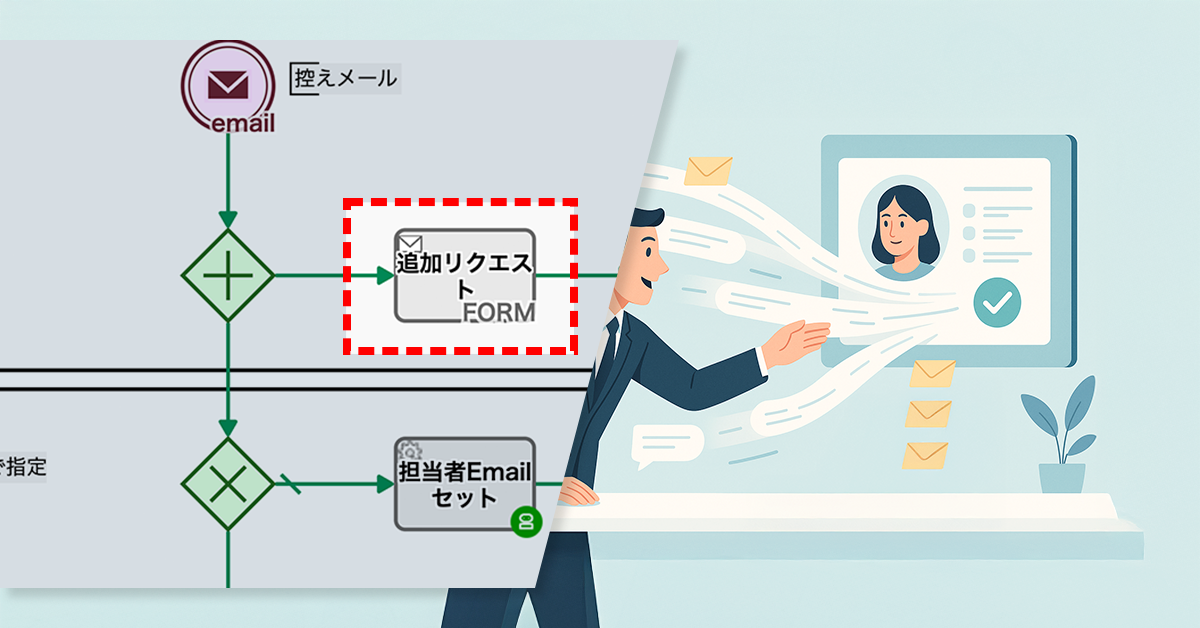
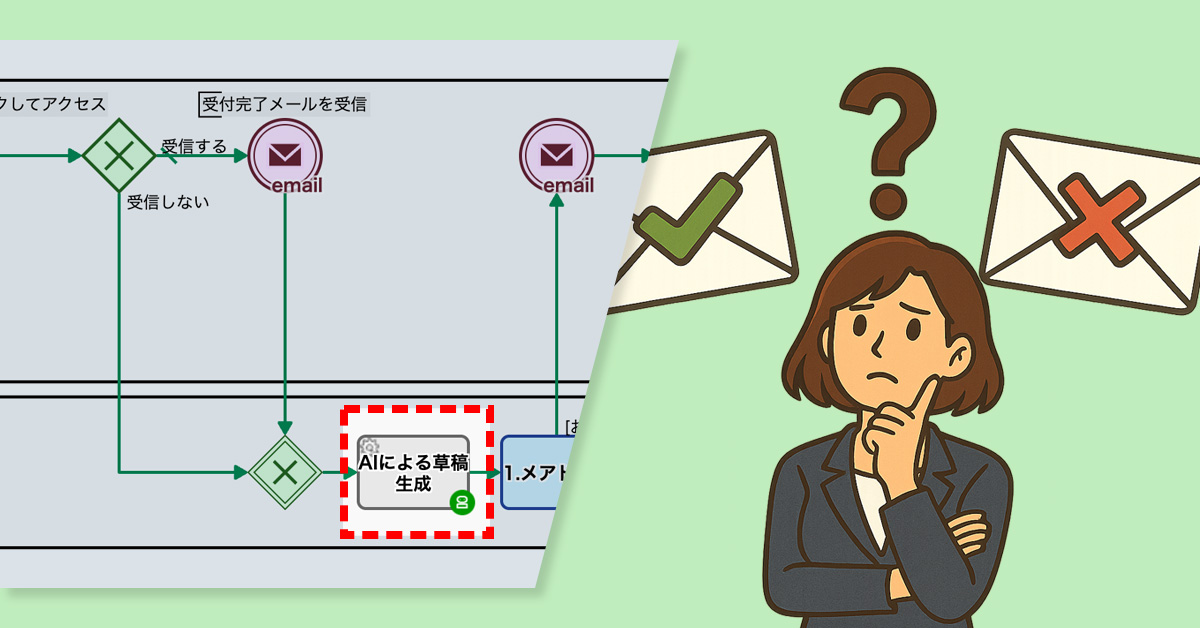
A special offer booking form encouraged inactive VIP customers to return and make appointments.
1. Issue: Emails to VIP customers don’t lead to bookings
Customers who have visited a certain number of times or spent a certain amount are designated as VIP customers, and they regularly receive mass emails with the latest information.
However, some of these customers have not visited for a long time and do not respond to the emails. The traditional email format sends the same information to everyone, lacking special offers or personalized suggestions, which fails to encourage them to book an appointment.
As a result, the mass emails have consistently failed to lead to salon visits.
2. Solution: Offer limited-time special benefits to encourage immediate bookings
The process owner introduced a system to send unresponsive VIP customers a special booking form with an offer of 10% off if they book within 48 hours.
Additionally, a checkbox was added during the email drafting stage, allowing staff to select customers they specifically wanted to encourage to book. Customers who were checked would then receive the mass email with the exclusive booking form URL embedded.
As a result, customers can now access the booking form with one click directly from the email. The short-term and clear incentive effectively encourages a sense of urgency, making immediate bookings more likely.
A special offer form helped bring back customers who had stopped visiting by encouraging them to book again.
Before
Parent ProcessChild Process
View details of the workflow diagramUsing Generative AI to Customize Announcement Text
Generative AI automatically inserts a different, customized sentence into each customer’s email.
Review email body and addresses
Staff members visually confirm the distribution data.
Automatic email sending
Email is sent to customers automatically.
After
Parent ProcessChild Process
View details of the workflow diagramUsing Generative AI to Customize Announcement Text
Generative AI automatically inserts a different, customized sentence into each customer’s email.
Review email body and addresses
Staff members visually review the distribution data. At this time, they check a box for any customer they want to encourage to book an appointment.
Automatic email sending
An email containing a URL for a dedicated booking form is sent to customers who are to be encouraged to make a booking.
VIP-Only Booking Form
After the email is sent, the dedicated booking form will be open for 48 hours.
Expected completion date notifications kept requesters informed and reduced phone inquiries.
1. Issue: The Burden of Phone Calls to Verify Progress
The Information Systems Department, serving as the help desk supporting the company’s IT infrastructure, handles between 20 to 30 inquiries daily with a team of 20 staff members.
Some inquiries can be resolved with a single email, but more complex issues requiring investigation or an internal review often need a two-step response: sending a provisional initial response first, followed by a definitive final response later. This can take several days to complete in some cases, causing the department to be overwhelmed by frequent phone calls from requesters seeking progress updates.
2. Solution: Pre-Notification of Estimated Completion Dates
To better manage inquiries that require extended response times, the process owner enabled the inquiry response staff to enter either the final response or an expected completion date. Specifically, if an expected completion date is entered, the project status is automatically updated to “Second Response in Progress (Notification Sent)”, and a notification email with the estimated date is sent to the requester.
Notifying requesters of expected completion dates reduced phone inquiries by keeping them informed.
Before
View details of the workflow diagramInquiry Input [FORM]
The requester inputs the details of their inquiry into a form.
Inquiry Received
They receive a notification that an inquiry has been submitted.
1. Enter First Response
The internal help desk staff member enters the initial response.
Status: Noise
If “Noise” is selected in step 1, the case status will be set to “Noise.”
Status: Completed
If “Final Response” is selected in step 1, the case status will be set to “Completed.”
Status: In Secondary Response
If “Reply & Secondary Response” is selected in step 1, the case status is set to “Secondary Response in Progress.”
First Response (Final)
The requester receives the initial response by email, and the process is complete.
First Response (Provisional)
The requester receives the initial response by email, and the process is complete.
2.Enter the second response
The technical support representative will enter the text for the second response.
Status: Completed
If “Secondary Response” is selected in step 2, the case status is set to “Completed.”
Second Response (Final)
The requester receives the secondary response by email, and the process is complete.
After
View details of the workflow diagramInquiry Input [FORM]
The requester inputs the details of their inquiry into a form.
Inquiry Received
They receive a notification that an inquiry has been submitted.
1. Enter First Response
The internal help desk staff member enters the initial response.
Status: Noise
If “Noise” is selected in step 1, the case status will be set to “Noise.”
Status: Completed
If “Final Response” is selected in step 1, the case status will be set to “Completed.”
Status: In Secondary Response
If “Reply & Secondary Response” is selected in step 1, the case status is set to “Secondary Response in Progress.”
First Response (Final)
The requester receives the initial response by email, and the process is complete.
First Response (Provisional)
The requester receives the initial response by email, and the process is complete.
2. Enter Second Response or Estimated Completion Date
The technical support representative enters the secondary response, or if the investigation will take time, they enter the estimated completion date.
Status: Completed
If “Secondary Response” is selected in step 2, the case status is set to “Completed.”
Status: Secondary Response in Progress (Estimated Date Entered)
When “Secondary Response” is selected in step 2, the case status is set to “Secondary Response in Progress (Estimated Date Entered).”
Second Response (Final)
The requester receives the secondary response by email, and the process is complete.
Notification of Estimated Completion Date
You will receive an email with the estimated completion date.
2b. Enter Second Response Text
The technical support representative enters the secondary response.
Second Response (Final)
The requester receives the secondary response by email, and the process is complete.
AI instant replies added to IT inquiry workflow reduce delays and employee anxiety.
1. Issue: Dissatisfaction with Delayed Responses
The Information Systems Department is responsible for our internal IT infrastructure, including PCs, networks, and servers. The 20-person staff handles a large volume of daily inquiries from employees.
Inquiries are submitted via a web form, and an automatic acknowledgment email containing an incident ID (a management number for each inquiry) is sent immediately after submission. The number of inquiries per person has been increasing, with over 50 a day on some occasions. This has led to noticeable delays in responses.
Furthermore, with only an incident ID in the acknowledgment email, employees were becoming anxious and concerned that their inquiries were being ignored.
2. Solution: Instant AI-Powered Responses
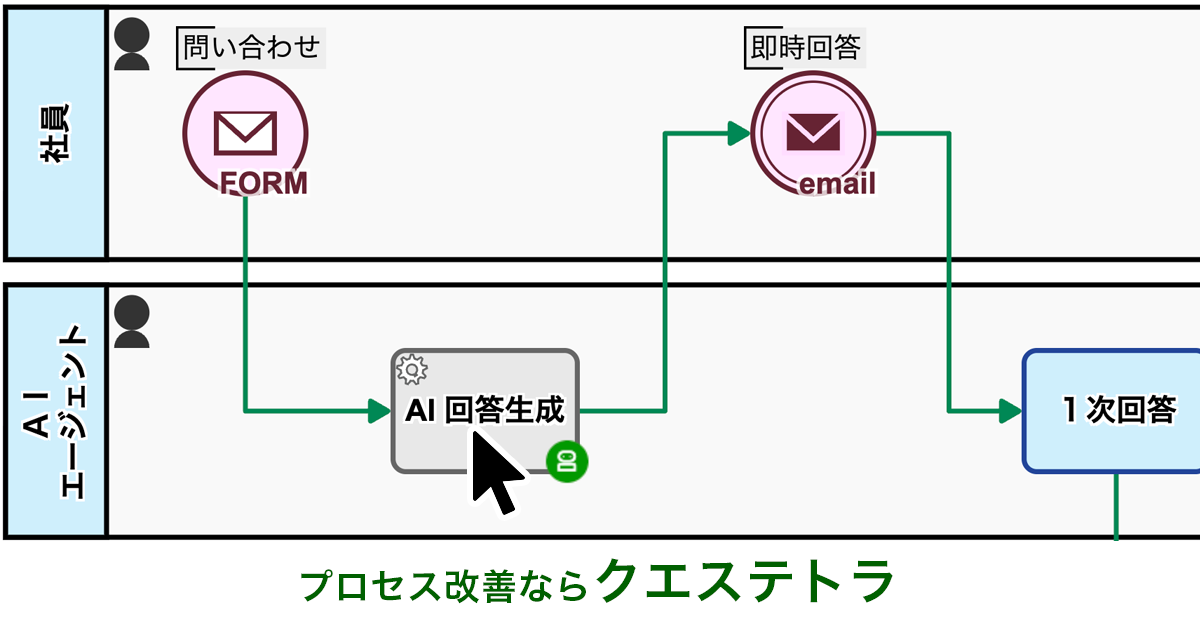
To address this, the process owner added an “AI Instant Response” step to the existing workflow. An AI now provides an automated response immediately after an inquiry is received.
The acknowledgement email, which previously only contained the incident ID, now includes an initial response generated by the AI. This provides employees with hints and a potential course of action based on past knowledge right after they submit their inquiry.
Provides immediate reassurance by showing employees their inquiry is being addressed right away, reducing anxiety.
Before
View details of the workflow diagramInquiry Input [FORM]
The requester inputs the details of their inquiry into a form.
Inquiry Received
They receive a notification that an inquiry has been submitted.
Leading to a Solution & Preparing Draft Verbal Response
After gathering relevant information, the AI automatically generates a list of potential solutions and a draft of the response.
1. Enter First Response
The internal help desk staff member enters the initial response.
Status: Noise
If “Noise” is selected in step 1, the case status will be set to “Noise.”
Status: Completed
If “Final Response” is selected in step 1, the case status will be set to “Completed.”
Status: In Secondary Response
If “Reply & Secondary Response” is selected in step 1, the case status is set to “Secondary Response in Progress.”
First Response (Final)
The requester receives the initial response by email, and the process is complete.
First Response (Provisional)
The requester receives the initial response by email, and the process is complete.
2. Enter Second Response or Estimated Completion Date
The technical support representative enters the secondary response, or if the investigation will take time, they enter the estimated completion date.
Status: Completed
If “Secondary Response” is selected in step 2, the case status is set to “Completed.”
Status: Secondary Response in Progress (Estimated Date Entered)
When “Secondary Response” is selected in step 2, the case status is set to “Secondary Response in Progress (Estimated Date Entered).”
Second Response (Final)
The requester receives the secondary response by email, and the process is complete.
Notification of Estimated Completion Date
You will receive an email with the estimated completion date.
2b. Enter Second Response Text
The technical support representative enters the secondary response.
Second Response (Final)
The requester receives the secondary response by email, and the process is complete.
After
View details of the workflow diagramInquiry Input [FORM]
The requester inputs the details of their inquiry into a form.
AI Instant Response
AI automatically performs the initial response.
Inquiry Received
They receive a notification that an inquiry has been submitted.
Leading to a Solution & Preparing Draft Verbal Response
After gathering relevant information, the AI automatically generates a list of potential solutions and a draft of the response.
1. Enter First Response
The internal help desk staff member enters the initial response.
Status: Noise
If “Noise” is selected in step 1, the case status will be set to “Noise.”
Status: Completed
If “Final Response” is selected in step 1, the case status will be set to “Completed.”
Status: In Secondary Response
If “Reply & Secondary Response” is selected in step 1, the case status is set to “Secondary Response in Progress.”
First Response (Final)
The requester receives the initial response by email, and the process is complete.
First Response (Provisional)
The requester receives the initial response by email, and the process is complete.
2. Enter Second Response or Estimated Completion Date
The technical support representative enters the secondary response, or if the investigation will take time, they enter the estimated completion date.
Status: Completed
If “Secondary Response” is selected in step 2, the case status is set to “Completed.”
Status: Secondary Response in Progress (Estimated Date Entered)
When “Secondary Response” is selected in step 2, the case status is set to “Secondary Response in Progress (Estimated Date Entered).”
Second Response (Final)
The requester receives the secondary response by email, and the process is complete.
Notification of Estimated Completion Date
You will receive an email with the estimated completion date.
2b. Enter Second Response Text
The technical support representative enters the secondary response.
Second Response (Final)
The requester receives the secondary response by email, and the process is complete.
Instant withdrawal notifications stop staff from responding to canceled inquiries, reducing wasted effort.
1. Issue: Effort to create responses is wasted
The in-house IT help desk of the company accepts IT-related inquiries from employees via a web form and handles 20 to 30 inquiries per day.
This form has a function that allows users to withdraw their inquiries themselves. However, the system does not notify the help desk staff that an inquiry has been withdrawn. As a result, there were cases where the staff continued working on creating a response without realizing that the inquiry had been withdrawn.
This resulted in unnecessary work being done, which led to a decline in the efficiency of the entire business.
To solve this problem, the process owner added a notification feature to the workflow.
Specifically, when an inquiry is withdrawn, all staff members are automatically notified by email. The notification includes the subject and ID of the inquiry, as well as the date and time of withdrawal, so staff members can immediately understand the details of the cancellation.
This allows staff to immediately see when an ongoing case is no longer necessary, allowing them to stop working on it quickly and move on to the next case.
Withdrawal notifications reduce wasted effort by preventing the creation of unnecessary responses.
Before
View details of the workflow diagramInquiry Input
An employee submits an inquiry to the internal help desk.
AI Response
An AI provides the initial response.
Notification of Receipt
A notification of receipt is automatically sent to the employee.
Inquiry Withdrawn
The inquiry content is withdrawn.
Terminate End Event
All processes are forcefully terminated.
After
View details of the workflow diagramInquiry Input
An employee submits an inquiry to the internal help desk.
AI Response
An AI provides the initial response.
Notification of Receipt
A notification of receipt is automatically sent to the employee.
Inquiry Withdrawn
The inquiry content is withdrawn.
Withdrawal Notification
A withdrawal notification is automatically sent to the help desk staff.
Help desk receives many out-of-scope inquiries but lacked tracking; workflow now classifies them to analyze trends.
1. Issue: Unable to record and analyze noise incidents
Accumulation and Analysis of “Noise” Issues Are Insufficient. The Information Systems Department acts as a help desk, supporting the company’s IT infrastructure and handling technical inquiries from employees on a daily basis. A team of 20 staff members processes 20 to 30 consultations each day.
However, in recent years, there’s been an increase in “noise issues” that are considered outside the department’s purview, such as questions about “how to use conference rooms” or “home Wi-Fi settings.” The time spent on these issues disrupts their core operations. Furthermore, there’s no system in place to record or analyze this “noise,” making it impossible to understand trends or underlying causes.
As a result, preventative measures and appropriate internal communications are not progressing, and there’s inconsistency in response standards.
2. Solution: Automatic Classification of Case Status
The process owner implemented a system to classify and record case statuses within the workflow.
Specifically, automated steps were inserted before and after “[1. Enter initial response]” and “[2. Enter secondary response text].” Depending on the progress, the status is automatically set to “Initial Response in Progress,” “Secondary Response in Progress,” “Completed,” or “Noise.”
As a result, if the “Noise” button is pressed during the initial response, the status will automatically become “Noise.”
Analyzing accumulated noise data helps reveal inquiry trends, prevent recurrence, and improve operations.
Before
View details of the workflow diagramInquiry Input [FORM]
An employee enters the details of their inquiry into a form.
Receipt notification received
Received notification of an inquiry.
Enter the text for the first response
The internal help desk agent enters the first response.
・Final Response: Reply with the final response.
・Noise: Close the case.
・Tentative Response: Reply and transition to a second response.
Final First Response
The first response is sent via email and the case is closed.
Tentative First Response
The first response is sent via email and the case is closed.
Enter the second response.
The technical support representative will enter the text for the second response.
Final Second Response
The second response is sent via email and the case is closed.
After
View details of the workflow diagramInquiry Input [FORM]
An employee enters the details of their inquiry into a form.
Receipt notification received
Received notification of an inquiry.
Enter the first response
The internal help desk agent enters the first response.
・Final Response: Reply with the final response.
・Noise: Close the case.
・Tentative Response: Reply and transition to a second response.
Status:Noise
If “Noise” is selected in step 1, the case status will be set to “Noise.”
Status: Resolved
If “Final Answer” is selected in step 1, the case status will be set to “Resolved.”
Status: In progress of second response.
If you select Reply & 2nd Response in step 1, the case status will be set to In progress of second response.
Final First Response
The first response is sent via email and the case is closed.
Tentative First Response
The first response is sent via email and the case is closed.
Enter the second response.
The technical support representative will enter the text for the second response.
Status: Resolved
If a second response is selected in step 2, the case status will be set to ‘Resolved’.
Final Second Response
The second response is sent via email and the case is closed.
A self-cancellation form automated inquiry closures, eliminating staff dependency, errors, and rework.
1. Issue: Person-dependency on cancellation handling
The company’s internal helpdesk receives IT-related inquiries from employees via a web form, handling around 20 to 30 requests per day.
After receiving the inquiries, the helpdesk begins preparing responses. However, there are instances where the requester contacts them mid-process to say they’ve solved the issue on their own and no longer need assistance.
The cancellation handling procedures, such as which information to record and how to process it in the system, were not clearly defined and left to the discretion of individual staff members, leading to inconsistent handling.
As a result, errors such as missed cancellations and forgotten records occurred, requiring later corrections or verifications.
2. Solution: Implementation of a Dedicated Cancellation Form
To address this issue, the process owner introduced a system that allows requesters to complete their own cancellation procedures. By eliminating the need for individual staff responses, the goal was to fundamentally prevent person-dependency and rework.
Specifically, the following three steps were taken:
Developed a public form allowing requesters to cancel their inquiries.
Included the public form URL in the ‘Inquiry Receipt Notification’ email.
Added a setting (Terminate End Event) that automatically closes cases when an inquiry is cancelled.
With this implementation, the requester only needs to submit the dedicated form to complete the cancellation process. As soon as it is submitted, any ongoing inquiries at the helpdesk are automatically terminated.
Allowing requesters to self-cancel eliminates staff intervention, reducing errors, missed records, and rework.
Before
View details of the workflow diagramInquiry entry
An employee contacts the internal help desk.
AI-generated answer
An initial response is provided by AI.
Acknowledgment of receipt
An acknowledgment of receipt is automatically sent to the employee.
After
View details of the workflow diagramInquiry entry
An employee contacts the internal help desk.
AI-generated answer
An initial response is provided by AI.
Acknowledgment of receipt
An acknowledgment of receipt is automatically sent to the employee.