ブログ

  • メルマガ解除はクリックで完結!

    メルマガ解除はクリックで完結!

    メールマガジンに顧客ごとの専用リンクを自動生成し本文へ挿入、クリック操作のみで配信停止依頼が完結。メルアドを入力させる方式では、入力の負担が顧客満足度を低下させていた。

    1. 課題:配信停止時のメールアドレス入力の手間

    NyokiNyoki農産物社は、地元農家の野菜を全国に届ける通販事業を展開しています。通販チームでは、リピート顧客に向けて旬の野菜やレシピを紹介するメルマガを定期的に配信しています。顧客との関係を維持するためには、継続的な配信と同時に、停止希望に迅速かつスムーズに対応することが欠かせません。

    しかし、配信停止を希望する場合、顧客はメルマガ本文のリンクからフォームにアクセスし、受信メールアドレスを入力しなければなりませんでした。これは、配信停止フォームに顧客共通のURLを使用していたため、システム側で「誰の停止依頼か」を自動的に特定できなかったからです。その結果、顧客にメールアドレスの入力を求めざるを得ませんでした。

    この仕組みでは、メールアドレスを入力する手間が顧客に余分な負担となり、配信停止のしやすさという観点で顧客満足度を下げていました。

    2. 解決策:顧客ごとの専用リンクで停止依頼を受付

    NyokiNyoki農産物社には、配信処理を行う親プロセスと、配信停止処理を行う子プロセスを活用しています。プロセスオーナーは顧客ごとに専用リンク(変動URL)を発行し、そのリンク経由で配信停止依頼を受け付ける仕組みを導入しました。

    まず、親プロセスがランダム文字列と子プロセスIDを組み合わせて顧客固有のURLを生成し、メルマガ本文に挿入します(下図参照)。顧客がリンクをクリックすると、識別IDが埋め込まれた配信停止フォームが自動的に表示されます。顧客は確認のために停止ボタンを押すだけでよく、メールアドレスの入力は不要です。

    この仕組みを実現するため、子プロセスを親プロセスから直接起動できるよう改変し、両者をつなぐ「サービスタスク」を親プロセスに配置しました。これにより、リンククリックの時点で顧客を特定し、配信停止処理を自動的に開始できるようになりました。

    Basic Edition
    Advanced Edition
    Professional Edition
    ワークフロー図詳細を見る
    配信リストの登録

    TSV形式のテキストデータを入力

    名前&メアドセット(自動工程 TSV文字列:セルデータの抽出)

    TSVデータが1行ずつ抽出されます。

    メルマガ配信

    子プロセスでの配信停止処理が完了すると、メルマガ配信処理に進みます。全てのTSVデータに対し、配信処理が完了すると、プロセスは終了します。

    Basic Edition
    Advanced Edition
    Professional Edition
    ワークフロー図詳細を見る
    メッセージ開始イベント (フォーム)

    顧客が Web フォームにメールアドレスを入力すると、プロセスが自動開始されます。

    「配信停止受付通知」を受信

    顧客は、配信停止受付通知を受信します。

    メアド削除

    通販チームは、削除依頼があった顧客のメールアドレスを削除します。

    Basic Edition
    Advanced Edition
    Professional Edition
    ワークフロー図詳細を見る
    配信リストの登録

    TSV形式のテキストデータを入力

    名前&メアドセット(自動工程 TSV文字列:セルデータの抽出)

    TSVデータが1行ずつ抽出されます。

    ランダム文字列生成(データ更新)

    配信停止フォームの固定URLの一部を、ランダム文字列生成のサンプル式に置換し、変動URLを自動生成します。

    メルマガ配信

    子プロセスでの配信停止処理が完了すると、メルマガ配信処理に進みます。全てのTSVデータに対し、配信処理が完了すると、プロセスは終了します。

    Basic Edition
    Advanced Edition
    Professional Edition
    ワークフロー図詳細を見る
    メッセージ開始イベント (HTTP)

    親プロセスがサービスタスクに到達すると、プロセスが自動開始されます。また、設置されたフォームは、72時間経過後に自動的にクローズされます。

    「配信停止受付通知」を受信

    顧客は、配信停止受付通知を受信します。

    メアド削除

    通販チームは、削除依頼があった顧客のメールアドレスを削除します。

    子プロセス

    3. 効果

    配信停止操作の簡略化

    「リンクを開いてボタンを押すだけ」で配信停止が完了することで、顧客の手間が解消されました。

    顧客体験の向上

    スムーズに停止できる安心感が加わり、メルマガ自体に対して“顧客に配慮されている”という好印象を持たれるようになりました。

    業務負担の軽減

    停止処理の正確性が高まり、通販チームへの問い合わせが減少しました。

    4. その他の業務への応用

    資料ダウンロード申込

    顧客ごとに固有URLを発行し、クリックだけで申込者を特定して資料を提供します。

    イベント参加登録

    招待メールの専用リンクから参加受付を行い、登録漏れや重複を防止します。

    会員情報の更新手続き

    本人専用リンクからフォームに遷移させ、ログインや確認入力なしで更新を受け付けられます。
  • 配信停止のきっかけメールを即特定

    配信停止のきっかけメールを即特定

    メールマガジンの配信処理と停止処理を連携し親子プロセス化。顧客による配信停止の要因メールが特定できず、分析と改善が遅延していたが、プロセス連携により迅速に特定可能に。

    1. 課題:配信停止の原因特定が困難

    NyokiNyoki農産物社は、地元農家の野菜を全国に届ける通販事業を展開しています。通販チームではリピート顧客向けに、旬の野菜やレシピを紹介するメルマガを定期的に配信していました。

    配信はおおむね好評で、担当者も内容に工夫を凝らしていました。一方で、原因が分からないまま配信停止の申し込みが続くことがありました。チームとしては、メルマガ内容を改善するために「どのメールが購読停止の原因になったのか」を把握したいと考えていました。

    ところが、配信処理と停止処理が別々のプロセスで実行されていたため、両者の記録を突き合わせないと原因となったメールを特定できませんでした。そのため分析に時間がかかり、メルマガ内容の改善や施策の見直しが遅れてしまっていました。

    2. 解決策:配信と停止を親子プロセスで連携

    プロセスオーナーは、これまで別々に行っていた配信処理と停止処理を、親子プロセスとして連携させました。

    具体的には、メール配信を行う親プロセスに、停止処理を実行する子プロセスを呼び出す[サービスタスク]を組み込みました。これにより、親子プロセスのIDが自動的にリンクされ、配信と停止それぞれの履歴を関連付けて確認できるようになりました。

    その結果、通販チームのメンバーは「誰に送ったのか」「どのメールが停止のきっかけになったのか」を、正確に把握できるようになりました。

    Basic Edition
    Advanced Edition
    Professional Edition
    ワークフロー図詳細を見る
    配信リストの登録

    TSV形式のテキストデータを入力

    名前&メアドセット(自動工程 TSV文字列:セルデータの抽出)

    TSVデータが1行ずつ抽出されます。

    メルマガ配信

    メルマガ配信処理を行います。全てのTSVデータに対し、配信処理が完了すると、プロセスは終了します。

    Basic Edition
    Advanced Edition
    Professional Edition
    ワークフロー図詳細を見る
    配信リストの登録

    TSV形式のテキストデータを入力

    名前&メアドセット(自動工程 TSV文字列:セルデータの抽出)

    TSVデータが1行ずつ抽出されます。

    配信停止プロセスへ(サービスタスク)

    配信停止処理を行うプロセス(子プロセス)が起動します。

    メルマガ配信

    子プロセスでの配信停止処理が完了すると、メルマガ配信処理に進みます。全てのTSVデータに対し、配信処理が完了すると、プロセスは終了します。

    中央のバー操作で Before / After が比較できます

    3. 効果

    配信停止の原因メールを特定

    配信停止のきっかけとなったメールを正確に特定でき、分析に活用できるようになりました。

    施策改善の加速

    停止要因を素早く把握できるため、メルマガ内容の改善や配信施策の見直しを迅速に行えるようになりました。

    ミスの防止

    手作業による突き合わせ確認が不要となり、処理漏れや誤送信リスクが減少しました。

    4. その他の業務への応用

    今回の仕組みは「親プロセスの中で必ず子プロセスを起動する」設計なので、停止処理以外にも応用可能です。

    例えば、

    • 定期購入の一時停止
    • キャンペーン応募の受付管理
    • クーポン申請や承認処理
    • 問い合わせ履歴の確実な記録

    など、顧客のアクションを起点に必ず処理を紐付けたい業務全般に適用できます。

    これにより、対応漏れを防ぎ、業務効率と顧客満足度の両立が可能となります。

  • AI × ワークフローで業務を「即・改善」する方法

    AI × ワークフローで業務を「即・改善」する方法

    生成AI は業務効率化の救世主?

    今話題の生成AI活用。実際に「業務に組み込めている」という企業はまだ少数でしょう。

    その理由は・・・

    • 要約や提案どまりで、実際には“作業”が残る
    • 業務に組み込むにはシステム開発が必要

    つまり、AIと業務をつなぐ“最後の一手”が欠けているからです。

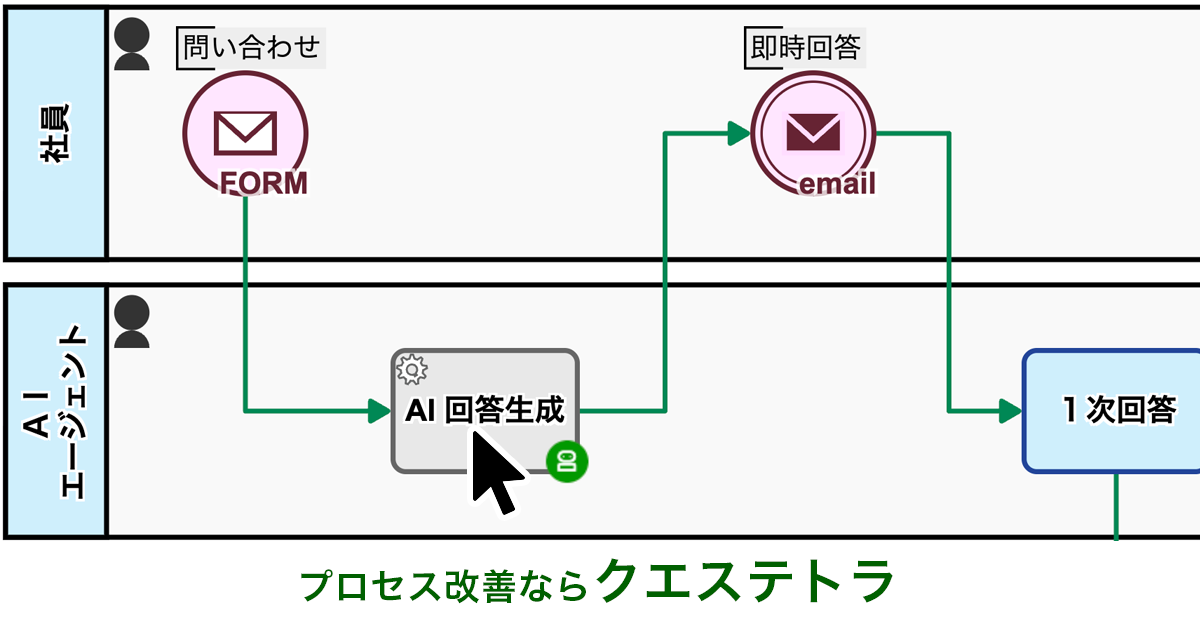
    例えば、問い合わせ対応業務。AIが内容を要約しても、担当者は結局「返信作業」をする必要があります。

    ですがもし──

    • 簡単な問い合わせにAIが返信文を自動作成
    • ワークフローシステムが「自動送信」まで実行

    ここまで実現した場合、担当者の負担は大幅に軽減されます。対応スピードは速まり、顧客満足度も向上します。

    しかし、これにはAIをうまく活用できる「ワークフローシステム」が必要です。

    AI × ワークフロー = クエステトラ

    Questetra BPM Suite は、AIをノーコードで業務プロセスに自在に組み込めるクラウド型ワークフローシステムです。

    誰でも使える形で「現場からの業務改善」を実現します。

    導入実績

    Questetra BPM Suite は大手企業をはじめ、さまざまな業種で採用され、企業の生産性向上に寄与しています。

    mitsubishi-pencil-OPG
    honda-OPG
    mitsubishi-pencil-OPG
    honda-OPG

    是非、実感してください

    生成AI × ワークフローで業務改善。まずは60日間の無料トライアルをお試しください。

  • AIが見抜く、経費申請の規則違反

    AIが見抜く、経費申請の規則違反

    経費申請には架空出張や水増しなどの不正が紛れ、承認者が見抜けないケースがありました。そこでAIが申請を規程に照らして解析し違反を検出。承認精度が向上し、業務負荷軽減と内部統制の強化につながりました。

    1. 課題:承認段階での不正見落とし

    産業用機械を製造・販売するDotoDoto精工株式会社では、顧客先への出張が多く、従業員の経費申請が頻繁に発生しています。申請は上司が確認・承認し、その後に経理部門が支払い処理を行う流れです。

    しかし、経費申請には架空の出張や金額の水増し、規程上限を超えた宿泊費といった不正や規程違反が含まれることがあります。これらの申請は表面上不備がないように見えるため、上司が見抜けないまま承認してしまう場合がありました。

    その結果、不正や規程違反を含む申請が承認を通過するリスクが高まるだけでなく、経理部門は支払い処理に加えてチェックまで担わざるを得ず、業務負荷も増大していました。

    2. 解決策:AIで不正や規約違反を検出

    この課題に対応するため、プロセスオーナーはフローに「AIエージェント工程」を組み込みました。

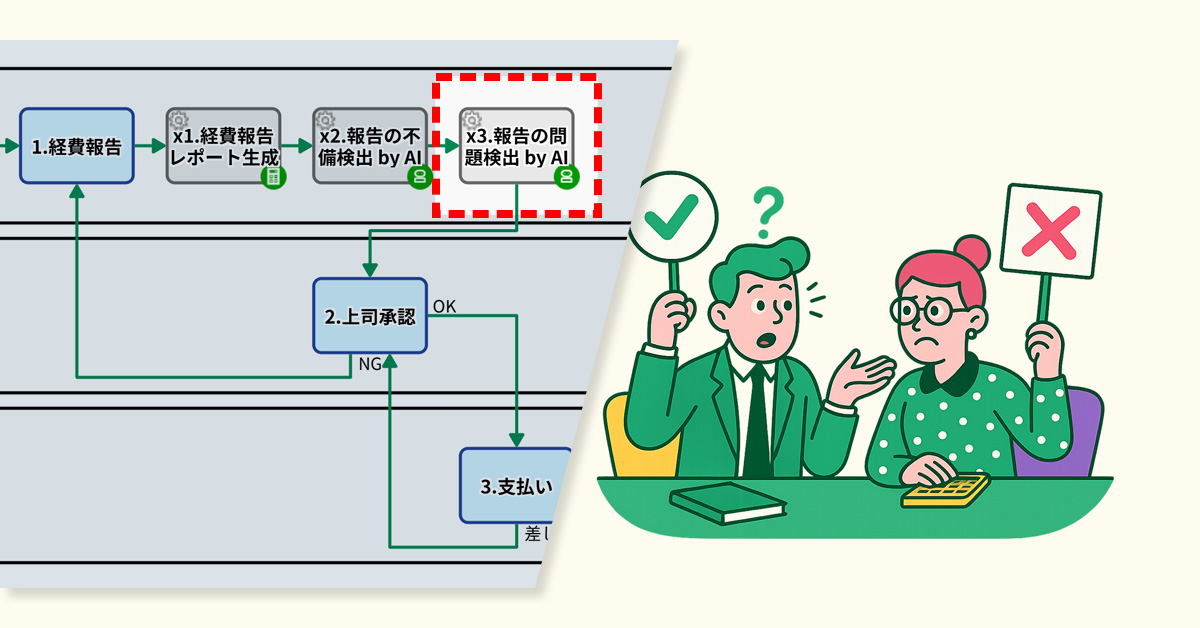
    申請内容を基に自動で整形された「経費報告レポート」をもとに、AIが社内ルールや規程と照合し、不正や違反の可能性を検出します。その結果は、上司と経理担当者の双方が事前に確認できるようになりました。

    Basic Edition
    Advanced Edition
    Professional Edition
    ワークフロー図の詳細を見る
    1.経費報告

    従業員が経費報告を提出します。

    x1.経費報告レポート生成

    1.の報告を元に自動でフォーマットに沿ってレポートが生成されます。

    x2.報告の不備検出 by AI

    x1の経費報告レポートを元に指示内容に従ってAIにより不備が検出・明示されます。

    2.上司承認

    上司が承認もしくは差し戻しを行います。

    3.支払い

    経理部が支払いを承認もしくは差し戻しを行います。

    Basic Edition
    Advanced Edition
    Professional Edition
    ワークフロー図の詳細を見る
    1.経費報告

    従業員が経費報告を提出します。

    x1.経費報告レポート生成

    1.の報告を元に自動でフォーマットに沿ってレポートが生成されます。

    x2.報告の不備検出 by AI

    x1の経費報告レポートを元に指示内容に従ってAIにより不備が検出・明示されます。

    x3.報告の問題検出 by AI

    x1の経費報告レポートを元に指示内容に従ってAIにより不正や規程違反が検出・明示されます。

    2.上司承認

    上司が承認もしくは差し戻しを行います。

    3.支払い

    経理部が支払いを承認もしくは差し戻しを行います。

    中央のバー操作で Before / After が比較できます

    3. 効果

    不正や規約違反検出の確実化

    AIにより、人間がこれまで見落としがちだった不正や規程違反を確実に把握できるようになりました。

    内部統制の強化

    承認段階で違反を抑止できる仕組みが整い、監査やガバナンス面の信頼性が向上しました。

    承認作業の精度向上

    上司がAIの指摘を根拠に判断できるようになり、承認の正確性が高まりました。

    経理部門の負担軽減

    遡及確認や修正対応が減り、経理が本来の支払い処理に集中できるようになりました。

    4. その他の業務への応用

    出張旅費精算の違反検出

    規程外の宿泊費や交通費をAIが指摘し、承認者が即時に確認できます。

    購買申請の適正確認

    規定金額を超える発注をAIが抽出し、適切な承認を促せます。

    契約関連費用の監視

    契約条件に沿わない支出をAIが検出し、リスクを事前に防止できます。

  • AI Proactively Detects Errors in Expense Reports

    AI Proactively Detects Errors in Expense Reports

    AI error-detection cut accounting’s workload by fixing flawed expense reports before approval.

    1. Issue: Rework caused by errors in expense reports

    As a manufacturer and distributor of industrial machinery, we regularly process employee expense reports for business travel and on-site assignments. The process involves an employee submitting a report, which is then reviewed and approved by their manager before being processed for payment by the accounting department.

    However, due to busy schedules and other reasons, it was found that managers were often approving these reports without reviewing them thoroughly.

    As a result, incomplete applications—lacking attached invoices or containing incorrect transaction dates—were being passed on to the accounting department.

    This forced accounting staff to spend extra time verifying the details of each report, which ultimately caused payment delays.

    2. Solution: Use AI to proactively detect errors in expense reports

    To address this issue, the process owner incorporated an “AI Agent Process” and an “Automatic Report Generation Process” into the workflow.

    When an expense report is submitted, a report is automatically generated based on its contents. Next, the AI analyzes the report to check for errors such as missing invoices or incorrect transaction dates. If any inconsistencies are found, the AI identifies the specific error and its reason, and this flagged report is then passed on to the manager for their approval.

    This new system ensures that any flaws in the expense reports are visible before they ever reach the accounting department.

    Pre-correcting errors in applications significantly reduced the time accounting staff spent reviewing and returning reports.

    Basic Edition
    Advanced Edition
    Professional Edition
    View details of the workflow diagram
    1.Expense Reporting

    Employee submits an expense report.

    2.Boss Approval

    The submitted proposal is subject to approval or denial by the boss.

    3.Payment

    Payment approval or rejection will be processed by the Accounting Department.

    Basic Edition
    Advanced Edition
    Professional Edition
    View details of the workflow diagram
    1.Expense Reporting

    Employee submits an expense report.

    x1.Generate Expense Report

    Based on the first report, a report is automatically generated in the specified format.

    x2.Detect Report Errors by AI

    Based on the x1 expense report, the AI detects and highlights any discrepancies according to the instructions.

    2.Boss Approval

    The submitted proposal is subject to approval or denial by the boss.

    3.Payment

    Payment approval or rejection will be processed by the Accounting Department.

    Before / After comparison (slider can be moved)

    3. Customers Case Study

    4. Other Business Applications

    We will enable AI-based reviews for the following tasks:

    Business Trip Application Content Check

    Project Application Flaw Detection

    Contract Document Pre-screening

    5. Related Posts

  • セキュリティ事故対応を共有で加速

    セキュリティ事故対応を共有で加速

    ISMS事務局の確認を廃止し、インシデント報告をチャットへ即時投稿。これにより対応を迅速化し、事務局の負担を軽減。

    ※このプロセス改善ストーリーはフィクションです。実在の人物や団体などとは関係ありません。

    1. 課題:情報共有の遅れによる対応遅延

    ITサービス企業 Gachatシステムズ社(従業員数:約120名)は、クラウドインフラや業務システムの開発・運用を手がける企業です。

    同社では、セキュリティインシデントが発生すると、発見者が状況を報告し、ISMS事務局が内容を確認し、対応を指示する仕組みを取っていました。

    しかし、初動報告や暫定対応報告が関係者に届くまでに事務局での確認を要するため、情報共有が遅れ、初動対応のスピードが損なわれるケースが多発していました。

    2. 解決策:社内チャットに自動で即時報告

    プロセスオーナーは、報告内容が社内チャット※へ自動投稿される仕組みを構築しました。

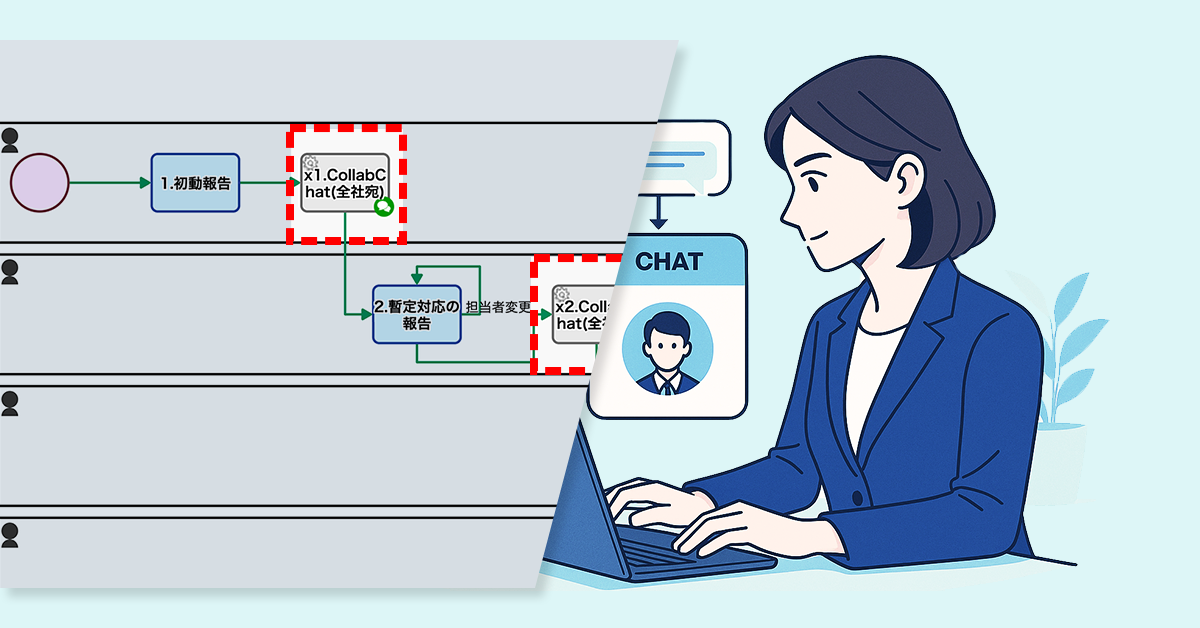
    具体的には、初動報告や暫定対応報告を、ISMS事務局での事前確認を経ずに社内チャットへ自動投稿するように変更しました。これにより、報告完了後、即座に関係者へ共有され、事務局の確認待ちによる遅延を解消できる体制を整えました。

    ※Questetra BPM Suite では Collab chat(コラボチャット)と呼称しています

    Basic Edition
    Advanced Edition
    Professional Edition
    ワークフロー図の詳細を見る
    1. 初動報告

    発生したインシデントについての初動対応を報告します

    2. 初動報告確認

    報告されたインシデントについて確認を実施、情報共有が行われます

    3. 暫定対応の報告→担当者変更 

    報告されたインシデントについての暫定対応を実施し報告します。担当者が対応できない場合には現場の判断での変更が可能

    3’. (再)暫定対応の報告

    暫定対応報告の差し戻しに対応し、再度報告します

    4. 暫定対応の確認

    暫定対応の報告について確認し、不備があれば差し戻しを行います

    5. CEO確認

    発生したインシデントについてCEOが確認します

    6. 恒久対応の報告→担当者変更

    発生したインシデントに対して、恒久対応を実施し報告を行います

    6′. (再)恒久対応の報告

    恒久対応報告の不備について対応し、再提出を実施します

    7. 恒久対応の確認

    恒久対応の報告について詳細を確認、不備があれば差し戻しを行います

    Basic Edition
    Advanced Edition
    Professional Edition
    ワークフロー図の詳細を見る
    1. 初動報告

    発生したインシデントについての初動対応を報告します

    x1. CollabChat(全社宛)

    社内チャット(コラボチャット)で全社宛に投稿が行われます

    2. 暫定対応の報告→担当者変更 

    報告されたインシデントについての暫定対応を実施し報告します。担当者が対応できない場合には現場の判断での変更が可能

    x2. CollabChat(全社宛)

    社内チャット(コラボチャット)で全社宛に投稿が行われます

    3. 恒久対応の報告→担当者変更

    発生したインシデントに対して、恒久対応を実施し報告を行います。担当者が対応できない場合には現場の判断での変更が可能

    x3. CollabChat(CEO宛)

    発生したインシデントについてCEO宛にコラボチャットに投稿されます。

    3’. (再)恒久対応の報告

    恒久対応報告の差し戻しに対応し、再度報告します

    4. 恒久対応の確認

    恒久対応の報告について確認し、不備があれば差し戻しを行います

    x4. CollabChat(全社宛)

    社内チャット(コラボチャット)で恒久対応の報告が全社宛に投稿されます

    中央のバー操作で Before / After が比較できます

    3. 効果

    情報共有の即時化

    インシデント情報がリアルタイムで共有され、初動対応までの時間が短縮されました。

    対応品質の向上

    必要な部署がすぐに動けるようになり、リスク低減に直結しました。

    業務プロセスの簡素化

    確認工程を省くことで、担当者の負担が減り、対応プロセスがシンプルになりました。

    4. その他の業務への応用

    顧客対応

    クレームや問い合わせを即時共有し、チーム全体で迅速に対応可能に。

    開発プロジェクトの進捗共有

    開発状況や課題をリアルタイム共有することで、問題解決をスピードアップします。

    社内イベントの運営効率化

    準備や運営に必要な情報をチャットに集約し、部門間の連携を円滑化します。

  • Bring Back VIP Customers with a 48-Hour Special Offer

    Bring Back VIP Customers with a 48-Hour Special Offer

    A special offer booking form encouraged inactive VIP customers to return and make appointments.

    1. Issue: Emails to VIP customers don’t lead to bookings

    Customers who have visited a certain number of times or spent a certain amount are designated as VIP customers, and they regularly receive mass emails with the latest information.

    However, some of these customers have not visited for a long time and do not respond to the emails. The traditional email format sends the same information to everyone, lacking special offers or personalized suggestions, which fails to encourage them to book an appointment.

    As a result, the mass emails have consistently failed to lead to salon visits.

    2. Solution: Offer limited-time special benefits to encourage immediate bookings

    The process owner introduced a system to send unresponsive VIP customers a special booking form with an offer of 10% off if they book within 48 hours.

    Additionally, a checkbox was added during the email drafting stage, allowing staff to select customers they specifically wanted to encourage to book. Customers who were checked would then receive the mass email with the exclusive booking form URL embedded.

    As a result, customers can now access the booking form with one click directly from the email. The short-term and clear incentive effectively encourages a sense of urgency, making immediate bookings more likely.

    A special offer form helped bring back customers who had stopped visiting by encouraging them to book again.

    Basic Edition
    Advanced Edition
    Professional Edition
    View details of the workflow diagram
    Using Generative AI to Customize Announcement Text

    Generative AI automatically inserts a different, customized sentence into each customer’s email.

    Review email body and addresses

    Staff members visually confirm the distribution data.

    Automatic email sending

    Email is sent to customers automatically.

    Basic Edition
    Advanced Edition
    Professional Edition
    View details of the workflow diagram
    Using Generative AI to Customize Announcement Text

    Generative AI automatically inserts a different, customized sentence into each customer’s email.

    Review email body and addresses

    Staff members visually review the distribution data. At this time, they check a box for any customer they want to encourage to book an appointment.

    Automatic email sending

    An email containing a URL for a dedicated booking form is sent to customers who are to be encouraged to make a booking.

    VIP-Only Booking Form

    After the email is sent, the dedicated booking form will be open for 48 hours.

    You can move the slider

    3. Customers Case Study

    4. Other Business Applications

    We will enable AI-based reviews for the following tasks:

    Subscription Services

    5. Related Posts

  • セキュリティ報告の自走化体制へ

    セキュリティ報告の自走化体制へ

    担当者の誤指定や急な変更による対応遅延が課題だった。フロー内での担当者変更機能により、変更依頼が不要となり対応が迅速・円滑になり、管理者の負担も軽減された。

    1. 課題:担当者指定の誤りによる報告の遅延

    ITサービス企業 Gachatシステムズ社(従業員数:約120名)は、クラウドインフラや業務システムの開発・運用を手がける企業です。

    同社では、セキュリティインシデント発生時に初動報告を行い、対応責任者を指定する運用となっています。しかし、指定された担当者が実際には対応できない事例が多く見られました。主な要因としては、初期段階での担当者の誤指定や、休暇・欠勤・異動などによる急な担当者変更が挙げられます。

    担当者が対応できない場合には、報告のたびにシステム管理者へ変更依頼を行う必要があり、その結果、手続きに時間を要して報告が遅れる要因となっていました。

    2. 解決策:担当者変更機能の追加

    プロセスオーナーは、報告フロー内で担当者を変更できる機能を追加しました。

    これにより、暫定対応や恒久対応といった各工程において、担当者を処理画面上で変更できるようになりました。現場判断で迅速な人員調整ができます

    Basic Edition
    Advanced Edition
    Professional Edition
    ワークフロー図の詳細を見る
    1. 初動対応の報告

    発生したインシデントについての初動対応を報告します

    2. 初動対応の確認

    報告されたインシデントについて確認を実施、情報共有が行われます

    3. 暫定対応の報告

    報告されたインシデントについての暫定対応を実施し報告します

    3’. (再)暫定対応の報告

    暫定対応報告の差し戻しに対応し、再度報告します

    4. 暫定対応の確認

    暫定対応の報告について確認し、不備があれば差し戻しを行います

    5. CEO確認

    発生したインシデントについてCEOが確認します

    6. 恒久対応の報告

    発生したインシデントに対して、恒久対応を実施し報告を行います

    6′. (再)恒久対応の報告

    恒久対応報告の不備について対応し、再提出を実施します

    7. 恒久対応の確認

    恒久対応の報告について詳細を確認、不備があれば差し戻しを行います

    Basic Edition
    Advanced Edition
    Professional Edition
    ワークフロー図の詳細を見る
    1. 初動対応の報告

    発生したインシデントについての初動対応を報告します

    2. 初動対応の確認

    報告されたインシデントについて確認を実施、情報共有が行われます

    3. 暫定対応の報告 → 担当者変更

    報告されたインシデントについての暫定対応を実施し報告します。担当者が対応できない場合には現場の判断での変更が可能

    3’. (再)暫定対応の報告

    暫定対応報告の差し戻しに対応し、再度報告します

    4. 暫定対応の確認

    暫定対応の報告について確認し、不備があれば差し戻しを行います

    5. CEO確認

    発生したインシデントについてCEOが確認します

    6. 恒久対応の報告

    発生したインシデントに対して、恒久対応を実施し報告を行います

    6′. (再)恒久対応の報告

    恒久対応報告の不備について対応し、再提出を実施します

    7. 恒久対応の確認

    恒久対応の報告について詳細を確認、不備があれば差し戻しを行います

    <担当者変更機能について補足>

    暫定対応・恒久対応で指名された担当者による対応が困難な場合、処理担当者のタスク移譲が簡単に行えます。

    新しく指名したい担当者を「暫定担当者(恒久担当者)」で指定後、「担当者変更」を実施するだけで、業務の流れを止めずに各タスクが移譲されます。

    中央のバー操作で Before / After が比較できます

    3. 効果

    担当者変更の依頼が不要に

    現場で直接担当者を切り替えられるため、都度システム管理者に依頼する必要がなくなりました。

    システム管理者の負担が軽減された

    報告ごとの修正作業から解放され、本来の管理業務に集中できるようになりました。

    報告スピードの向上

    タスク移譲が即時に完了するため、報告や対応の流れが止まらず、全体の処理速度が高まりました。

    4. その他の業務への応用

    案件管理の報告フロー

    担当営業の変更に対応しやすくなり、報告遅延や情報の行き違いを防止できます。

    顧客クレーム対応

    対応担当者の不在時でも、現場判断で処理の引き継ぎができ、迅速な対応が可能になります。

    社内トラブル報告(備品破損・システム障害など)

    現場責任者の変更や代理対応が必要な場面で、管理者の介入なしに処理が進行できます。

  • Enhancing Trust in the IT Department with Progress Transparency

    Enhancing Trust in the IT Department with Progress Transparency

    Expected completion date notifications kept requesters informed and reduced phone inquiries.

    1. Issue: The Burden of Phone Calls to Verify Progress

    The Information Systems Department, serving as the help desk supporting the company’s IT infrastructure, handles between 20 to 30 inquiries daily with a team of 20 staff members.

    Some inquiries can be resolved with a single email, but more complex issues requiring investigation or an internal review often need a two-step response: sending a provisional initial response first, followed by a definitive final response later. This can take several days to complete in some cases, causing the department to be overwhelmed by frequent phone calls from requesters seeking progress updates.

    2. Solution: Pre-Notification of Estimated Completion Dates

    To better manage inquiries that require extended response times, the process owner enabled the inquiry response staff to enter either the final response or an expected completion date. Specifically, if an expected completion date is entered, the project status is automatically updated to “Second Response in Progress (Notification Sent)”, and a notification email with the estimated date is sent to the requester.

    Notifying requesters of expected completion dates reduced phone inquiries by keeping them informed.

    Basic Edition
    Advanced Edition
    Professional Edition
    View details of the workflow diagram
    Inquiry Input [FORM]

    The requester inputs the details of their inquiry into a form.

    Inquiry Received

    They receive a notification that an inquiry has been submitted.

    1. Enter First Response

    The internal help desk staff member enters the initial response.

    Status: Noise

    If “Noise” is selected in step 1, the case status will be set to “Noise.”

    Status: Completed

    If “Final Response” is selected in step 1, the case status will be set to “Completed.”

    Status: In Secondary Response

    If “Reply & Secondary Response” is selected in step 1, the case status is set to “Secondary Response in Progress.”

    First Response (Final)

    The requester receives the initial response by email, and the process is complete.

    First Response (Provisional)

    The requester receives the initial response by email, and the process is complete.

    2.Enter the second response

    The technical support representative will enter the text for the second response.

    Status: Completed

    If “Secondary Response” is selected in step 2, the case status is set to “Completed.”

    Second Response (Final)

    The requester receives the secondary response by email, and the process is complete.

    Basic Edition
    Advanced Edition
    Professional Edition
    View details of the workflow diagram
    Inquiry Input [FORM]

    The requester inputs the details of their inquiry into a form.

    Inquiry Received

    They receive a notification that an inquiry has been submitted.

    1. Enter First Response

    The internal help desk staff member enters the initial response.

    Status: Noise

    If “Noise” is selected in step 1, the case status will be set to “Noise.”

    Status: Completed

    If “Final Response” is selected in step 1, the case status will be set to “Completed.”

    Status: In Secondary Response

    If “Reply & Secondary Response” is selected in step 1, the case status is set to “Secondary Response in Progress.”

    First Response (Final)

    The requester receives the initial response by email, and the process is complete.

    First Response (Provisional)

    The requester receives the initial response by email, and the process is complete.

    2. Enter Second Response or Estimated Completion Date

    The technical support representative enters the secondary response, or if the investigation will take time, they enter the estimated completion date.

    Status: Completed

    If “Secondary Response” is selected in step 2, the case status is set to “Completed.”

    Status: Secondary Response in Progress (Estimated Date Entered)

    When “Secondary Response” is selected in step 2, the case status is set to “Secondary Response in Progress (Estimated Date Entered).”

    Second Response (Final)

    The requester receives the secondary response by email, and the process is complete.

    Notification of Estimated Completion Date

    You will receive an email with the estimated completion date.

    2b. Enter Second Response Text

    The technical support representative enters the secondary response.

    Second Response (Final)

    The requester receives the secondary response by email, and the process is complete.

    Before / After comparison (slider can be moved)

    3. Customers Case Study

    4. Other Business Applications

    We will enable AI-based reviews for the following tasks:

    Project Management in Product Development

    Management of Recruitment Processes in HR

    5. Related Posts

  • AI Enables Instant Responses for Internal Help Desk Requests

    AI Enables Instant Responses for Internal Help Desk Requests

    AI instant replies added to IT inquiry workflow reduce delays and employee anxiety.

    1. Issue: Dissatisfaction with Delayed Responses

    The Information Systems Department is responsible for our internal IT infrastructure, including PCs, networks, and servers. The 20-person staff handles a large volume of daily inquiries from employees.

    Inquiries are submitted via a web form, and an automatic acknowledgment email containing an incident ID (a management number for each inquiry) is sent immediately after submission. The number of inquiries per person has been increasing, with over 50 a day on some occasions. This has led to noticeable delays in responses.

    Furthermore, with only an incident ID in the acknowledgment email, employees were becoming anxious and concerned that their inquiries were being ignored.

    2. Solution: Instant AI-Powered Responses

    To address this, the process owner added an “AI Instant Response” step to the existing workflow. An AI now provides an automated response immediately after an inquiry is received.

    The acknowledgement email, which previously only contained the incident ID, now includes an initial response generated by the AI. This provides employees with hints and a potential course of action based on past knowledge right after they submit their inquiry.

    Provides immediate reassurance by showing employees their inquiry is being addressed right away, reducing anxiety.

    Basic Edition
    Advanced Edition
    Professional Edition
    View details of the workflow diagram
    Inquiry Input [FORM]

    The requester inputs the details of their inquiry into a form.

    Inquiry Received

    They receive a notification that an inquiry has been submitted.

    Leading to a Solution & Preparing Draft Verbal Response

    After gathering relevant information, the AI automatically generates a list of potential solutions and a draft of the response.

    1. Enter First Response

    The internal help desk staff member enters the initial response.

    Status: Noise

    If “Noise” is selected in step 1, the case status will be set to “Noise.”

    Status: Completed

    If “Final Response” is selected in step 1, the case status will be set to “Completed.”

    Status: In Secondary Response

    If “Reply & Secondary Response” is selected in step 1, the case status is set to “Secondary Response in Progress.”

    First Response (Final)

    The requester receives the initial response by email, and the process is complete.

    First Response (Provisional)

    The requester receives the initial response by email, and the process is complete.

    2. Enter Second Response or Estimated Completion Date

    The technical support representative enters the secondary response, or if the investigation will take time, they enter the estimated completion date.

    Status: Completed

    If “Secondary Response” is selected in step 2, the case status is set to “Completed.”

    Status: Secondary Response in Progress (Estimated Date Entered)

    When “Secondary Response” is selected in step 2, the case status is set to “Secondary Response in Progress (Estimated Date Entered).”

    Second Response (Final)

    The requester receives the secondary response by email, and the process is complete.

    Notification of Estimated Completion Date

    You will receive an email with the estimated completion date.

    2b. Enter Second Response Text

    The technical support representative enters the secondary response.

    Second Response (Final)

    The requester receives the secondary response by email, and the process is complete.

    Basic Edition
    Advanced Edition
    Professional Edition
    View details of the workflow diagram
    Inquiry Input [FORM]

    The requester inputs the details of their inquiry into a form.

    Inquiry Received

    They receive a notification that an inquiry has been submitted.

    Leading to a Solution & Preparing Draft Verbal Response

    After gathering relevant information, the AI automatically generates a list of potential solutions and a draft of the response.

    1. Enter First Response

    The internal help desk staff member enters the initial response.

    Status: Noise

    If “Noise” is selected in step 1, the case status will be set to “Noise.”

    Status: Completed

    If “Final Response” is selected in step 1, the case status will be set to “Completed.”

    Status: In Secondary Response

    If “Reply & Secondary Response” is selected in step 1, the case status is set to “Secondary Response in Progress.”

    First Response (Final)

    The requester receives the initial response by email, and the process is complete.

    First Response (Provisional)

    The requester receives the initial response by email, and the process is complete.

    2. Enter Second Response or Estimated Completion Date

    The technical support representative enters the secondary response, or if the investigation will take time, they enter the estimated completion date.

    Status: Completed

    If “Secondary Response” is selected in step 2, the case status is set to “Completed.”

    Status: Secondary Response in Progress (Estimated Date Entered)

    When “Secondary Response” is selected in step 2, the case status is set to “Secondary Response in Progress (Estimated Date Entered).”

    Second Response (Final)

    The requester receives the secondary response by email, and the process is complete.

    Notification of Estimated Completion Date

    You will receive an email with the estimated completion date.

    2b. Enter Second Response Text

    The technical support representative enters the secondary response.

    Second Response (Final)

    The requester receives the secondary response by email, and the process is complete.

    You can move the slider

    3. Customers Case Study

    4. Other Business Applications

    We will enable AI-based reviews for the following tasks:

    Customer Support Department

    Student Support at Educational Institutions

    5. Related Posts

  • Eliminate Wasteful Work with Withdrawal Notifications

    Eliminate Wasteful Work with Withdrawal Notifications

    Instant withdrawal notifications stop staff from responding to canceled inquiries, reducing wasted effort.

    1. Issue: Effort to create responses is wasted

    The in-house IT help desk of the company accepts IT-related inquiries from employees via a web form and handles 20 to 30 inquiries per day.

    This form has a function that allows users to withdraw their inquiries themselves. However, the system does not notify the help desk staff that an inquiry has been withdrawn. As a result, there were cases where the staff continued working on creating a response without realizing that the inquiry had been withdrawn.

    This resulted in unnecessary work being done, which led to a decline in the efficiency of the entire business.

    2. Solution: Withdrawal Notifications Shared Instantly

    To solve this problem, the process owner added a notification feature to the workflow.

    Specifically, when an inquiry is withdrawn, all staff members are automatically notified by email. The notification includes the subject and ID of the inquiry, as well as the date and time of withdrawal, so staff members can immediately understand the details of the cancellation.

    This allows staff to immediately see when an ongoing case is no longer necessary, allowing them to stop working on it quickly and move on to the next case.

    Withdrawal notifications reduce wasted effort by preventing the creation of unnecessary responses.

    Basic Edition
    Advanced Edition
    Professional Edition
    View details of the workflow diagram
    Inquiry Input

    An employee submits an inquiry to the internal help desk.

    AI Response

    An AI provides the initial response.

    Notification of Receipt

    A notification of receipt is automatically sent to the employee.

    Inquiry Withdrawn

    The inquiry content is withdrawn.

    Terminate End Event

    All processes are forcefully terminated.

    Basic Edition
    Advanced Edition
    Professional Edition
    View details of the workflow diagram
    Inquiry Input

    An employee submits an inquiry to the internal help desk.

    AI Response

    An AI provides the initial response.

    Notification of Receipt

    A notification of receipt is automatically sent to the employee.

    Inquiry Withdrawn

    The inquiry content is withdrawn.

    Withdrawal Notification

    A withdrawal notification is automatically sent to the help desk staff.

    Terminate End Event

    All processes are forcefully terminated.

    You can move the slider

    3. Customers Case Study

    4. Other Business Applications

    We will enable AI-based reviews for the following tasks:

    Product Development Department

    5. Related Posts

  • Standardizing Responses Through Noise Classification

    Standardizing Responses Through Noise Classification

    Help desk receives many out-of-scope inquiries but lacked tracking; workflow now classifies them to analyze trends.

    1. Issue: Unable to record and analyze noise incidents

    Accumulation and Analysis of “Noise” Issues Are Insufficient.
    The Information Systems Department acts as a help desk, supporting the company’s IT infrastructure and handling technical inquiries from employees on a daily basis. A team of 20 staff members processes 20 to 30 consultations each day.

    However, in recent years, there’s been an increase in “noise issues” that are considered outside the department’s purview, such as questions about “how to use conference rooms” or “home Wi-Fi settings.” The time spent on these issues disrupts their core operations. Furthermore, there’s no system in place to record or analyze this “noise,” making it impossible to understand trends or underlying causes.

    As a result, preventative measures and appropriate internal communications are not progressing, and there’s inconsistency in response standards.

    2. Solution: Automatic Classification of Case Status

    The process owner implemented a system to classify and record case statuses within the workflow.

    Specifically, automated steps were inserted before and after “[1. Enter initial response]” and “[2. Enter secondary response text].” Depending on the progress, the status is automatically set to “Initial Response in Progress,” “Secondary Response in Progress,” “Completed,” or “Noise.”

    As a result, if the “Noise” button is pressed during the initial response, the status will automatically become “Noise.”

    Analyzing accumulated noise data helps reveal inquiry trends, prevent recurrence, and improve operations.

    Basic Edition
    Advanced Edition
    Professional Edition
    View details of the workflow diagram
    Inquiry Input [FORM]

    An employee enters the details of their inquiry into a form.

    Receipt notification received

    Received notification of an inquiry.

    Enter the text for the first response

    The internal help desk agent enters the first response.

    ・Final Response: Reply with the final response.

    Noise: Close the case.

    Tentative Response: Reply and transition to a second response.

    Final First Response

    The first response is sent via email and the case is closed.

    Tentative First Response

    The first response is sent via email and the case is closed.

    Enter the second response.

    The technical support representative will enter the text for the second response.

    Final Second Response

    The second response is sent via email and the case is closed.

    Basic Edition
    Advanced Edition
    Professional Edition
    View details of the workflow diagram
    Inquiry Input [FORM]

    An employee enters the details of their inquiry into a form.

    Receipt notification received

    Received notification of an inquiry.

    Enter the first response

    The internal help desk agent enters the first response.

    ・Final Response: Reply with the final response.

    Noise: Close the case.

    Tentative Response: Reply and transition to a second response.

    Status:Noise

    If “Noise” is selected in step 1, the case status will be set to “Noise.”

    Status: Resolved

    If “Final Answer” is selected in step 1, the case status will be set to “Resolved.”

    Status: In progress of second response.

    If you select Reply & 2nd Response in step 1, the case status will be set to In progress of second response.

    Final First Response

    The first response is sent via email and the case is closed.

    Tentative First Response

    The first response is sent via email and the case is closed.

    Enter the second response.

    The technical support representative will enter the text for the second response.

    Status: Resolved

    If a second response is selected in step 2, the case status will be set to ‘Resolved’.

    Final Second Response

    The second response is sent via email and the case is closed.

    You can move the slider

    3. Customers Case Study

    4. Other Business Applications

    We will enable AI-based reviews for the following tasks:

    5. Related Posts