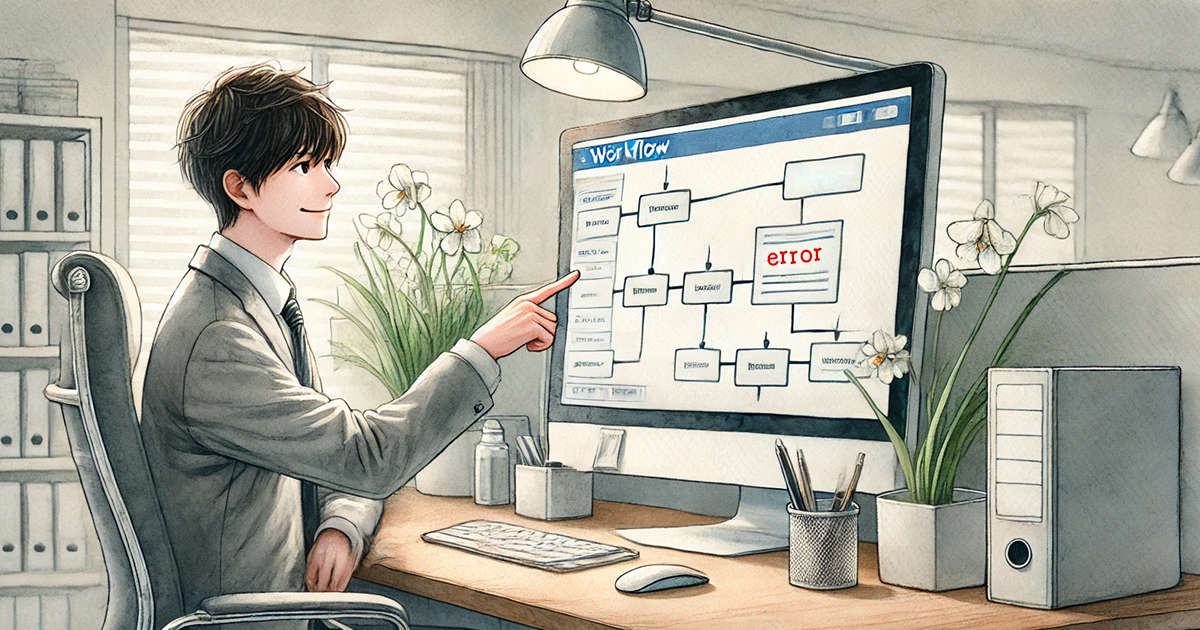
A self-cancellation form automated inquiry closures, eliminating staff dependency, errors, and rework.
1. Issue: Person-dependency on cancellation handling
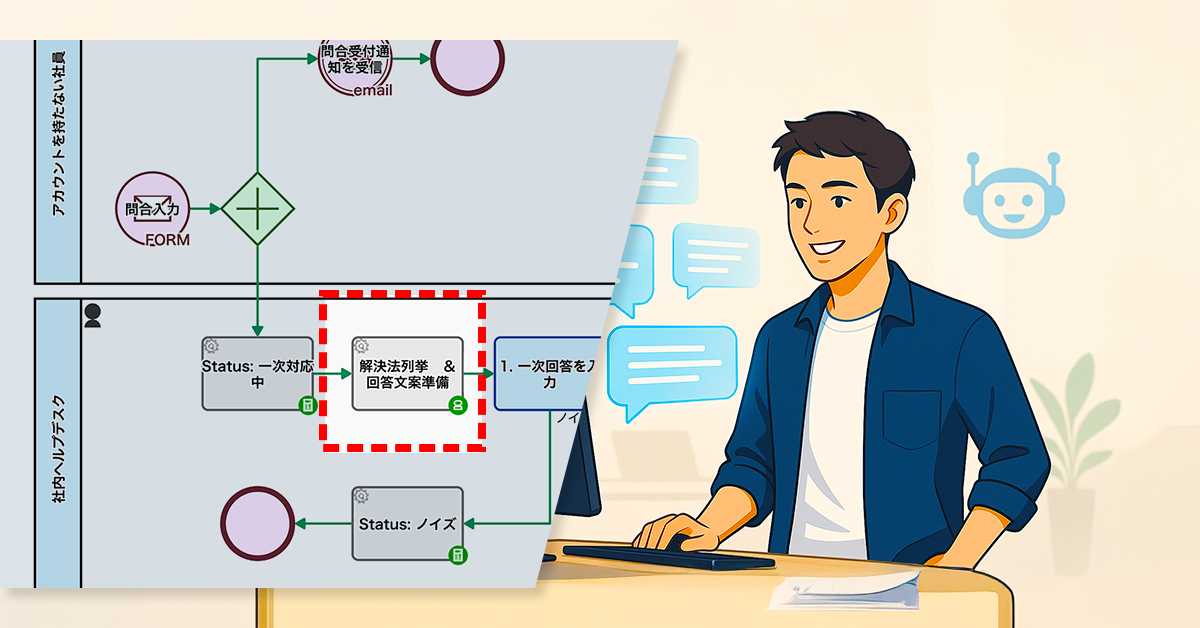
The company’s internal helpdesk receives IT-related inquiries from employees via a web form, handling around 20 to 30 requests per day.
After receiving the inquiries, the helpdesk begins preparing responses. However, there are instances where the requester contacts them mid-process to say they’ve solved the issue on their own and no longer need assistance.
The cancellation handling procedures, such as which information to record and how to process it in the system, were not clearly defined and left to the discretion of individual staff members, leading to inconsistent handling.
As a result, errors such as missed cancellations and forgotten records occurred, requiring later corrections or verifications.
2. Solution: Implementation of a Dedicated Cancellation Form
To address this issue, the process owner introduced a system that allows requesters to complete their own cancellation procedures. By eliminating the need for individual staff responses, the goal was to fundamentally prevent person-dependency and rework.
Specifically, the following three steps were taken:
Developed a public form allowing requesters to cancel their inquiries.
Included the public form URL in the ‘Inquiry Receipt Notification’ email.
Added a setting (Terminate End Event) that automatically closes cases when an inquiry is cancelled.
With this implementation, the requester only needs to submit the dedicated form to complete the cancellation process. As soon as it is submitted, any ongoing inquiries at the helpdesk are automatically terminated.
Allowing requesters to self-cancel eliminates staff intervention, reducing errors, missed records, and rework.
Before
View details of the workflow diagramInquiry entry
An employee contacts the internal help desk.
AI-generated answer
An initial response is provided by AI.
Acknowledgment of receipt
An acknowledgment of receipt is automatically sent to the employee.
After
View details of the workflow diagramInquiry entry
An employee contacts the internal help desk.
AI-generated answer
An initial response is provided by AI.
Acknowledgment of receipt
An acknowledgment of receipt is automatically sent to the employee.
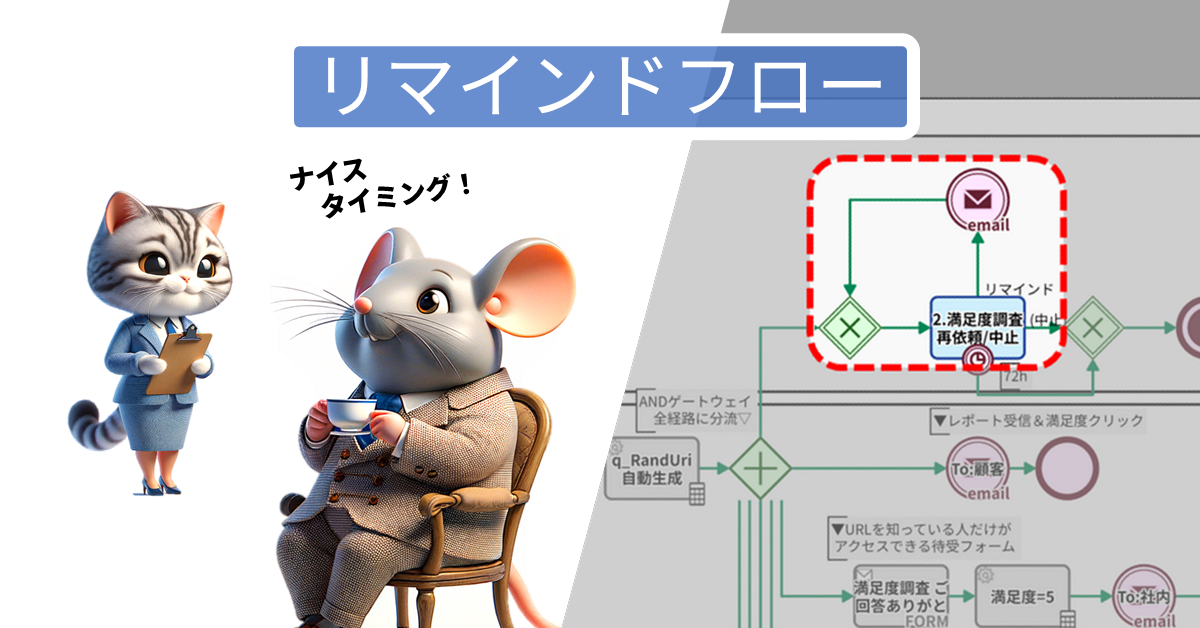
Reminder emails in the sales workflow increased satisfaction survey response rates from about 20% to 30%.
1. Issue: Low Response Rate for Satisfaction Surveys
A company’s sales operations are divided between inside sales (5 members) and field sales (5 members). The inside sales team operates under the slogan “Providing valuable information to potential customers.”
Inside sales members send out reports to 5 to 10 companies each day. Each report is sent via email from their workflow app’s “Report Sending Process”. The email body automatically includes five links to record satisfaction responses (from ★1 to ★5), allowing recipients to easily provide their satisfaction rating by simply clicking a link. The number of reports sent and the total number of satisfaction points obtained are key performance indicators (KPI) for inside sales.
Examples of content tailored to customer needs:
About the Simultaneous Login Feature
Simultaneous Login Feature
Examples of service updates:
Regarding New Feature XX
New Usage Case Studies (by Company YY)
Examples of materials used in regular meetings:
Service Overview
Proposition for XX
2. Solution: Enable Reminders
The process owner decided to redesign the workflow to allow multiple messages soliciting participation with the satisfaction survey.
In the previous Report Sending Process, reports and messages were only entered at the human task [0.Manual start]. After improvement, reports and messages can also be edited and re-sent in the second task*.
With this process improvement, inside sales gained the ability to remind prospective customers to participate in the satisfaction survey at their discretion and convenience.
Response rates improved from ~20% to ~30% as reminder emails prompted missed, delayed, and less responsive prospects to complete the survey.
AI checks sales emails for clarity and grammar before sending, improving reply rates.
1. Issue: Frequent Sending of Difficult-to-read Emails
A cloud service provider is struggling with its inside sales efforts. Their team contacts prospects via email to secure appointments, handling dozens of inquiries daily to obtain contact information for potential customers.
Sales representatives currently draft emails based on templates, customizing the content according to the prospect’s company size and industry, and then it is sent automatically by the system. However, this customization often leads to an increase in grammatical errors and typos. As a result, it is believed that the contents of the emails are frequently misunderstood, lowering the credibility of the information provided. This is reflected in a noticeable decrease in their reply rates.
2. Solution: AI Checks Email Content Before Sending
This company is changing its policy for sending emails to prospective customers. They’ll now only send emails if generative AI deems them suitable for dispatch. The process owner will add a step where generative AI checks the email content for readability and correct grammar. As a result, emails will only be sent if the AI determines there are no issues.
Generative AI improves email clarity and readability, increasing customer interest and reply rates.
Before
View details of the workflow diagram
The person in charge registers the prospect’s address and email content
The system sends the email content registered for the prospect’s address
The person in charge records reply outcomes from prospects, such as their level of interest in the service
The system waits for the “2. Record Reply” step for 10 days. If it remains unprocessed, “No Reply” is automatically recorded
After
View details of the workflow diagram
The responsible person registers the prospect’s email address and the email content
The system has generative AI check the email content for readability and errors
The system will send the email content registered to the prospect’s address if it receives a “no issues” result from the generative AI. If the generative AI returns a “typo” result, the process will be returned to the “1x. Contact Email Correction” step
The person in charge records reply outcomes from prospects, such as their level of interest in the service, during the “2. Record Reply” step
The system will wait 10 days for the “2. Record Reply” process to complete. If it’s still unprocessed, it will automatically record “No Reply.”
Error detection in the workflow notifies writers of spreadsheet errors, ensuring accurate article counts and reliable progress reporting.
1. Issue: Overlooking Automated Process Errors
A cloud SaaS vendor aims to publish 100 “how-to” articles on its product website to communicate product value to customers.
Our web production team is responsible for creating these articles, using a workflow app powered by BPMS. Once an article is complete, a notification is automatically sent to Collab Chat, our internal chat tool. This message includes the cumulative number of articles published, keeping everyone informed about our progress toward the 100-article goal.
The cumulative article count is calculated through an automated process: First, the workflow app adds article details (title and URL) to a Google Spreadsheet. Then, the Google Spreadsheet automatically calculates the number of rows (representing the number of published articles) using the COUNT function. Finally, the workflow app retrieves this count and embeds it into the Collab Chat message.
Our main issue lies in overlooking errors within this automated process. Although infrequent, errors can occur when article information (title and URL) is automatically added to the Google Spreadsheet. These rare but previously unaddressed errors led to inaccurate article counts being shared on Collab Chat. Such discrepancies can affect progress management and potentially undermine the web production department’s credibility.
2. Solution: Implementing Error Detection
The process owner configured the workflow to handle processing failures. Specifically, if an error occurs during the article information addition process, the token proceeds to an “error boundary event”. By assigning the next step of the error boundary event, writers are notified of the error.
In the next step (manual execution during error handling), the writer can then advance the token back to the article information addition process.
Adding an error detection feature ensures accurate published article counts by preventing inconsistencies during the article information process.
Before
View details of the workflow diagram
1-1. Create Article
2. Review
3. Publish
4x. Add Row to Spreadsheet
A new row is added to the specified Google Spreadsheet.
5x. Get Count
The number of published article rows calculated by the spreadsheet is retrieved.
6x. Publication Report (Share Count)
A message confirming the article’s publication, along with the retrieved count, is shared with the department via Collab Chat.
After
View details of the workflow diagram
1-1. Create Article
2. Review
3. Publish
4x. Add Row to Spreadsheet
A new row is added to the specified Google Spreadsheet.
4. Manual Execution on Error
If an error occurs in step 4x, processing this step will re-execute “4x. Add Row to Spreadsheet.”
5x. Get Count
The number of published article rows calculated by the spreadsheet is retrieved.
6x. Publication Report (Share Count)
A message confirming the article’s publication, along with the retrieved count, is shared with the department via Collab Chat.