※BPMN(Business Process Model and Notation)…「多くの人が直観的に業務の流れを理解できること」 を目標に考案された業務プロセスの描画記法。
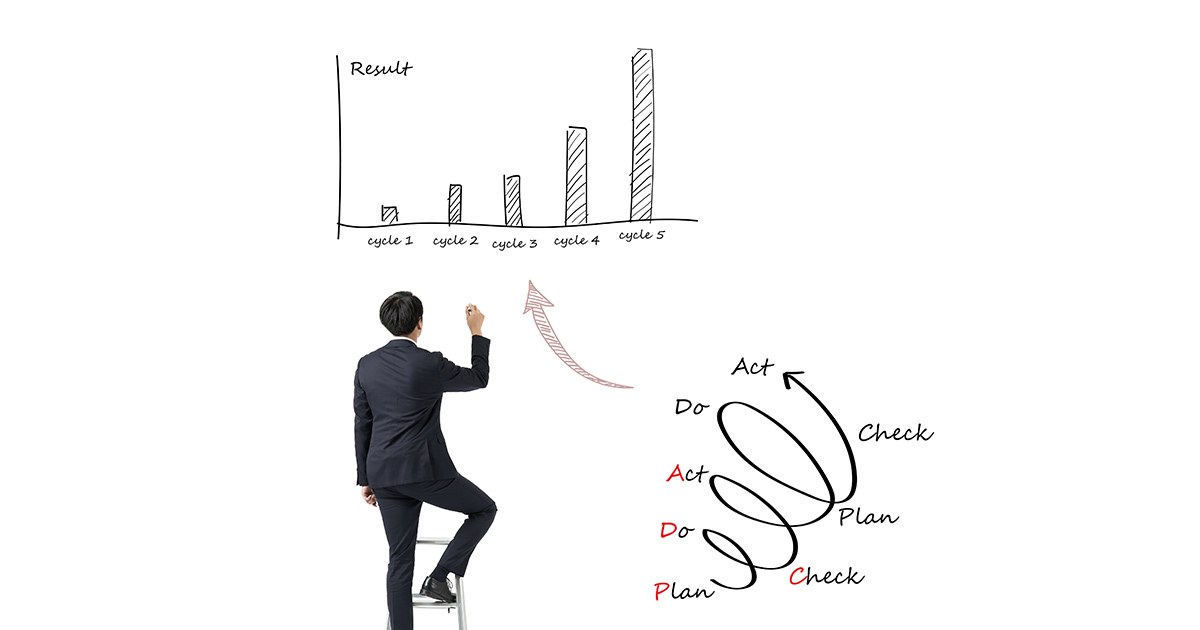
PDCA サイクルの運用をサポートする Questetra BPM Suite
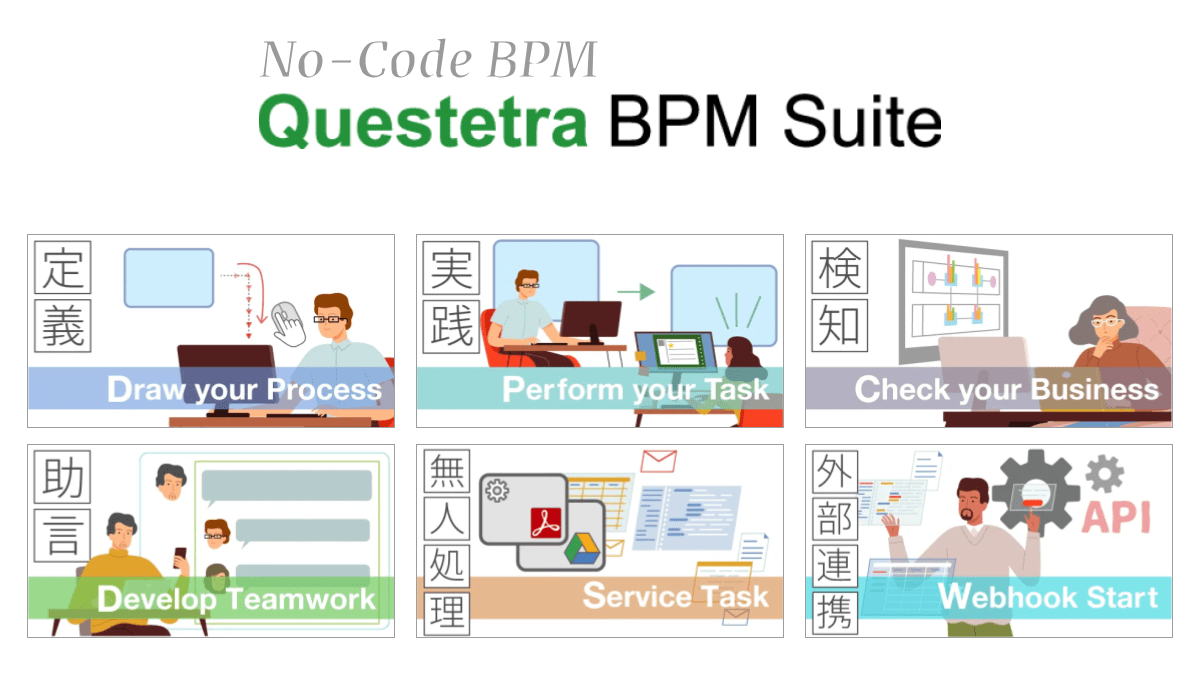
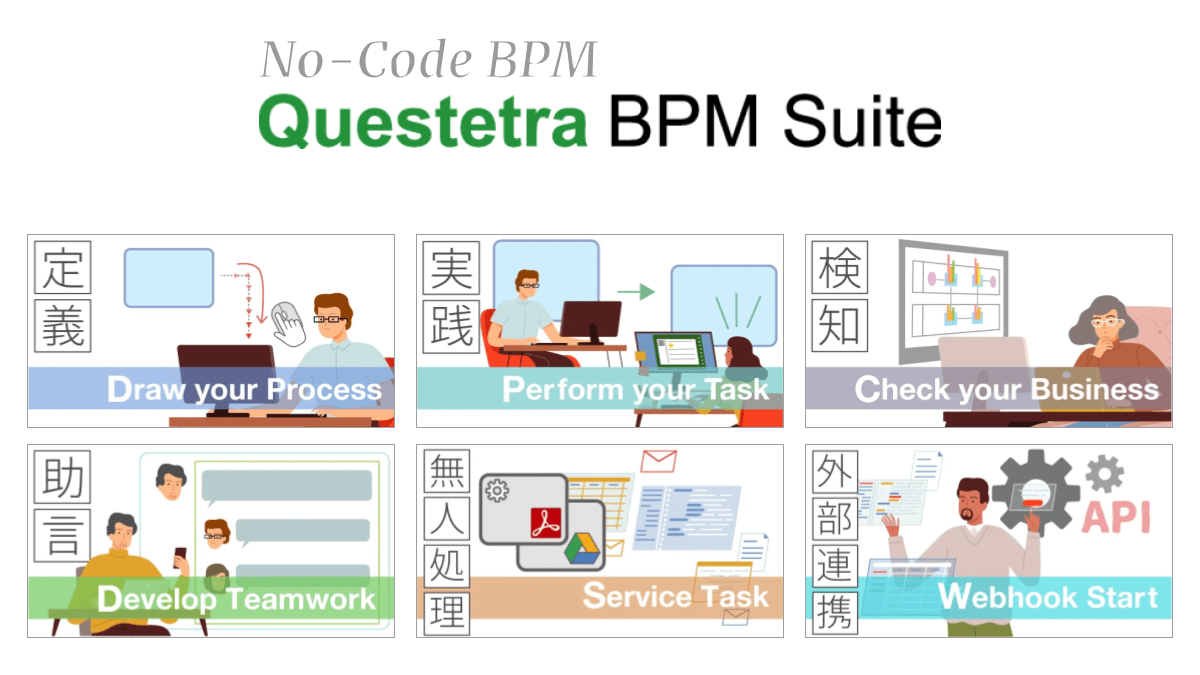
弊社が提供している Questetra BPM Suite は、その名の通り BPM の考え方に沿った業務改善活動をサポートするソフトウェアです。たとえば、Questetra BPM Suite はPDCA サイクルに対応する下記のような機能を内包しています。
パソコン上で業務プロセス図を簡単に作成できる(Plan-計画・可視化)
作成した業務プロセス図に沿って業務を自動で進行(Do-実行)
工程の処理にかかった時間や各メンバの負荷状況・成果などのデータを参照できる(Check-分析)
パソコン上で業務プロセスの変更・共有を簡単におこなえる(Act-改善)
まさに Questetra BPM Suite は、PDCA サイクルを「業務に役立つように」運用するためのソフトウェアといえるでしょう。また、こうしたワークフローシステムや BPM ツールと呼ばれるソフトウェアの多くは、サーバへのセットアップなど利用するまでの準備が大変ですが、Questetra BPM Suite はお申し込み後すぐに利用できるクラウド型のサービスです。
ほかにクラウド型の特長としては、「インターネット環境さえあれば、どこからでもオフィスで使っているのと同じシステムに簡単にアクセスできる」ことが挙げられます。これは業務の効率化やテレワークに大いに役立つポイントです。Questetra BPM Suite は無料お試しも可能です。この機会に Questetra BPM Suite で「実際に業務に役立つ PDCA サイクルの運用」をぜひご体験ください。
The term “workflow” implies a sequence of operations or procedures.
On the other hand, workflow is sometimes used to refer to a diagrammatic representation of the flow of work or software that manages work.
In this article we will discuss the following;
Workflow (and procedures)
Workflow diagrams (depicting the flow of business operations)
Workflow systems (software to manage business operations)
…and introduce specific techniques to help improve workflow.
3 Steps to Improve Workflow
Let’s begin by looking at the three steps that can be taken to improve workflow.
Step 1: Establish a Clear Flow of Operations
The basic premise for improving workflow is that the flow of work must be clear. For example, it is not possible to improve workflow if there are no predefined guidelines or procedures, and the work is being done in a haphazard manner.
Therefore, we will draw a workflow diagram to clarify who is performing what tasks and at what times.
The figure below is an example of a workflow diagram drawn in BPMN notation.
If the workflow was not clearly defined in the first place, then once the workflow is visibly represented in a diagram and the defined procedures are shared among the team, a step toward improvement will have been made.
Step 2: Identify the Problem
Now that you have created a workflow diagram, the next step is to look for problem areas. By creating a workflow diagram it should be easier to see problems and issues in the business that were previously unclear.
Here we examine the workflow, focusing on the following three points
Wasteful processes such as duplicate work
Availability of checks and verifications
Bottlenecks that slow down operations
There are many different types of business problems and issues, but these are all points of improvement that are most likely attributable to workflow.
Once we have identified these problems by schematizing the workflow, we can consider how to improve it by rearranging the diagram. In the next step, we will look specifically at how the workflow diagram can be improved to solve the problems.
Step 3: Identify Improvement Strategies
For example, consider the the wasteful process mentioned in the previous section. In this case, if a process is found to be clearly wasteful, it can be deleted from the workflow.
What about the next point mentioned in point #2, where there is no confirmation or checking?
The figure below shows an example of a workflow for responding to email inquiries.
At first glance this workflow may seem to work fine, but there is no way to check the responses that are created. Therefore, even if the content of an email is incomplete, there is a possibility that it will be sent as it is.
Therefore, we added a response check process to verify the content of the response text as shown in the figure below.
In the improved workflow, the created responses go through a response checking process and are then sent via email. If the response checking process determines that there is a problem with the response, the work is returned to the person who created it.
In point #3, there are various causes of bottlenecks in the workflow. However, if the workflow only allows sequential processing, it is effective to parallelize the processes. Let’s take a look at another workflow for an example of parallelization.
The figure below shows a workflow for product planning work.
In this workflow, from the planning stage to the final decision-making stage, the project goes through three stages of evaluation. However, the problem is that the evaluations are done in order, so if any of the evaluation teams takes too long to process a particular project, the workflow stops there. This sequential processing format is not very efficient.
Therefore, as shown in the figure below, we improved the workflow so that once the product planning step is processed, the three evaluation processes can be started simultaneously.
Incorporating parallelization into the workflow in this way speeds up the overall processing speed of the business and increases the possibility of eliminating bottlenecks.
Workflow Systems for Workflow Improvement
Although such workflow improvement can be done with pen and paper, it is easier and more efficient to do it with software called a workflow system, as mentioned at the beginning of this article.
A workflow system is software that allows you to create a workflow diagram on your computer and automatically follow the diagram. The workflow can be easily modified and shared, so workflow improvements can be made much more smoothly (compared to using pen and paper).
The workflow system also records data such as processing times and turnaround times of tasks, and displays the workload status of each person in an easy-to-understand manner. This can be very useful in identifying bottlenecks and other operational problems, and in evaluating the workflow after improvements have been made.
The features of cloud computing include immediate availability after application and the ability to easily access and work with the same system as your office from anywhere as long as you have an Internet connection.
A free trial of Questetra BPM Suite is also available. Please take this opportunity to experience the benefits of workflow improvement with Questetra BPM Suite.
Improving operational quality is an important issue for companies and an essential condition for improving the quality of products and services.
This article will clarify the definition of the term “business quality improvement” and explain specific ways to improve business quality.
What is Business Quality Improvement?
The term “business quality improvement” is ambiguous in some definitions, but here we define it as meeting the following three challenges.
Reduce errors in work (improve accuracy)
Increase the number of items processed in a given time (improve productivity)
Eliminate variations in quality among personnel (stabilization of work quality)
As for the first, it may need no explanation, but it is obvious that if the accuracy of work improves, the quality of the product or service will also improve. However, if the work takes longer to improve accuracy, productivity will decrease and costs may increase.
Therefore, it is necessary to maintain accuracy while addressing the second point of improving productivity. Of course, it would be ideal if we could improve both accuracy and productivity while keeping costs down.
The third factor is to minimize quality variations that may occur between new workers and experienced workers, who naturally have different levels of work proficiency. Depending on the type of business, eliminating variations due to conditions, such as time of day or season, may also be considered.
Meeting these challenges will directly lead to improved product, service quality and customer satisfaction. So how can we improve the quality of our operations based on these three points?
Three Ways to Improve Business Quality
1. Visualization and Quantification
The first thing we want to do to improve the quality of our operations is to visualize and quantify them.
Visualization refers here to the process of visibly identifying the overall flow of operations, problems, and issues by representing the current status of operations in a diagram or other form. In addition, quantification involves measuring and numerically analyzing necessary data, such as the lead time required from the start of work to its completion. In this process it is important to clarify not only the current figures but also the target figures, so that the issues can be tackled more smoothly.
2. Standardization and Optimization
On the other hand, to improve the variation in work quality, it is first necessary to standardize the work.
For example, the following situations could easily lead to inconsistency in quality and stagnation of the task:
Only certain people being able to handle a process
Each person working in their own way
Therefore, it is necessary to standardize work procedures and precautions by creating manuals so that anyone can perform the tasks. Of course, when standardizing it is important to identify the best procedures at that point in time.
After standardization is implemented, it is important to measure and verify the results through visualization and quantification as described in step 1. Furthermore, the created manuals and processes must be constantly optimized to best suit changes in the work environment and social conditions.
3. Paperless & Automated
Now, an extension of the points I have mentioned so far is the paperless and automated nature of operations.
For example, digitizing paper-based work can reduce costs associated with storing and managing paper documents. In addition, if the accumulated data is properly managed on a computer, it saves time and effort to search for past documents. Such ease of management and improved search convenience are major points that lead to increased business efficiency and improved business quality.
On the other hand, automation of work using RPA tools, for example, eliminates work quality variation. While human workers inevitably vary in accuracy depending on the person in charge of the work and the degree of fatigue, RPA allows robots to perform the work and maintain consistent work quality. RPA, on the other hand, can maintain the quality of work without variation because it is performed by robots. Such ease of management and improved search convenience are major points that lead to increased business efficiency and improved business quality.
In addition, there is software called a workflow system that can be used to automate the entire workflow. In the next section, we will explain the relationship between workflow systems and business quality improvement, along with specific examples.
A Workflow System to Support Improvement of Business Quality
Workflow systems are software that allows easy visualization of business processes on a PC.
The software automates the workflow and the handover of tasks according to the process diagram that has been created. The workflow system stores data such as business communication and time spent on processing, making it easy to quantify the work required for measurement and verification. This, together with the fact that work proceeds automatically and is easily visualized, is a great help in standardizing work.
In addition, workflow systems can be used to make various daily operations paperless, such as applications, approvals, and requests for approval, estimates, contracts, and invoices.
For example, in the case of in the case of Vital Information Inc., which introduced Questetra BPM Suite to automate and digitize order approval operations, the company was able to cut paper printing costs and storage space by eliminating the paper documents associated with approximately 500 applications per year. In the same case study, the company also reported that the administrative department eliminated printing and filing of documents for storage, saving approximately 20 hours of work per month.
Incidentally, Questetra BPM Suite that we offer is a cloud-based workflow system.
The features of cloud computing include immediate availability after application, and the ability to easily access and work with the same system as your office from anywhere as long as you have an Internet connection.
Questetra BPM Suite, which strongly supports the improvement of business quality, is available for free trial. Why don’t you take this opportunity to experience the process of business quality improvement with Questetra BPM Suite?
The term “small start,” often used in the business world, is a concept that can be applied to a wide range of areas, from reviewing lifestyle habits to launching a business. However, the meaning of the term can change slightly depending on the situation and individual perceptions.
Here we will explain small start methods that are useful for day-to-day operations, along with specific examples.
What is Small Start?
The term “small start” is used to describe a new business that starts with a limited service and gradually expands its scale depending on demand and other factors.
On the other hand, small start in business improvement activities such as streamlining of operations is often used in the sense of starting small from a part of the operation, as the term implies. In this article, we will discuss small start in business management and business improvement activities with the theme of business automation.
The Merits of Small Start
The main merit of a small start is that you can launch a project with reduced costs in terms of expenses, personnel and time.
Starting something big is risky, not only in business, but also in terms of cost, time, and effort.
On the other hand, starting small not only reduces the various costs associated with preparation and start-up management, but also makes it easier to make small changes and to withdraw from the project.
For example, when automating business operations, a small start would be to narrow down what you want to automate, and start with a straightforward approach to that part of the business.
In other words, small start has the advantage of being able to approach the most important points for improvement quickly.
Also, if the automation is focused on a specific point, even if a problem occurs, the scope of the problem will be limited.
Therefore, one of the advantages of starting small is that it is easy to achieve results through trial and error.
If the scope of the project is limited, the number of items that need to be shared within the team will also be reduced. The strength of a small start is that it lightens the burden on team members and makes it easier to obtain a common understanding, thereby facilitating smooth development after the start of the project.
Notes on Small Starts
However, even though the advantage of a small start is that you can approach quickly at a low cost, it is not recommended that you take a leap in the dark.
In the section above, we discussed how to focus on what you want to automate, but if you want to make your business more efficient through automation, it is important to first clarify your objectives and goals.
The purpose of the project should be clarified. Furthermore, set goals for how much and in what way you want to improve the business. These are the essential steps to take when starting small and implementing business improvement activities.
However, in order to set such objectives and goals it is necessary to have a clear understanding of what issues and problems exist in the business at the moment.
So how do we clarify these issues and problems?
Examples of Business Automation Using Small Starts
1. How Do I Clarify a Problem or Issue?
To clarify problems and issues latent in the business, we recommend that you first create a diagram of the business flow and look at it objectively.
The figure below is an example of a business process diagram drawn in BPMN notation. Roughly speaking, it is a business process diagram in which processes (tasks) are represented by rounded rectangles and connected by arrows.
By drawing such a diagram, it becomes clear who is doing what work and at what time, and it becomes easier to grasp the overall flow of work.
By going one step further and measuring the time spent in each process, the processing time per job, or the number of jobs processed in a given period of time, we can identify bottlenecks (the areas of greatest inefficiency, whether human, machine, or software) and other operational problems (this measurement process can be facilitated by using the workflow described in the next section)
2. How Can We Improve Our Operations?
Now that you have drawn a business process diagram and identified problems and issues, it is time to consider how to improve the business.
When selecting improvement measures, it is common to estimate the various costs and cost-effectiveness of implementation and choose a method that is appropriate for the current situation.
For example, the following measures could be taken to automate operations.
Automate specific tasks with RPA tools
Automate the progression of work with workflow
In case 1, a small start is made by automating one process in the business process with RPA tools. For example, a robot can be used to perform tasks such as data collection, processing, and extraction, which were previously performed by humans. If you follow the process of schematizing and measuring the business process as described above, you should be able to find the key points for introducing RPA tools.
On the other hand, in case 2, software called workflow is used to automate the entire workflow while visualizing the business process.
For example, if problems such as:
Difficulty keeping track of the progress of work
Time-consuming work handovers
are hindering the progress of your business, you can solve them by using workflow to manage your business. Workflow is software that manages work according to a business process diagram created on a PC, making it easy to grasp and share the progress of work. Workflow also automates the handing over of tasks, so work can proceed smoothly and efficiently.
Starting Small and Scaling Up
Since the idea of a small start is to start small and expand to the whole, it is very important to envision how to expand what has started small.
In the RPA example, the first way to scale would be to increase the number of processes and robots to be automated. This seems to be a reasonable approach if you have successfully implemented RPA tools by starting small. However, in this case the cost of increasing and managing the number of robots must be fully considered.
On the other hand, if workflow has been successfully used to automate a business process, it can be scaled to apply workflow to other processes or to link workflows together.
As mentioned in the above section, RPA tools can only automate partial tasks. Therefore, when introducing RPA tools it is also necessary to pay attention to the work transfer between the automated process and the process performed by humans. For example, if the time and effort required for a person to pass data to the RPA tool and the time and effort required for a person to receive the RPA deliverables are too great, it will be difficult to realize the benefits of the automation.
One way to solve these problems is to link workflow and RPA tools.
In other words, it adds the two methods described in the above section. Workflow can also automate the transfer of tasks between humans and RPA, thus avoiding the risk of increased workload when introducing RPA tools.
In addition, by integrating RPA tools and workflows it is possible to:
Launch RPA from workflow at any point in the business process
Automatically select and process tasks for RPA tools when they arrive
By making good use of these functions, small start business automation can be scaled up without any setbacks along the way.
Take the First Step to a Small Start with Questetra BPM Suite
We have discussed small starts using business automation as an example, but we hope you now understand that there are various perspectives from which to start small and expand the scope of your project as you see results.
The ideal small start approach to business improvement and streamlining is to directly approach problem areas and issues from a holistic perspective.
Now, the Questetra BPM Suite that we offer is what is known as a cloud-based workflow.
This cloud-based system can be used immediately after application and is suitable for a small start. Another advantage is that you can easily access and work with the same system as your office from anywhere as long as you have an Internet connection.
Why don’t you take the first step to start small with Questetra BPM Suite, which you can try for free?
そこで同社では、クラウド型のワークフローシステム Questetra BPM Suite を導入し、業務の自動化・ペーパーレス化をおこなって、下記のような成果を得ました。
入力の手間を軽減し、ミスも低減:品質 (Quality) の向上
管理コストを50%削減:費用 (Cost) の抑制
申請から承認までの業務時間を短縮:納期(Delivery) のスピード化
1は、書類作成のために複数のシステムや Excel に入力していたデータを、Questetra BPM Suite だけに入力すればよくなったことによるメリットです。また、手間の軽減やミスの低減には、自動入力や PDF の自動生成といったワークフローシステムの機能も役立っています。
2は、書類の印刷や保管に関する手間と費用を、ペーパーレス化により削減できたことによる効果ですね。
3は、Questetra BPM Suite がクラウド型であり、「インターネット環境さえあれば、どこでもオフィスで使っているのと同じシステムに簡単にアクセスできる」ことによるメリットです。同社では、申請者と承認者が社外にいるときには申請・承認作業ができず、長い場合には書類への押印に数日を要していました。しかし、Questetra BPM Suite によって社外でも申請・承認がおこなえるようになったため、社内に申請書が滞留することはなくなりました。こうして全体で見てみると、本事例では QCD をバランスよく改善できたことが分かります。
QCD改善にワークフローシステムが果たす役割
前項で述べた事例から、QCD 改善におけるクラウド型ワークフローシステム・Questetra BPM Suite の有効性はお分かりいただけたかと思います。ワークフローシステムは、パソコン上で業務の流れを簡単に図式化でき、作成した図の通りに自動で業務を進められるソフトウェアです。QCD 改善の基本となるのは、業務の現状を把握し、優先すべき改善ポイントを絞り込むことですが、こうした一連のプロセスをおこなう上でも、ワークフローシステムは大いに役立ちます。
さて、Questetra BPM Suite はクラウド型のワークフローシステムです。クラウド型の特長としては、お申し込み後すぐにご利用できることや、インターネット環境さえあれば、オフィスと同じシステムにどこからでも簡単にアクセスして仕事ができることなどが挙げられます。なお、Questetra BPM Suite は無料お試しも可能です。この機会に、 Questetra BPM Suite で、ワークフロー改善の効果をぜひ実感してください。
Let’s consider the terms “business process” and “define the business process.”
In this section, we will explain business processes from two perspectives and discuss the merits of using workflow (*1) for defining business processes.
Note: *1. Workflow can also mean “business flow” or a diagrammatic representation of it, but for the purpose of this article, we will use the definition of workflow to mean workflow software/system.
What is a Business Process?
Business processes are often described as “workflows” or “procedures”. However, this may not be a satisfactory description. Therefore, let us compare work to a train and business processes to a train line along which a train runs. Each station on the line is a task/process to be performed.
For example, even the simplest business process of requesting work includes multiple tasks such as:
Making a work request
The person who received the request performs the work and reports the completion
The person who made the request checks the work and the deliverables
You could say that a business process is a route (business process) that connects stations (tasks) so that a train (job) follows a well-designed route from the start of the business process to the goal.
So what is Business Flow? – Define the Business Process –
However, not everyone works with a complete understanding of business processes. Depending on the industry, there may be many cases where people are working without being aware of their business processes.
In such cases, it is difficult to know, for example,
What stage the work is at
Where the work is stalled
How the work starts and how it is completed
This can lead to problems such as mistakes, duplicated work, and delays.
Therefore, it is necessary to define business processes in a form that is easy for everyone to understand.
There are various ways to define business processes, but the typical method is to draw a flow diagram. This is generally called a business flow (*2). “Business Flow Diagram” and “Business Process Diagram” are also terms with the same meaning.
In other words, defining business processes means visualizing them.
Note *2…In this article, business flow is defined as a diagrammatic representation of the flow of business operations, but there are cases in which the term “business flow” simply refers to the flow of work. In this case, business flow means almost the same thing as business process.
Workflow sample of a work request
The Benefits of Defining Business Processes
So what are the benefits of defining (visualizing) business processes?
One of the major advantages of drawing a business flow diagram is that it makes it easier to grasp and share business processes.
Specifically, by drawing a diagram, the start and goal of the work, when, who, in what order, and what kind of work is done can be seen at a glance, and an overview of the work as a whole can be obtained. If the information is clearly presented in a diagram, it is easy to share it with others.
In addition, since the workflow will clearly show at a glance the time taken to process a task and what type of tasks each member has, it will be easier to grasp factors such as:
Work stagnation status
Points where work is held up (bottlenecks)
Workload on each person
The more we can understand the flow of work, the easier it is to uncover any issues or problems that may be lurking there. This is a very important point for improving the quality, procedures, and efficiency of work.
Workflow to Support Business Process Definition
Now, workflow is a strong ally in defining (visualizing) business processes and conducting business improvement activities as described above.
It is true that a business flow diagram can be created with a pen and paper, and the business process may be shared if it is posted in a conspicuous place in the office. However, it is time-consuming to redraw the diagram every time a process is changed, and a different approach is needed to grasp and share the progress of work with a paper flow diagram.
Workflow solves all these problems together.
Workflow not only allows you to easily visualize your work on your computer, it also allows you to automatically follow the flow diagram you have created. Processes can also be modified, updated, and shared quickly.
Workflow is software that makes it easy to define business processes and supports business improvement activities such as automation and streamlining.
Let’s Define Business Processes with Questetra BPM Suite
As mentioned in the above section on the benefits of workflow, the advantage of a cloud-based system is that you can easily access and work from anywhere on the same system as in the office. It is also suitable for teleworkers, as they can access defined processes from home or in the car on the way to work.
Most software such as workflow and BPM tools require a lot of preparation before use, such as setting up on a server, but Questetra BPM Suite can be used immediately after application. In addition, you can easily try to define business processes with a wide variety of templates that can be applied to a variety of business operations.
Please take this opportunity to try Questetra BPM Suite, which you can start for free.
Box cloud storage provides the ability to share files and folders with people outside the company. There are two ways to share: collaboration and shared links.
This article will show you how to automate sharing through collaboration.
If you want to know the difference between collaboration and shared links before you start, please read Recommendation for Automation – Difference between Box Collaboration and Shared Links.
No-Code Cloud Development Platform Questetra BPM Suite
The cloud-based no-code development platform Questetra BPM Suite is used to automate operations. This cloud service provided by Questetra is used for in-house systems production.
In Questetra BPM Suite, system development is performed using only a Web browser. The business system is built through the creation of workflow diagrams. In the constructed system, it is not only the business data that is digitized.
The system automates the transfer of business information from one person to another, as well as numerical calculation, data analysis, and the sending of formatted emails. Furthermore, data integration with other cloud services can also be automated.
No-Code Development Platform Questetra BPM Suite Overview
Automation is achieved by placing the items to be automatically processed in the workflow diagram at the point in time when you want to automate the process (e.g. when the Quality Control Manager approves an inspection report, the inspection report file is uploaded to Box).
Various automation items available in Questetra BPM Suite will allow you to automate your operations easily.
Box Cloud Storage Box Collaboration
Box is a cloud storage service for businesses. The Box case studies page lists over 100,000 customers and 67% are Fortune 500 companies (confirmed 2022-02-15).
Various automation items available in Questetra BPM Suite allow you to easily automate your business operations. (v13.3.0)
Box: Upload File
Box: Copy File
Box: Move File
Box: Create Shared Link to File
Box: Delete Shared Link of File
Box: Delete File
Box: Download File
Box: Create Folder
Box: Search Folder
Box: Create Shared Link to Folder
Box: Delete Shared Link of Folder
Box: Delete Folder
Box: Add Collaboration
Box: Delete Collaboration
The mechanisms we will create in the next section will use [Box: Add Collaboration] and [Box: Delete Collaboration] (shown above in bold).
Efficient File Exchange for Outsourced Work
We will build a system in which the following processes will take place.
The person in charge of outsourcing enters the name and email address (used for the Box account) of the outsourcing party and the Box folder ID to be used for exchanging files. (Consignment Application)
The supervisor of the person in charge approves the application.
The collaboration will be added to the folder.
An email is sent to the consignee with information about the consignment and the folder URL of the Box.
The person in charge of outsourcing checks the deliverables.
The supervisor of the person in charge reviews and approves the results of the delivery check.
The collaboration is removed from the folder.
An email is sent to the consignee stating that access to the Box folder is no longer available.
The processes in bold in this workflow are processed automatically.
The first step is to create a workflow diagram. (The following is an example of the operation in Questetra BPM Suite.)
Workflow diagram of outsourcing work to crowdsourcing, etc.
The following four processes in the workflow diagram are handled by people (the blue square items).
1. Consignment Application
2. Commission Approval
5. Delivery Check
6. Delivery Approval
If the collaboration is approved in [2. Commission Approval], it will be automatically added to the Box folder at the gray item [3. Add Collaboration]. Next, an email containing the information about the consignment and the URL of the Box folder will be sent to the consignee at the red-circled item [4. Email Consignee (upon consignment)].
Then, when the delivery is approved at [6. Delivery Approval], the collaborations added to the Box folder will be automatically deleted at the gray item [7. Delete Collaboration]. Finally, the red-circled item [8. Email Consignee (when finished)] will send an email to the consignee stating that the Box folder can no longer be accessed.
Configuration for emailing contractors
In “1. Consignment Application,” a folder for exchanging files with the consignee is created in Box in advance. Then, enter the folder ID of the created folder. The folder ID is a part of the folder URL (the blue part below).
https://example.app.box.com/folder/xxxxxxxxxxx
When the consignment request is approved, the Box folder will be automatically set to the consignee as a collaborator (Add Collaboration). Immediately after that, the consignee will receive an automatic email with the URL of the folder to be shared.
After this, files are exchanged between the consignee (collaborator) and the person in charge of the consignment (not included in the workflow diagram). When the deliverables finally delivered by the consignee are approved for delivery, the sharing settings are automatically removed from the Box folder that was shared (Delete Collaboration). Immediately after that, an email is automatically sent to the client informing them that the outsourcing is completed.
Commissioning Application and Approval Process ScreenDelivery check and approval process screenEmails sent to consigneeWorkflow automation for outsourcing work to crowdsourcing and other organizations
Summary
We have introduced a mechanism whereby when an outsourcing contract is approved, the Box folder shared with the outsourced party is automatically set up for sharing (Add Collaboration). The system also has a function that automatically removes the shared settings (Delete Collaboration) from the Box folder when the delivery from the outsourcing partner is approved.
Box folders can be shared with people outside the company and unshared automatically, eliminating the hassle for the person in charge of setting up and unsharing folders. It also eliminates the hassle of sending an email notifying the user of the settings and cancellation.
All of these tasks are now handled automatically, simultaneously eliminating work errors and omissions that could have occurred if they were handled manually.
By using the automation items provided in the no-code development platform Questetra BPM Suite, you can build a system that automatically processes file copying and shared link creation without any knowledge or experience with Box’s API (Application Programming Interface).
Questetra BPM Suite is available for a 60-day free trial. If you are interested, please apply from the following link.
たとえば、Questetra BPM Suite を導入して受注決裁業務を自動化・ペーパーレス化したヴァイタル・インフォメーション株式会社の事例では、年間約500件ある申請に伴う紙の書類がなくなり、紙の印刷費用や保管スペースをカットできたとのこと。同事例ではほかにも、管理部門がおこなっていた保管用書類の印刷作業やファイリング作業がなくなり、業務時間を月間約20時間削減できたことなどが報告されています。
ちなみに、弊社が提供している Questetra BPM Suite はクラウド型のワークフローシステムです。
Box is a service that allows you to share files efficiently and securely within your organization, and one of the many things that make Box a great service is that it’s easy to share with people outside your organization.
This article will show you how to set up Box features that can be shared with people outside your organization automatically instead of manually.
1. Box Cloud Storage
Box is a cloud storage service for businesses. The Box case studies page lists over 100,000 customers and 67% are Fortune 500 companies (confirmed 2022-02-15).
Box makes it easy to share files and folders within an organization. In addition, you can share files and folders not only within the same organization, but also with people outside the organization.
In business, it is necessary to share files with people outside the organization in various ways, for example:
When submitting quotations or proposals to customers
Sharing requirement definitions and design files with contractors in a system development project
Preparing a folder to accept delivery of CAD files of drawings from clients
Box provides the functionality to fulfill such requirements.
Collaboration
Shared links
Both of the above two functions are used to share files and folders with people outside the organization. How are they used differently?
1-1. Difference Between Shared Links and Collaboration with Box
The difference between collaboration and shared links depends on the following:
Are you sharing with people outside your organization who use Box?
Are you sharing with people who are not using Box?
Collaboration allows you to share files and folders with people outside your organization who are using Box.
When using collaboration, enter the email addresses of external collaborators who have Box accounts using the “Share” feature for files and folders. At this time, you can specify permissions to the file or folder as follows.
File
Editor: Download, preview, share, and edit
Viewer: Download, preview, and share
Folder
Co-owners: Manage security, upload, download, preview, share, edit, and delete
Editor: Upload, download, preview, share, edit, and delete
Viewer Uploader: Upload, download, preview, share, and edit
Previewer Uploader: Upload and preview
Viewer: Download, preview, and Share
Previewer: Preview only
Uploader: Upload only
With low level permissions, you can only view files, but with high level permissions, you can do almost anything to that folder or file, including deleting and editing.
Box Collaboration Settings Screen
On the other hand, shared links allow you to share files and folders with people who are not using Box. Use the share function in the same way as for collaboration. At this time, you can specify the scope of sharing.
Sharing scope
People with the link: Everyone who knows the URL of the file or folder
Company users: Users who are currently using Box and are subject to the administration of Box.
Invited users only: collaborators invited by the collaboration feature
People specified in the sharing scope will be able to view and download the folders and files indicated by the shared links. However, they cannot edit, delete files, or upload files to a folder. Compared to collaboration, what you can do is limited.
If you select “People with the link” in the sharing scope there is a risk that if that URL is leaked it will be seen by people you do not want to see it. To reduce this risk, you can set an expiration date and a password.
Box Shared Link Settings Screen
Collaboration is suitable for projects such as system development, where the collaborator is given greater access to files and folders, and the project is carried out in close cooperation with the outsourcer.
Shared links are suitable for easily sharing files and folders, such as submitting quotations or requested documents, because they allow you to easily share files and folders with people who do not have a Box account.
1-2. Automated Collaboration and Shared Links
Setting up collaborations and shared links isn’t too difficult, but it can be a hassle. Confirming that they have been appropriately configured and sending guidance to the sharing recipients is time-consuming.
It is also necessary to remove collaboration and shared link settings, for example at the closing of a project. It is not good for security that internal folders and files continue to be shared with people outside the company without awareness.
To automate these tasks, Box provides APIs (Application Programming Interface).
Creating a mechanism (app or system) that utilizes these APIs can automate the aforementioned tasks, but it requires skills in programming. Even if you have the skills, it will take time to understand the API specifications and create the mechanism.
Questetra BPM Suite, introduced in the next section, provides automation items using the above API. By using these items, you will be able to build a mechanism to automate collaboration and shared link settings and to automatically remove these settings when the time comes, without any code.
2. No-Code Cloud Development Platform Questetra BPM Suite
No-Code Cloud Development System Questetra BPM Suite is a cloud service provided by Questetra, Inc. and is used for in-house production of systems.
In Questetra BPM Suite, system development is performed using only a Web browser. The business system is built through the creation of workflow diagrams. In the constructed system, it is not only the business data that is digitized.
The system automates the transfer of business information from one person to another, as well as the analysis of numerical calculation data and the sending of formatted emails. Furthermore, data integration with other cloud services can also be automated.
No-Code Development Platform Questetra BPM Suite Overview
Automation is achieved by placing the items to be automatically processed in the workflow diagram at the point in time when you want to automate the process (e.g. when the Quality Control Manager approves an inspection report, the inspection report file is uploaded to Box).
Various automation items available in Questetra BPM Suite allow you to easily automate your business operations. (v13.3.0)
Box: Upload File
Box: Copy File
Box: Move File
Box: Create Shared Link to File
Box: Delete Shared Link of File
Box: Delete File
Box: Download File
Box: Create Folder
Box: Search Folder
Box: Create Shared Link to Folder
Box: Delete Shared Link of Folder
Box: Delete Folder
Box: Add Collaboration
Box: Delete Collaboration
The automation items shown in bold can be used to automate sharing with Box.
Examples of the use of automated items related to shared links can be found in the following articles.
Cloud Storage Sharing in Box includes features called Collaboration and Shared Links.
Collaboration enables sharing with people outside the organization who have Box accounts, and Shared Link enables sharing with people who do not have Box accounts.
Each must be used for different purposes, but the procedures related to setting up and deactivating them can be cumbersome. In addition, there are security issues that need to be handled reliably.
By using the automation items provided in the no-code development platform Questetra BPM Suite, you can build a system in which collaboration and setting/unsetting of shared links are handled automatically, even if you have no knowledge or experience with Box’s API (Application Programming Interface).
Questetra BPM Suite is available for a 60-day free trial. If you are interested, please apply from the following link.
This article will show you how to build a no-code system for sending emails with document files attached.
No-Code Development Platform Questetra BPM Suite
We will be using the cloud-based no-code development platform Questetra BPM Suite to automate operations.
In Questetra BPM Suite, you can develop a business system using only a web browser. The business system is built through the creation of workflow diagrams. In the constructed system, it is not only the business data that is digitized.
The system automates the transfer of business information between people, and also automates processes such as numerical calculations, data analysis and formatting, and email transmission. Furthermore, data integration with other cloud services can be automated.
No-Code Development Platform Questetra BPM Suite Overview
Such automation is achieved by placing items in the workflow diagram that will be automatically processed in some way at the desired time. For example, once the Quality Control Manager approves an inspection report, the report file is uploaded to Box.
Various automation items available in Questetra BPM Suite will allow you to automate your operations easily.
Box Cloud Storage File Download
Box is a cloud storage service for businesses. The Box case studies page lists over 100,000 customers and 67% are Fortune 500 companies (confirmed 2022-02-15).
The following automation items provided in the Questetra BPM Suite (v13.3.0) introduced in the previous section are related to Box.
Box: Upload File
Box: Copy File
Box: Move File
Box: Create Shared Link to File
Box: Delete Shared Link of File
Box: Delete File
Box: Download File
Box: Create Folder
Box: Search Folder
Box: Create Shared Link to Folder
Box: Delete Shared Link of Folder
Box: Delete Folder
Box: Add Collaboration
Box: Delete Collaboration
The mechanism we will create in the next section will use [Box: Download File] (shown above in bold).
Automated Attaching of Files to Emails in Response to Requests for Information
We will build a system in which the following processes are performed.
The person requesting the information enters their name and email address in the information request form.
The material/files prepared in Box are downloaded to Questetra BPM Suite.
An email with the document attached is sent to the person requesting the document.
Everything is handled automatically, except for the initial input of the name and email address by the person requesting the information.
First, we will create a workflow diagram of this operation. (The following is constructed with Questetra BPM Suite)
Workflow Diagram for Requesting Information
In this workflow, only the item circled in green on the far left, [1. Information Request Form] is processed by humans. Once the name and email address are entered here, the subsequent steps are processed in the following order.
In [2. Document Download], the document file saved in Box will be downloaded to Questetra BPM Suite.
In [3. Email to Requester], the downloaded file is attached to an email and sent to the requester.
Prepare file materials and set up automated itemsFrom requesting to receiving materials
Set the file ID of the document file saved in the Box in advance to “C2: File ID to download” in [2. Document Download]. The file ID of the document file is a part of the URL of the file (the blue part below).
https://example.app.box.com/file/xxxxxxxxxxxx
When a request for information is made, the requestor will be able to review the information in the file attached to the email they receive.
The difference from Part 1 is that the document file is attached to the email.
If the material file is large, Part 1 may be better. However, this time around the number of items used in the workflow diagram is smaller and requires less setup effort.
Furthermore, the recipient can check the contents of the attached file as soon as he opens the received email, depending on the email receiving software. The effort of the email recipient is also small.
This fully automated system reduces the time and effort required for attaching files compared to a manual process. In addition, it prevents mistakes such as forgetting to respond to a request, delay, sending an incorrect file, or misdirecting the email.
By using the automation items provided in Questetra BPM Suite, a no-code development platform used for automation, you can build a system in which files are automatically downloaded from Box and automatically attached, even if you have no knowledge or experience with Box’s API (Application Programming Interface).
Questetra BPM Suite is available on a 60-day free trial basis. If you are interested please apply from the following link.
In this article we will introduce how to build a system for handling document requests using Box. In the system we will build, when a name and email address are entered in the document request form, an email is sent to the requester with a URL to view the document file.
All processing after the receipt of a claim is automated, which significantly reduces labor and prevents errors.
No-Code Development Platform Questetra BPM Suite
We will be using the cloud-based no-code development platform Questetra BPM Suite to automate operations.
In Questetra BPM Suite, you can develop a business system using only a web browser. The business system is built through the creation of workflow diagrams. In the constructed system, it is not only the business data that is digitized. The system automates the transfer of business information between people, and also automates processes such as numerical calculations, data analysis and formatting, and email transmission. Furthermore, data integration with other cloud services can be automated.
No-Code Development Platform Questetra BPM Suite Overview
Such automation is achieved by placing items in the workflow diagram that will be automatically processed in some way at the desired time. For example, once the section manager approves a quotation, the quotation file is uploaded to Box.
By using the various automation items provided in Questetra BPM Suite, you can easily automate your business operations.
Box Cloud Storage File Copy
Box is a cloud storage service for businesses. The Box case studies page lists over 100,000 customers and 67% are Fortune 500 companies (confirmed 2022-02-15).
The following automation items provided in Questetra BPM Suite (v13.3.0) introduced in the previous section are related to Box.
Box: Upload File
Box: Copy File
Box: Move File
Box: Create Shared Link to File
Box: Delete Shared Link of File
Box: Delete File
Box: Download File
Box: Create Folder
Box: Search Folder
Box: Create Shared Link to Folder
Box: Delete Shared Link of Folder
Box: Delete Folder
Box: Add Collaboration
Box: Delete Collaboration
The mechanism we will create in the next section will use [Box: Copy File] and [Box: Create Shared Link to File] (shown above in bold).
Automated File Duplication in Response to Requests for Information
In this case, we will build a system in which the following processes will take place.
The person requesting the materials enters their name and email address on the request form.
The materials stored in Box are copied.
A shared link to the copied file is created.
An email with the shared link is sent to the person who requested the materials.
The entire process is automatic except for the initial entry of the name and email address by the requester.
First, we will create a workflow diagram of this operation. (The following is constructed with Questetra BPM Suite)
Prepare source files stored in Box
In this workflow, only the item highlighted in blue on the far left, “1. Information Request Form” is processed manually. Once the name and email address are entered here, the subsequent steps will be processed in the following order.
In [2. Copy Document] a source file that has been previously saved in Box will be copied.
In [3. Create Shared Link] a shared link to the duplicated file will be created. At this time, the expiration date of the link is also set.
In [4. Email to Requester] an email with the created shared link URL will be sent to the requester.
Prepare source files stored in BoxSetting up automated items [Copy Document] and [Create Shared Link].
Set the file ID of the source file saved in Box beforehand as the initial value for the Data Item [Source File ID]. The file ID of the source file is a part of the URL of the file (the blue part below).
https://example.app.box.com/file/xxxxxxxxxxxx
Also, create a folder in advance where the duplicated files will be saved. Set a part of the URL of the created folder (the blue part below) to “C3: Folder ID to store” in [2. Copy Document]. (Similar to the file ID, right?)
https://example.app.box.com/folder/xxxxxxxxxxxx
In [3. Create Shared Link] a deadline for the shared link is set. In this case, we will set the deadline to one month after the application. Select [After a month of process start time] as the default value for the Data Item [Shared Link Expiry Date].
Once the request is made, the requester can review the materials by clicking on the URL in the email received.
Setting up email transmissions and requesting information Information Request Workflow
Summary
In this article, we introduced a method for building a fully automated system in which once a name and email address are entered in the information request form, there is no further human involvement.
When the request information is entered in the request form, a URL for viewing the materials is sent to the requester by email. The URL has an expiration date, so even if it is shared on social networking sites the impact is minimized.
The fully automated system reduces the time and effort required for file copying and sharing settings compared to manual handling. In addition, it prevents mistakes such as forgetting to respond to a request, delay, sending an incorrect file, or misdirecting the email to the wrong recipient.
By using the automation items provided in the no-code development platform Questetra BPM Suite, you can build a system that automatically processes file copying and shared link creation without any knowledge or experience of Box’s API (Application Programming Interface).
Questetra BPM Suite is available on a 60-day free trial basis. If you are interested please apply from the following link.